
|
Component Family |
File / Output |
|
|
Function |
tFileOutputJSON writes data to a If you have subscribed to one of the Talend solutions with Big Data, you are |
|
|
Purpose |
tFileOutputJSON receives data and |
|
|
Basic settings |
File Name |
Name and path of the output file. |
|
Generate an array json |
Select this check box to generate an array JSON file. |
|
|
|
Name of data block |
Enter a name for the data block to be written, between double This field disappears when the Generate an |
|
|
Schema and Edit |
A schema is a row description. It defines the number of fields to Since version 5.6, both the Built-In mode and the Repository mode are Click Edit schema to make changes to the schema. If the
|
|
|
|
Built-in: The schema will be |
|
|
|
Repository: The schema already |
|
|
Sync columns |
Click to synchronize the output file schema with the input file |
|
Advanced settings |
Create directory if not exists |
This check box is selected by default. This option creates the |
|
|
tStatCatcher Statistics |
Select this check box to gather the Job processing metadata at a |
|
Global Variables |
NB_LINE: the number of rows read by an input component or ERROR_MESSAGE: the error message generated by the A Flow variable functions during the execution of a component while an After variable To fill up a field or expression with a variable, press Ctrl + For further information about variables, see Talend Studio |
|
|
Usage |
Use this component to rewrite received data in a JSON structured |
|
|
Usage in Map/Reduce Jobs |
If you have subscribed to one of the Talend solutions with Big Data, you can also You need to use the Hadoop Configuration tab in the For further information about a Talend Map/Reduce Job, see the sections Note that in this documentation, unless otherwise explicitly stated, a scenario presents |
|
|
Log4j |
The activity of this component can be logged using the log4j feature. For more information on this feature, see Talend Studio User For more information on the log4j logging levels, see the Apache documentation at http://logging.apache.org/log4j/1.2/apidocs/org/apache/log4j/Level.html. |
|
|
Limitation |
n/a |
|
Warning
The information in this section is only for users that have subscribed to one of
the Talend solutions with Big Data and is not applicable to
Talend Open Studio for Big Data users.
In a Talend Map/Reduce Job, tFileOutputJSON, as well as the whole Map/Reduce Job using it, generates
native Map/Reduce code. This section presents the specific properties of tFileOutputJSON when it is used in that situation. For
further information about a Talend Map/Reduce Job, see the Talend Big Data Getting Started Guide.
|
Component family |
MapReduce / Output |
|
|
Function |
In a Map/Reduce Job, tFileOutputJSON receives data from a transformation |
|
|
Basic settings |
Schema and Edit |
A schema is a row description. It defines the number of fields to be processed and passed on Click Edit schema to make changes to the schema. If the
|
|
Built-In: You create and store the schema locally for this |
||
|
Repository: You have already created the schema and |
||
|
|
Folder |
Enter the folder on HDFS where you want to store the JSON output The folder will be created automatically if it does not Note that you need |
|
Output type |
Select the structure for the JSON output file(s).
|
|
|
Name of data block |
Type in the name of the data block for the JSON output WarningThis field will be available only if you select All in one block from the Output type list. |
|
|
Action |
Select the action that you want to perform on the data:
|
|
|
Global Variables |
ERROR_MESSAGE: the error message generated by the A Flow variable functions during the execution of a component while an After variable To fill up a field or expression with a variable, press Ctrl + For further information about variables, see Talend Studio |
|
|
Usage |
In a Talend Map/Reduce Job, it is used as an end component and requires Once a Map/Reduce Job is opened in the workspace, tFileOutputJSON as well as the MapReduce Note that in this documentation, unless otherwise explicitly stated, a scenario presents |
|
|
Hadoop Connection |
You need to use the Hadoop Configuration tab in the This connection is effective on a per-Job basis. |
|
|
Prerequisites |
The Hadoop distribution must be properly installed, so as to guarantee the interaction
For further information about how to install a Hadoop distribution, see the manuals |
|
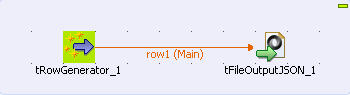
This is a 2 component scenario in which a
tRowGenerator component generates random data which a tFileOutputJSON component then writes to a JSON structured
output file.
-
Drop a tRowGenerator and a tFileOutputJSON component onto the workspace from the
Palette. -
Link the components using a Row > Main
connection. -
Double click tRowGenerator to define
its Basic Settings properties in the
Component view.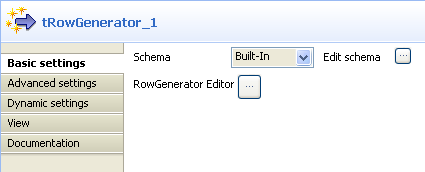
-
Click […] next to Edit Schema to display the corresponding dialog box and define
the schema.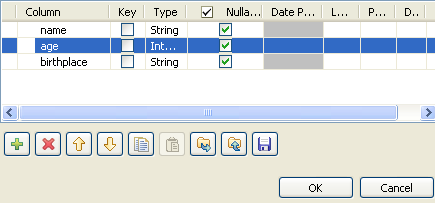
-
Click [+] to add the number of columns
desired. -
Under Columns type in the column
names. -
Under Type, select the data type from the
list. -
Click OK to close the dialog box.
-
Click [+] next to RowGenerator Editor to open the corresponding dialog box.
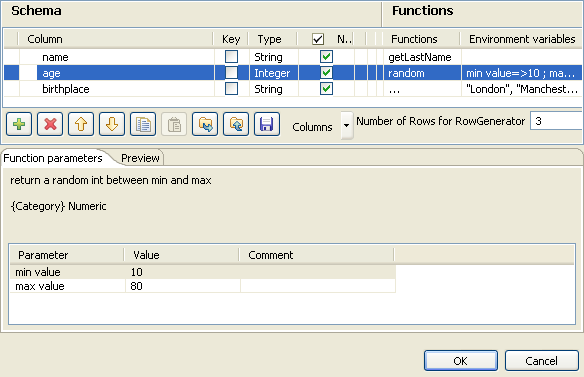
-
Under Functions, select pre-defined functions
for the columns, if required, or select […]
to set customized function parameters in the Function
parameters tab. -
Enter the number of rows to be generated in the corresponding field.
-
Click OK to close the dialog box.
-
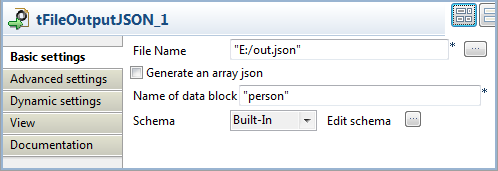
Click tFileOutputJSON to set its Basic Settings properties in the Component view.
-
Click […] to browse to where you want the
output JSON file to be generated and enter the file name. -
Enter a name for the data block to be generated in the corresponding field,
between double quotation marks. -
Select Built-In as the Schema type.
-
Click Sync Columns to retrieve the schema
from the preceding component. -
Press F6 to run the Job.
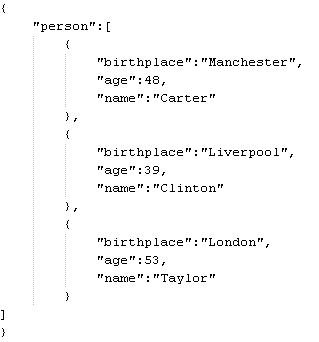
The data from the input schema is written in a JSON structured data block in the
output file.