Scenario 2: Setting up the assertive condition for a Job execution
This scenario describes how to set up an assertive condition in tAssert in order to evaluate that a Job execution succeeds or not.
Moreover, you can also find out how the two different evaluation results display and the
way to read them. Apart from tAssert, the scenario uses
the following components as well:
-
tFileInputDelimited and tFileOutputDelimited. The two components compose the main Job of
which the execution status is evaluated. For the detailed information on the two
components, see tFileInputDelimited and tFileOutputDelimited. -
tFileCompare. It realizes the comparison
between the output file of the main Job and a standard reference file. The
comparative result is evaluated by tAssert
against the assertive condition set up in its settings. For more detailed
information on tFileCompare, see tFileCompare. -
tAssertCatcher. It captures the evaluation
generated by tAssert. For more information on
tAssertCatcher, see tAssertCatcher. -
tLogRow. It allows you to read the captured
evaluation. For more information on tLogRow,
see tLogRow.
First proceed as follows to design the main Job:
-
Prepare a delimited .csv file as the source file read by
your main Job. -
Edit two rows in the delimited file. The contents you edit are not important,
so feel free to simplify them. -
Name it source.csv.
-
In
Talend Studio
, create a new job
JobAssertion. -
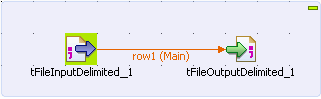
Place tFileInputDelimited and tFileOutputDelimited on the workspace.
-
Connect them with a Row Main link to create
the main Job.
-
Double-click tFileInputDelimited to open its
Component view. -
In the File Name field of the Component view, fill in the path or browse to
source.csv.

-
Still in the Component view, set Property Type to Built-In and click

next to Edit schema to
define the data to pass on to tFileOutputDelimited. In the scenario, define the data presented
in source.csv you created.
For more information about schema types, see
Talend Studio User Guide.
-
Define the other parameters in the corresponding fields according to
source.csv you created. -
Double-click tFileOutputDelimited to open its
Component view. -
In the File Name field of the Component view, fill in or browse to specify the path
to the output file, leaving the other fields as they are by default.

-
Press F6 to execute the main Job. It reads
source.csv, pass the data to
tFileOutputDelimited and output an delimited file,
out.csv.
Then contine to edit the Job to see how tAssert
evaluates the execution status of the main Job.
-
Rename out.csv as reference.csv.This
file is used as the expected result the main Job should output. -
Place tFileCompare, tAssert and tLogRow on the
workspace. -
Connect them with Row Main link.
-
Connect tFileInputDelimited to tFileCompare with OnSubjobOk link.

-
Double-click tFileCompare to open its
Component view. -
In the Component view, fill in the
corresponding file paths in the File to compare
field and the Reference file field, leaving the
other fields as default.

For more information on the tFileCompare component,
see tFileCompare.
-
Then click tAssert and click the Component tab on the lower side of the
workspace.

-
In the Component view, edit the assertion
row2.differ==0in the expression field and the descriptive message of the assertion in
description field.
In the expression field, row2 is the
data flow transmissing from tFileCompare to tAssert, differ is one of the columns of the
tFileCompare schema and presents whether the
compared files are identical, and 0 means no difference is detected between
the out.csv and reference.csv by tFileCompare. Hence when the compared files are identical,
the assertive condition is thus fulfilled, tAssert
concludes that the main Job succeeds; otherwise, it concludes failure.
The differ column is in the read-only tFileCompare schema. For more information on its schema, see tFileCompare.
-
Press F6 to execute the Job.
-
Check the result presented in the Run
view
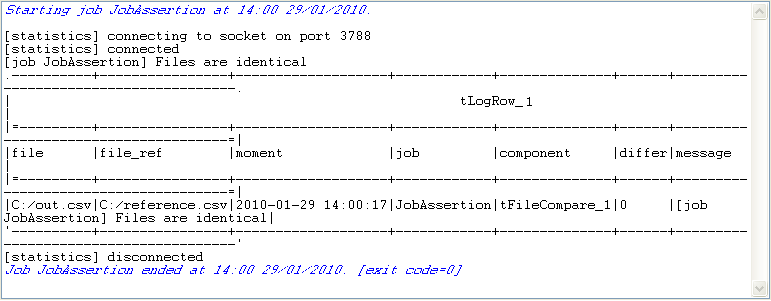
The console shows the comparison result of tFileCompare: Files are identical. But you find nowhere the
evaluation result of tAssert.
So you need tAssertCatcher to capture the
evaluation.
-
Place tAssertCatcher and tLogRow on the workspace.
-
Connect them with Row Main link.

-
Use the default configuration in the Component view of tAssertCatcher.

-
Press F6 to execute the Job.
-
Check the result presented in the Run view.
You will see the Job status information is added in:.122010-01-29 15:37:33|fAvAzH|TASSERT|JobAssertion|java|tAssert_1|Ok|--|The output file should be identical with the reference file
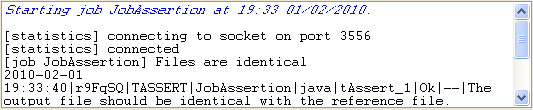
The descriptive information on JobAssertion in the console is
organized according to the tAssertCatcher schema. This
schema includes, in the following order, the execution time, the process ID, the project
name, the Job name, the code language, the evaluation origin, the evaluation result,
detailed information of the evaluation, descriptive message of the assertion. For more
information on the schema of tAssertCatcher, see tAssertCatcher.
The console indicates that the execution status of Job
JobAssertion is Ok. In addition to the
evalution, you can still see other descriptive information about
JobAssertion including the descriptive message you have edited
in the Basic settings of tAssert.
Then you will perform operations to make the main Job fail to generate the expected
file. To do so, proceed as follows in the same Job you have executed:
-
Delete a row in reference.csv.
-
Press F6 to execute the Job again.
-
Check the result presented in Run
view..1232010-02-01 19:47:43|GeHJNO|TASSERT|JobAssertion|tAssert_1|Failed|Testlogically failed|The output file should be identical with the referencefile

The console shows that the execution status of the main Job is
Failed. The detailed explanation for this status is closely
behind it, reading Test logically failed.
You can thus get a basic idea about your present Job status: it fails to generate the
expected file because of a logical failure. This logical failure could come from a
logical mistake during the Job design.
The status and its explanatory information are presented respectively in the
status and the substatus columns of the
tAssertCatcher schema. For more information on the
columns, see tAssertCatcher.