tMatchIndexPredict
Compares a new data set with a lookup data set stored in ElasticSearch, using
tMatchIndex. tMatchIndexPredict outputs unique
records and suspect duplicates in separate files.
In the potential duplicates output, each record contains the fields from the source
records and the fields from the potentially matching lookup records.
The tMatchIndexPredict component
supports Elasticsearch versions up to 6.4.2 and Apache Spark from version 2.0.0.
tMatchIndexPredict properties for Apache Spark Batch
These properties are used to configure tMatchIndexPredict
running in the Spark Batch Job framework.
The Spark Batch
tMatchIndexPredict component belongs to the Data Quality family.
The component in this framework is available in all Talend Platform products with Big Data and in Talend Data Fabric.
Basic settings
|
Define a storage configuration component |
Select the configuration component to be used to provide the configuration If you leave this check box clear, the target file system is the local The configuration component to be used must be present in the same Job. |
|
Schema and Edit Schema |
A schema is a row description. It defines the number of fields Click Sync Select the Schema type:
Click Edit
You need to manually edit the output schema to add the necessary columns The output schema of this component contains read-only columns: LABEL: used only with the Possible CONFIDENCE_SCORE: indicates the |
|
ElasticSearch configuration |
Nodes: Enter the location
Index: Enter the name of the ElasticSearch index Note that the Talend components for Spark Jobs support the |
|
Models |
Pairing model folder: Set the path to
Matching model
location: Select from the list where to get the model file generated by the classification Job with the tMatchModel component:
Matching model
No-match label: Enter the label used If you want to store the model in a specific file system, for The button for browsing does not work with the Spark tHDFSConfiguration |
Advanced settings
|
Maximum ElasticSearch bulk size |
Maximum number of records for bulk tMatchIndexPredict uses bulk mode to process data so that big It is recommended to leave the default value. If the Job |
Usage
|
Usage rule |
This component is used as an intermediate step. This component, along with the Spark Batch component Palette it belongs to, |
|
Spark Connection |
In the Spark
Configuration tab in the Run view, define the connection to a given Spark cluster for the whole Job. In addition, since the Job expects its dependent jar files for execution, you must specify the directory in the file system to which these jar files are transferred so that Spark can access these files:
This connection is effective on a per-Job basis. |
Doing continuous matching using tMatchIndexPredict
This scenario applies only to subscription-based Talend Platform products with Big Data and Talend Data Fabric.
After indexing lookup data in Elasticsearch using tMatchIndex, you do
not need to restart the matching process from scratch. The
tMatchIndexPredict component compares new data records with the
lookup stored in ElasticSearch.
In this example, a list of early childhood education centers in Chicago coming from ten
different source has been cleaned, deduplicated and indexed in Elasticsearch. You want
to match new records which contain information about early childhood education centers
in Chicago against the reference data set stored in Elasticsearch.
tMatchIndexPredict uses pairing and matching models to group together
records from the input data and the matching records from the reference data set indexed
in Elasticsearch and label the suspect pairs.
tMatchIndexPredict outputs potential duplicates and unique records in
separate files.
-
You generated a pairing model.
You can find an example of how to generate a pairing
model on Talend Help Center (https://help.talend.com). -
You generated a matching model.
You can find an example of how to generate a
matching model on Talend Help Center (https://help.talend.com). -
Clean and deduplicated data has been indexed in Elasticsearch to match
against new data records and determine whether they are unique records or
suspect duplicates.You can find an example of how to index clean and
deduplicated data in ElasticSearch on Talend Help Center (https://help.talend.com). -
The Elasticsearch search cluster must be running ElasticSearch 5+.
Setting up the Job
-
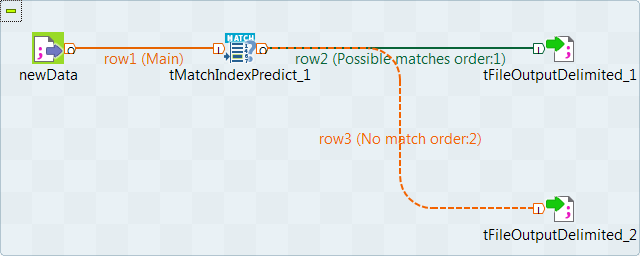
Drop the following components from the Palette onto the
design workspace: tFileInputDelimited,
tMatchIndexPredict and two
tFileOutputDelimited components. -
Connect tFileInputDelimited to the
tMatchIndexPredict using a Row > Main connection. -
Connect tMatchIndexPredict to the first
tFileOutputDelimited using a Row > Possible
matches connection. -
Connect tMatchIndexPredict to the second
tFileOutputDelimited using a Row > No
match connection.
Selecting the Spark mode
Depending on the Spark cluster to be used, select a Spark mode for your Job.
The Spark documentation provides an exhaustive list of Spark properties and
their default values at Spark Configuration. A Spark Job designed in the Studio uses
this default configuration except for the properties you explicitly defined in the
Spark Configuration tab or the components
used in your Job.
-
Click Run to open its view and then click the
Spark Configuration tab to display its view
for configuring the Spark connection. -
Select the Use local mode check box to test your Job locally.
In the local mode, the Studio builds the Spark environment in itself on the fly in order to
run the Job in. Each processor of the local machine is used as a Spark
worker to perform the computations.In this mode, your local file system is used; therefore, deactivate the
configuration components such as tS3Configuration or
tHDFSConfiguration that provides connection
information to a remote file system, if you have placed these components
in your Job.You can launch
your Job without any further configuration. -
Clear the Use local mode check box to display the
list of the available Hadoop distributions and from this list, select
the distribution corresponding to your Spark cluster to be used.This distribution could be:-
For this distribution, Talend supports:
-
Yarn client
-
Yarn cluster
-
-
For this distribution, Talend supports:
-
Standalone
-
Yarn client
-
Yarn cluster
-
-
For this distribution, Talend supports:
-
Yarn client
-
-
For this distribution, Talend supports:
-
Yarn client
-
Yarn cluster
-
-
For this distribution, Talend supports:
-
Standalone
-
Yarn client
-
Yarn cluster
-
-
For this distribution, Talend supports:
-
Yarn cluster
-
-
Cloudera Altus
For this distribution, Talend supports:-
Yarn cluster
Your Altus cluster should run on the following Cloud
providers:-
Azure
The support for Altus on Azure is a technical
preview feature. -
AWS
-
-
As a Job relies on Avro to move data among its components, it is recommended to set your
cluster to use Kryo to handle the Avro types. This not only helps avoid
this Avro known issue but also
brings inherent preformance gains. The Spark property to be set in your
cluster is:
1spark.serializer org.apache.spark.serializer.KryoSerializerIf you cannot find the distribution corresponding to yours from this
drop-down list, this means the distribution you want to connect to is not officially
supported by
Talend
. In this situation, you can select Custom, then select the Spark
version of the cluster to be connected and click the
[+] button to display the dialog box in which you can
alternatively:-
Select Import from existing
version to import an officially supported distribution as base
and then add other required jar files which the base distribution does not
provide. -
Select Import from zip to
import the configuration zip for the custom distribution to be used. This zip
file should contain the libraries of the different Hadoop/Spark elements and the
index file of these libraries.In
Talend
Exchange, members of
Talend
community have shared some ready-for-use configuration zip files
which you can download from this Hadoop configuration
list and directly use them in your connection accordingly. However, because of
the ongoing evolution of the different Hadoop-related projects, you might not be
able to find the configuration zip corresponding to your distribution from this
list; then it is recommended to use the Import from
existing version option to take an existing distribution as base
to add the jars required by your distribution.Note that custom versions are not officially supported by
Talend
.
Talend
and its community provide you with the opportunity to connect to
custom versions from the Studio but cannot guarantee that the configuration of
whichever version you choose will be easy. As such, you should only attempt to
set up such a connection if you have sufficient Hadoop and Spark experience to
handle any issues on your own.
For a step-by-step example about how to connect to a custom
distribution and share this connection, see Hortonworks.
Configuring the connection to the file system to be used by Spark
Skip this section if you are using Google Dataproc or HDInsight, as for these two
distributions, this connection is configured in the Spark
configuration tab.
-
Double-click tHDFSConfiguration to open its Component view.
Spark uses this component to connect to the HDFS system to which the jar
files dependent on the Job are transferred. -
If you have defined the HDFS connection metadata under the Hadoop
cluster node in Repository, select
Repository from the Property
type drop-down list and then click the
[…] button to select the HDFS connection you have
defined from the Repository content wizard.For further information about setting up a reusable
HDFS connection, search for centralizing HDFS metadata on Talend Help Center
(https://help.talend.com).If you complete this step, you can skip the following steps about configuring
tHDFSConfiguration because all the required fields
should have been filled automatically. -
In the Version area, select
the Hadoop distribution you need to connect to and its version. -
In the NameNode URI field,
enter the location of the machine hosting the NameNode service of the cluster.
If you are using WebHDFS, the location should be
webhdfs://masternode:portnumber; WebHDFS with SSL is not
supported yet. -
In the Username field, enter
the authentication information used to connect to the HDFS system to be used.
Note that the user name must be the same as you have put in the Spark configuration tab.
Configuring the input component
-
Double-click the tFileInputDelimited component to open
its Basic settings view.
-
Click the […] button next to Edit
schema and use the [+] button in the
dialog box to add String type columns: Original_Id,
Source, Site_name and
Address. -
Click OK in the dialog box and accept to propagate the
changes when prompted. -
In the Folder/File field, set the path to the input
file. -
Set the row and field separators in the corresponding fields and the header and
footer, if any.
Configuring the tMatchIndexPredict component
-
Double-click the tMatchIndexPredict component to open
its Basic settings view.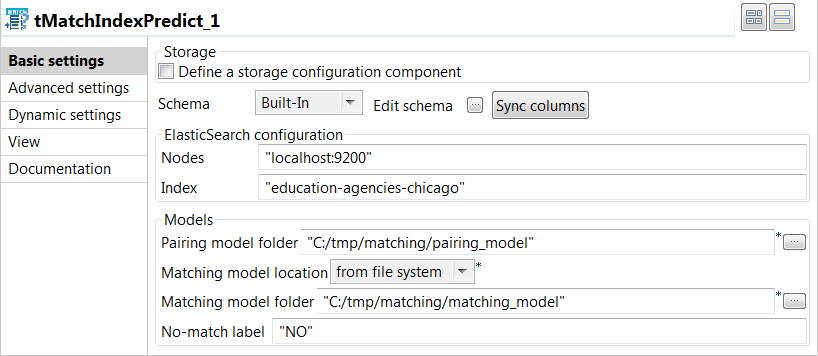
-
In the ElasticSearch configuration area, enter the
location of the cluster hosting the Elasticsearch system to be used in the
Nodes field, for example:"localhost:9200"
-
In the ElasticSearch configuration area, enter the name
of the Elasticsearch index where the reference data is stored in the
Index field, for example:"education-agencies-chicago"
-
In the Models area, set the information about the
pairing and matching models:-
Set the path to the folder containing the model files generated by the
tMatchPairing component in the Pairing
model folder field. -
Select from the Matching model location list
where to get the model file generated by the
tMatchModel component.In this example, select from file system
because the classification Job using the
tMatchModel component is not integrated to
the current Job. -
Set the path to the folder containing the model file generated by the
tMatchModel component in the
Matching model folder field. -
Set the label used for the unique records output in the
No-match label field.
-
Set the path to the folder containing the model files generated by the
Computing suspect pairs and unique rows
-
Double-click the first tFileOutputDelimited component to
display the Basic settings view and define the component
properties.You have already accepted to propagate the schema to the output components
when you defined the input component. -
Clear the Define a storage configuration component check
box to use the local system as your target file system. -
Click the […] button next to Edit
schema and use the [+] button in the
dialog box to add the columns from the reference data set to the schema.You must add _ref at the end of the column names
to be added to the suspect duplicates output. In this example:
Original_id_ref,
Source_ref,
Site_name_ref and
Address_ref.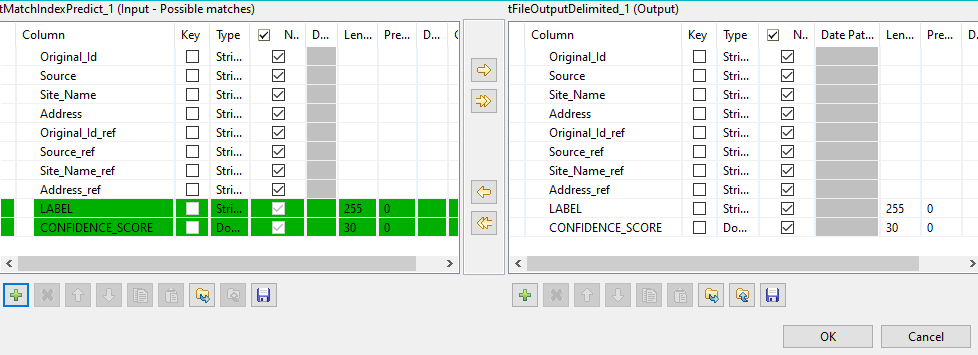
-
In the Folder field, set the path to the folder which
will hold the output data. -
From the Action list, select the operation for writing
data:- Select Create when you run the Job for the first
time. - Select Overwrite to replace the file every time
you run the Job.
- Select Create when you run the Job for the first
- Set the row and field separators in the corresponding fields.
-
Select the Merge results to single file check box, and
in the Merge file path field set the path where to output
the file of the suspect record pairs. -
Double-click the second tFileOutputDelimited component
and define the component properties in the Basic settings
view, as you do with the first component.This component creates the file which holds the unique rows generated from the
input data. -
Press F6 to save and execute the
Job.
records from the input data and the matching records from the reference data set
indexed in Elasticsearch and labels the suspect pairs. These appear in the same
row.

another file.

You can now clean and deduplicate the unique rows and use
tMatchIndex to add them to the reference data set stored in
Elasticsearch.