tCreateTable
tCreateTable Standard properties
These properties are used to configure tCreateTable running in
the Standard Job framework.
The Standard
tCreateTable component belongs to the Databases family.
The component in this framework is generally available.
Basic settings
|
Database Type |
Select the type of the database. The connection properties may differ slightly |
|
Property Type |
Select the way the connection details
|
|
Use an existing connection |
Select this check box and in the Component When a Job contains the parent Job and the child Job, if you need to share an existing
For an example about how to share a database connection across Job levels, see |
|
DB Version |
Select the version of the database. |
|
Host |
The IP address or hostname of the database. |
|
Port |
The listening port number of the database. |
|
Database name |
The name of the database. |
|
Schema |
The name of the database schema. This property is available for DB2, Exasol, Greenplum, |
|
Access File |
The path to the Access database file. |
|
Firebird File |
The path to the Firebird database file. |
|
Interbase File |
The path to the Interbase database file. |
|
SQLite File |
The path to the SQLite database file. |
|
Running Mode |
Select the Server Mode that corresponds to your database setup. This property is available only for the HSQLDb database type. |
|
Use TLS/SSL Sockets |
Select this check box to enable the security mode if required. This property is available only for the HSQLDb database type. |
|
DB Alias |
The name of the database. This property is available only for the HSQLDb database type. |
|
Framework Type |
Select the framework type for your database. This property is available only for the JavaDb database type. |
|
DB Root Path |
Browse to your database root. This property is available only for the JavaDb database type. |
|
ODBC Name |
The name of the ODBC database. |
|
Connection Type |
Select the Oracle database connection type.
|
|
Username and Password |
The database user authentication data. To enter the password, click the […] button next to the |
|
Table name |
The name of the table to be created. |
|
Table Action |
Select the action to be carried out on the table.
|
|
Case Sensitive |
Select this check box to make the table/column name case sensitive. This property is available only for the HSQLDb database type. |
|
Temporary Table |
Select this check box if you want to save the created table This property is available only for the MySQL database type. |
|
Create |
Select the type of the table to be created.
This property is available only for the Teradata database type. |
|
Schema and |
A schema is a row description. It defines the number of fields (columns) to
When the schema to be reused has default values that are integers or You can find more details about how to verify default Click Edit schema to make changes to the schema.
|
Advanced settings
|
Additional JDBC Parameters |
Specify additional connection properties for the DB connection you are This property is available for the AS/400 and MSSQL Server database |
|
Create projection |
Select this check box to create a projection. This property is available only for the Vertica database type. |
|
tStatCatcher Statistics |
Select this check box to gather the Job processing metadata at the Job level |
Global Variables
|
QUERY |
The query statement being processed. This is a Flow variable and it returns a |
|
ERROR_MESSAGE |
The error message generated by the component when an error occurs. This is an After |
Usage
|
Usage rule |
This component can be used as a standalone component of a Job or Subjob. |
Scenario: Creating new table in a Mysql Database
The Job described below aims at creating a table in a database, made of a dummy schema taken from a delimited file schema
stored in the Repository. This Job is composed of a single
component.

Procedure
-
Drop a tCreateTable component from the
Databases family in the Palette to the design workspace. -
In the Basic settings view, and from the
Database Type list, select Mysql for this
scenario.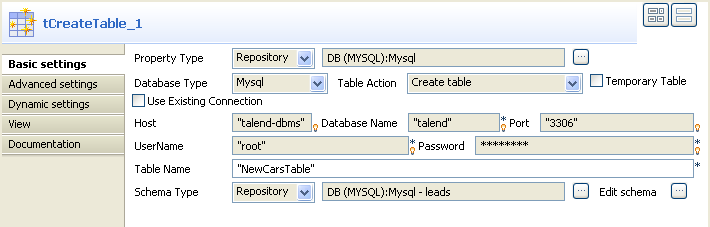
- From the Table Action list, select Create table.
-
Select the Use Existing Connection check box
only if you are using a dedicated DB connection component tMysqlConnection. In this example, we won’t use this
option. -
In the Property type field, select Repository so that the connection fields that
follow are automatically filled in. If you have not defined your DB
connection metadata in the DB connection
directory under the Metadata node, fill in
the details manually as Built-in
. -
In the Table Name field, fill in a name for
the table to be created. -
If you want to retrieve the Schema from the
Metadata (it doesn’t need to be a DB connection Schema metadata), select
Repository then the relevant entry. -
In any case (Built-in or Repository)
click Edit Schema to check the data type
mappingClick Edit Schema
to define the data structure.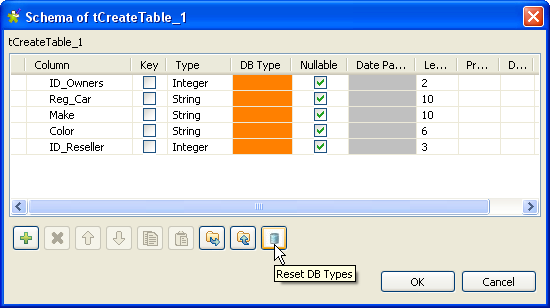
-
Click the Reset DB Types button in case the
DB type column is empty or shows discrepancies (marked in orange). This allows
you to map any data type to the relevant DB data type. Then, click OK to validate your changes and close the dialog
box. -
Save your Job and press F6 to execute
it.
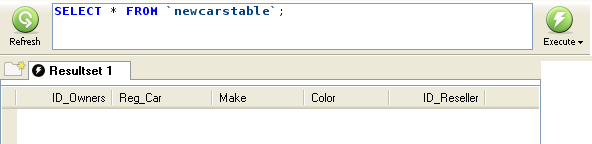
The table is created empty but with all columns defined in the Schema.