tJMSOutput
Creates an interface between a Java application and a Message-Oriented middle ware
system.
Using a JMS server, tJMSOutput makes it possible to
have loosely coupled, reliable, and asynchronous communication between different
components in a distributed application.
Depending on the Talend solution you
are using, this component can be used in one, some or all of the following Job
frameworks:
-
Standard: see tJMSOutput Standard properties.
-
Spark Streaming: see tJMSOutput properties for Apache Spark Streaming.
tJMSOutput Standard properties
These properties are used to configure tJMSOutput running in the Standard Job framework.
The Standard
tJMSOutput component belongs to the Internet family.
The component in this framework is generally available.
Basic settings
|
Module List |
Select the library to be used from the list. |
|
Context Provider |
Type in the context URL, for example com.tibco.tibjms.naming.TibjmsInitialContextFactory. |
|
Server URL |
Type in the server URL, respecting the syntax, for example tibjmsnaming://localhost:7222. |
|
Connection Factory JDNI Name |
Type in the JDNI name. |
|
Use Specified User Identity |
If you have to log in, select the check box and type in your login To enter the password, click the […] button next to the |
|
Message Type |
Select the message type, either: Topic or Queue. |
|
To |
Type in the message target, as expected by the server. |
|
Processing Mode |
Select the processing mode for the messages. Raw Message or Message Content |
|
Schema and Edit |
A schema is a row description, it defines the number of fields that will be processed The tJMSOutput schema is |
Advanced settings
|
Delivery Mode |
Select a delivery mode from this list to ensure the quality of
Not Persistent: This mode allows
Persistent: This mode ensures the |
|
Properties |
Click the plus button underneath the table to add lines that |
|
tStatCatcher Statistics |
Select this check box to gather the Job processing metadata at a |
Global Variables
|
Global Variables |
ERROR_MESSAGE: the error message generated by the
NB_LINE: the number of rows read by an input component or A Flow variable functions during the execution of a component while an After variable To fill up a field or expression with a variable, press Ctrl + For further information about variables, see |
Usage
|
Usage rule |
This component is generally used as an output component. It must |
|
Limitation |
Make sure the JMS server is launched. Due to license incompatibility, one or more JARs required to use this component are not |
Scenario: Enqueuing/dequeuing a message on the ActiveMQ server
In this scenario, JMSOutput sends a message to a
queue on the ActiveMQ server, which is then retrieved by JMSInput. This message is finally displayed on the console via tLogRow.
Linking the components
-
Drop tFixedFlowInput, JMSOutput, JMSInput, and tLogRow onto
the workspace. -
Link tFixedFlowInput to JMSOutput using a Row > Main
connection. - Link tFixedFlowInput to JMSInput using the OnSubjobOk trigger.
-
Link JMSInput to tLogRow using a Row >
Main connection.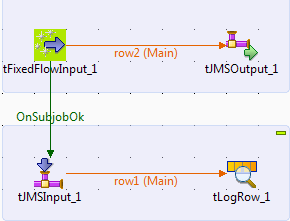
Configuring the components
-
Double-click tFixedFlowInput to open its
Basic settings view.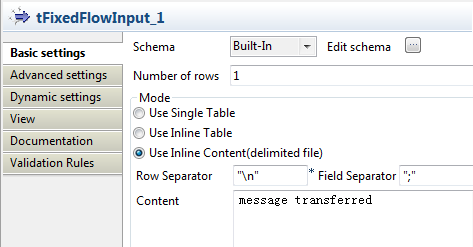 Select Use Inline Content (delimited
file) in the Mode
area.In the Content field, enter the content
of the message to be sent to the ActiveMQ server:1message transferred -
Click the Edit schema button to open the
schema editor.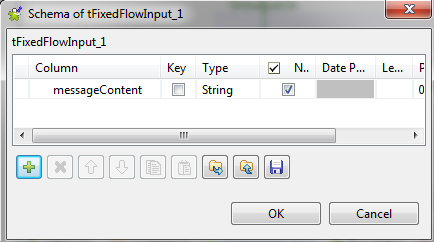
-
Click the [+] button to add one column,
namely messageContent, of the string
type.Click OK to validate the setup and close
the editor. -
Now appears the pop-up box that asks for schema propogation.
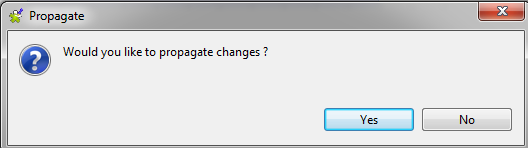 Click Yes to propagate the schema to the subsequent
component. -
Double-click JMSOutput to open its
Basic settings view.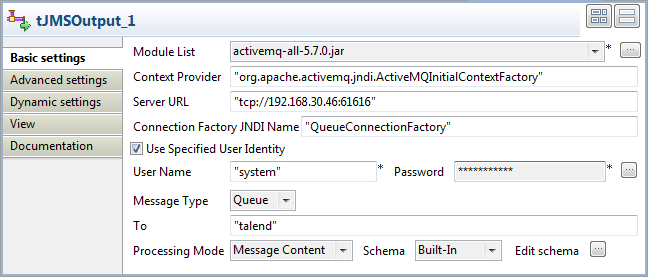
-
In the Module List list, select the
library to be used, namely the activemq
jar in this case. -
In the Context Provider field, enter the
context URI, “org.apache.activemq.jndi.ActiveMQInitialContextFactory” in
this case. -
In the Server URL field, enter the
ActiveMQ Server URI. -
In the Connection Factory JDNI Name
field, enter the JDNI name, “QueueConnectionFactory” in this case. -
Select the Use Specified User Identity
check box to show the User Name and
Password fields, where you can enter
the authentication data. - In the Message type list, select Queue.
- In the Processing Mode list, select Message Content.
-
Perform the same setup in the Basic
settings view of JMSInput.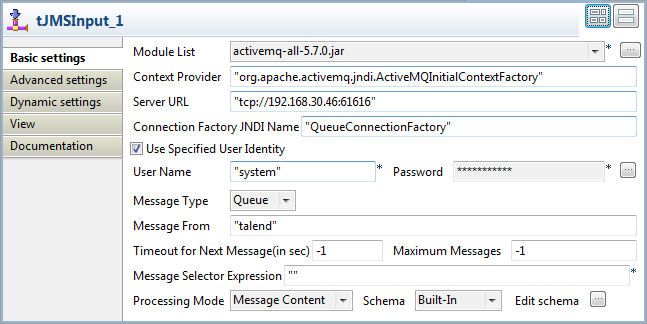
Executing the Job
- Press Ctrl + S to save the Job.
-
Press F6 to run the Job. Note that the
ActiveMQ server has started at tcp://192.168.30.46:61616.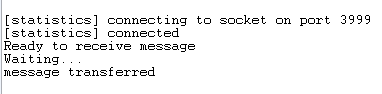 As shown above, the message is correctly transferred and displayed.
Related scenarios
For related scenarios, see Scenario 1: Asynchronous communication via a MOM server and Scenario 2: Transmitting XML files via a MOM server.
tJMSOutput properties for Apache Spark Streaming
These properties are used to configure tJMSOutput running in the Spark Streaming Job framework.
The Spark Streaming
tJMSOutput component belongs to the Messaging family.
The streaming version of this component is available in the Palette of the Studio only if you have subscribed to Talend Real-time Big Data Platform or Talend Data
Fabric.
Basic settings
|
Module List |
Select the library to be used from the list. |
|
Context Provider |
Type in the context URL, for example com.tibco.tibjms.naming.TibjmsInitialContextFactory. |
|
Server URL |
Type in the server URL, respecting the syntax, for example tibjmsnaming://localhost:7222. |
|
Connection Factory JDNI Name |
Type in the JDNI name. |
|
Use Specified User Identity |
If you have to log in, select the check box and type in your login and To enter the password, click the […] button next to the |
|
Message Type |
Select the message type, either: Topic or Queue. |
|
To |
Type in the message target, as expected by the server. |
|
Processing Mode |
Select the processing mode for the messages. Raw Message or Message Content |
|
Schema and Edit |
A schema is a row description, it defines the number of fields that The tJMSOutput schema is read-only. Since the message column requires |
Advanced settings
|
Delivery Mode |
Select a delivery mode from this list to ensure the quality of data
Not Persistent: This mode allows data
Persistent: This mode ensures the |
|
Use SSL/TLS |
Select this check box to enable the SSL or TLS encrypted connection. Then you need to use the tSetKeystore For further information about tSetKeystore, see tSetKeystore. |
|
Properties |
Click the plus button underneath the table to add lines that contains |
|
Connection pool |
In this area, you configure, for each Spark executor, the connection pool used to control
|
|
Evict connections |
Select this check box to define criteria to destroy connections in the connection pool. The
|
Usage
|
Usage rule |
This component is used as an end component and requires an input link. This component, along with the Spark Streaming component Palette it belongs to, appears Note that in this documentation, unless otherwise explicitly stated, a scenario presents |
|
Spark Connection |
You need to use the Spark Configuration tab in
the Run view to define the connection to a given Spark cluster for the whole Job. In addition, since the Job expects its dependent jar files for execution, you must specify the directory in the file system to which these jar files are transferred so that Spark can access these files:
This connection is effective on a per-Job basis. |
Related scenarios
No scenario is available for the Spark Streaming version of this component
yet.