tMDMBulkLoad
Uses bulk mode to write XML structured master data into the MDM
server.
Note that tMDMBulkLoad does not generate journal entries as part
of the bulk load.
tMDMBulkLoad Standard properties
These properties are used to configure tMDMBulkLoad running in
the Standard Job framework.
The Standard
tMDMBulkLoad component belongs to the Talend MDM
family.
The component in this framework is generally available.
Basic settings
|
Schema and Edit Schema |
A schema is a row description, it defines the number of Click Edit schema to make changes to the schema.
Click Sync columns |
|
|
Built-in: You create the schema |
|
|
Repository: You have already |
|
XML field |
Select the name of the column in which you want to write |
|
URL |
Type in the URL required to access the MDM server. |
|
Username and Password |
Type in the user authentication data for the MDM To enter the password, click the […] button next to the |
|
Data Model |
Type in the name of the data model against which the data |
|
Data Container |
Type in the name of the data container where you want to |
|
Entity |
Type in the name of the entity that holds the data |
|
Type |
Select Master or |
|
Validate |
Select this check box to validate the data you want to Note that for the PROVISIONING Data Container, validation For more information on how to set the validation rules, Warning:
If you need faster loading performance, do not |
|
Generate ID |
Select this check box to generate an ID number for all of Warning:
If you need faster loading performance, do not |
|
Insert only |
Select this check box to skip the step of checking However, before using this option, you need to make sure |
|
Commit size |
Type in the row count of each batch to be written onto |
|
Use Transaction |
Select this check box then, in the Component List, click an existing |
Advanced settings
|
tStatCatcher Statistics |
Select this check box to gather the processing metadata |
Global Variables
|
Global Variables |
ERROR_MESSAGE: the error message generated by the A Flow variable functions during the execution of a component while an After variable To fill up a field or expression with a variable, press Ctrl + For further information about variables, see |
Usage
|
Usage rule |
This component needs always an incoming link to offer XML You can increase the timeout values for a Job using this If you use a Job with the component tMDMBulkLoad to |
|
Connections |
Outgoing links (from this component to another): Row: Main,
Trigger: Run if; On Component Ok; Incoming links (from one component to this one): Row: Main
Trigger: Run if, On Component Ok, For further information regarding connections, see |
Scenario: Loading records into a business entity
This scenario applies only to a Talend solution with MDM.
This scenario describes a Job that loads records into the ProductFamily
business entity defined by a specific data model in the MDM hub.
Prerequisites:
-
The Product data container: This data container is used to
separate the product master data domain from the other master data domains. -
The Product data model: This data model is used to define the
attributes, validation rules, user access rights and relationships of the entities
of interest. Thus it defines the attributes of the
ProductFamily business entity. -
The ProductFamily business entity: This business entity
contains Id, Name, both defined by the
Product data model.
For further information about how to create a data container, a data model, and a business
entity along with its attributes, see the MDM part of your
Talend StudioMDM Studio User
Guide.
The Job in this scenario uses three components.

-
tFixedFlowInput: This component generates the
records to be loaded into the ProductFamily business entity. In
a real-life project, your records to be loaded are often voluminous and stored in a
specific file. However, to simplify the replication of this scenario, this Job uses
tFixedFlowInput to generate four sample
records. -
tWriteXMLField: This component transforms the
incoming data into XML structure. -
tMDMBulkLoad: This component writes the incoming
data into the ProductFamily business entity in bulk mode,
generating ID value for each of the record data.
Dropping and linking components
-
Drop tFixedFlowInput, tWriteXMLField and tMDMBulkLoad
onto the design workspace. - Connect tFixedFlowInput to tWriteXMLField using the Main link.
-
Do the same to connect tWriteXMLField to
tMDMBulkLoad.
Configuring the components
Generating the data records to be loaded into a business entity
-
Double click tFixedFlowInput to open its
Basic settings view.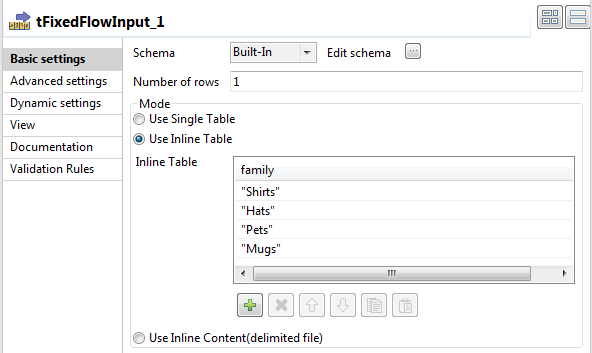
-
Click the […] button next to Edit schema to open the schema editor.
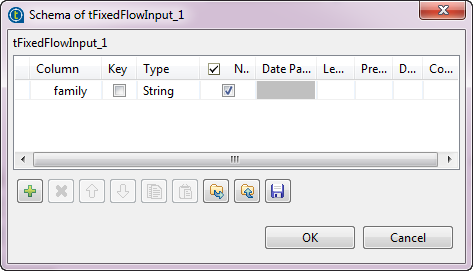
-
In the schema editor, click the [+] button to
add one row. -
Name the new column, family in this
example. - Click OK to close the schema editor.
-
In the Mode area of the Basic settings view, select the Use Inline
Table option. -
Click the [+] button four times to add four
rows in the table. -
In the inline table, click each of the added rows and then enter their names
between quotes: Shirts, Hats,
Pets, and Mugs.
Transforming the incoming data into XML structure
-
Double-click tWriteXMLField to open its
Basic settings view.
-
Click the […] button next to the Edit schema field to open the schema editor and then
add a row by clicking the [+] button.
-
Click the newly added row to the right view of the schema editor and enter the
name of the output column where you want to write the XML content. It is
xmlRecord in this example. -
Click OK to validate this output schema and
close the schema editor.In the dialog box that pops up, click OK to
propagate this schema to the following component. -
In the Basic settings view, click the
[…] button next to Configure XML Tree to open the dialog box where you can create
the XML structure.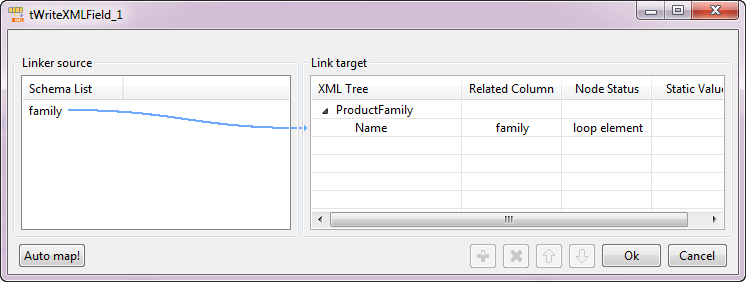
-
In the Link Target area, click
rootTag and rename it to
ProductFamily, which is the name of the business entity
used in this scenario. -
In the Linker source area, drop
family to ProductFamily in the
Link target area.A dialog box pops up, asking you to select one operation.Select Create as sub-element of target node
to create a sub-element of the ProductFamily node. Then,
the family element appears under the
ProductFamily node.Right-click the Name node and select from the contextual
menu Set As Loop Element. -
In the Link target area, click the family node and rename it to Name, which is one of the attributes of the
ProductFamily business entity.Click OK to validate the XML structure you
defined.
Writing the incoming data into a business entity
-
Double-click tMDMBulkLoad to open its
Basic settings view.
-
Select xmlRecord from the XML
Field drop-down list. -
In the URL field, enter the bulk loader URL
between quotes. For example,
http://localhost:8180/talendmdm/services/bulkload. -
In the Username and Password fields, enter your login and password to connect to the
MDM server. -
In the Data Model and the Data Container fields, enter the names corresponding
to the data model and the data container you need to use. Both are
Product for this scenario.In the Entity field, enter the name of the
business entity into which you want to load the records. In this example, enter
ProductFamily. -
Select the Generate ID check box in order to
generate ID values for the records to be loaded. -
In the Commit size field, type in the batch
size to be written into the MDM hub in bulk mode.
Saving and executing the Job
- Press Ctrl+S to save your Job.
-
Execute the Job by pressing F6 or clicking
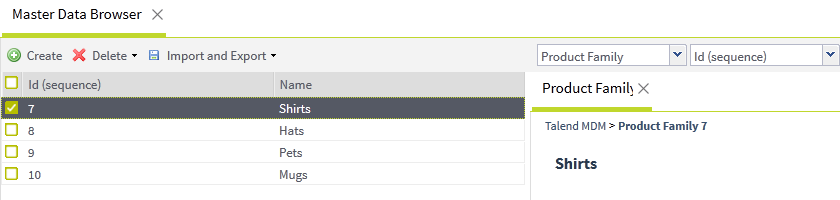
Run on the Run tab.Log into your
Talend MDM Web UI
to check the newly
added records for the ProductFamily business entity.