tMSAXOutput
tMSAXOutput Standard properties
These properties are used to configure tMSAXOutput running in the Standard Job framework.
The Standard
tMSAXOutput component belongs to the Business family.
The component in this framework is generally available.
Basic settings
|
Property type |
Either Built-in or Repository. |
|
|
Built-in: No property data stored |
|
|
Repository: Select the Repository |
|
Version |
Select the type of the business connector to be used. The type may be:
|
Advanced settings
|
tStatCatcher Statistics |
Select this check box to gather the Job processing metadata at a |
Global Variables
|
Global Variables |
NB_LINE: the number of rows read by an input component or
NB_LINE_UPDATED: the number of rows updated. This is an
NB_LINE_INSERTED: the number of rows inserted. This is an
NB_LINE_DELETED: the number of rows deleted. This is an
NB_LINE_REJECTED: the number of rows rejected. This is an
ERROR_MESSAGE: the error message generated by the A Flow variable functions during the execution of a component while an After variable To fill up a field or expression with a variable, press Ctrl + For further information about variables, see |
Usage
|
Usage rule |
This component is used as an output component. An Input component |
|
Note:
Dynamics AX 2012 type |
.NET Business Connector Assembly |
|
|
Host |
|
Note:
Dynamics AX 2012 type |
Port |
|
Note:
Dynamics AX 2012 type |
AOS Server Instance |
|
|
Domain |
|
|
User and Password |
|
Note:
Dynamics AX 2012 type |
Company |
|
Note:
Dynamics AX 2012 type |
Language |
|
Note:
Dynamics AX 2012 type |
Configuration File |
|
|
Table Name |
|
|
Action |
|
|
Schema and Edit |
|
|
Die on error |
|
|
Additional Columns |
Scenario 1: Inserting data in a defined table in a MicrosoftAX server
Before being able to use this component, make sure that you install and
launch the MicrosoftAX server correctly.
This Java scenario describes a two-component Job that uses tMSAXOutput to insert four columns in a defined table in a MicrosoftAX
server after it alters values in one of the inserted columns.

Setting up the Job
- Drop tFixedFlowInput and tMSAXOutput from the Palette to the design workspace.
-
Connect the two components together using a Row > Main
connection.
Configuring tFixedFlowInput
-
Double-click tFixedFlowInput to display
its Basic settings view and define the
component properties.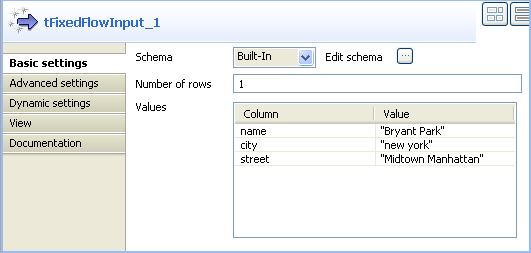
-
Set Schema type to Built-in and click the three-dot button next to Edit schema to display a dialog box where you can
define the input schema. -
Click the plus button and add the input schema columns, three in this
example: name, city and
street. -
Click OK to close the dialog box and
accept propagating the changes when prompted by the system.The three schema columns display automatically in the Values list. -
Click in the Value column and enter a
value for each of the input columns.
Configuring tMSAXOutput
-
Double-click tMSAXOutput to open its
Basic settings view and define the
component properties.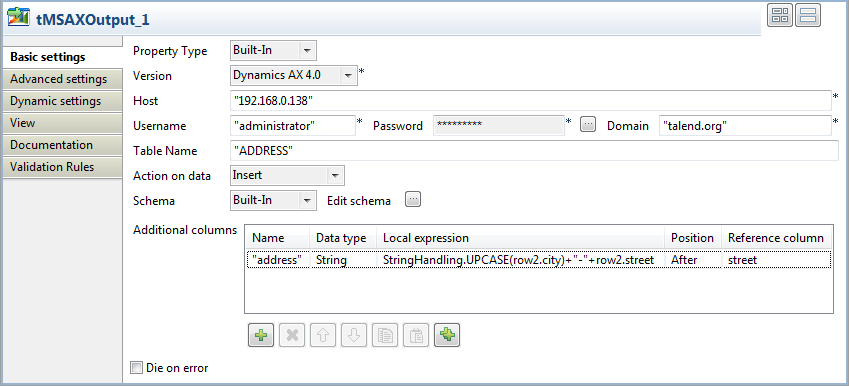
- Set Property type to Built-in.
-
In the Host field, type in the IP address
of the MicrosoftAX server and type in the domain name on which the
MicrosoftAX server is hosted in the Domain
field. -
Enter your username and password for the server in the corresponding
fields and enter the name of the table you want to write data in the
Table Name field,
ADDRESS in this example. -
In the Action on data list, select the
action you want to carry on, Insert in this
example. -
Click Sync columns to retrieve the schema
from the preceding component.In this example, we want to retrieve the three input columns:
name, city and street and
write the data included in the three input columns in the MicrosoftAX server
without any changes.If needed, click the three-dot button next to Edit
Schema to verify the retrieved schema. -
In the Additional columns list, click the
plus button to add one line where you can define parameters for the new
column to add to the row you want to write in the
ADDRESS table. -
Set a name, a data type, a position and a reference column in the
corresponding columns for the line you added.In this example, we want to add a new column we call
“address” after the street
column. -
Click in the Local expression column and
press Ctrl + space on your keyboard to open
the context variable list and select:
StringHandling.UPCASE(row2.city)+"-"+row2.street. This
expression will write the city name initially capped followed by the street
name to form the address of Bryant park. Thus the
address column in this example will contain the string: New
York-Midtown Manhattan.
Job execution
it.
ADDRESS table in the MicrosoftAX server a row that
holds the three input columns, name,
city and street in addition to
the new address column that combines the city name and
the street name.
Scenario 2: Deleting data from a defined table in a MicrosoftAX server
Before being able to use this component, make sure that you install and
launch the MicrosoftAX server correctly.
This Java scenario describes a two-component Job that uses tMSAXOutput to delete from a defined table in a MicrosoftAX server all
rows that do not match the data included in a key column.
In this example, the input schema we use is an address column
that holds the following data: New York-Midtown Manhattan. We want
to delete from the MicrosoftAX server all addresses that are not identical with this
one.
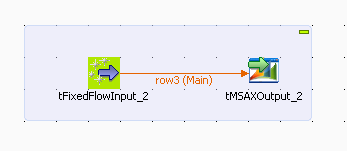
Setting up the Job
- Drop tFixedFlowInput and tMSAXOutput from the Palette to the design workspace.
-
Connect the two components together using a Row > Main
connection.
Configuring tFixedFlowInput
-
Double-click tFixedFlowInput to display
its Basic settings view and define the
component properties.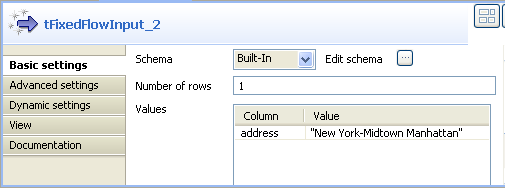
-
Set Schema type to Built-in and click the three-dot button next to Edit schema to display a dialog box where you can
define the input schema. -
Click the plus button and add the input schema columns,
address in this example. -
Click OK to close the dialog box. The
schema column displays automatically in the Values list. -
Click in the Value column and enter a
value for the input column.
Setting up the connection to the MicrosoftAX server
-
Double-click tMSAXOutput to open its
Basic settings view and define the
component properties.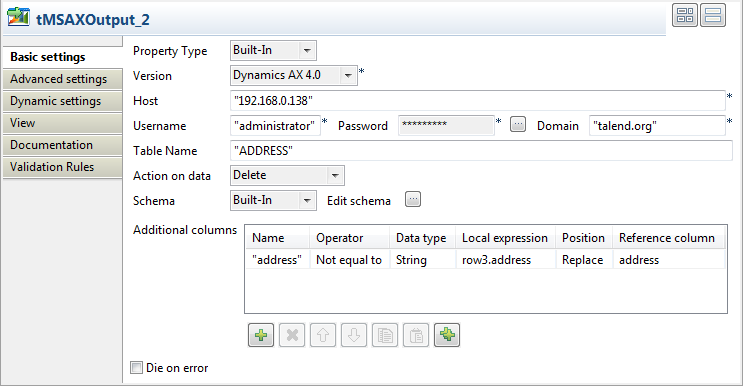
- Set Property type to Built-in.
-
In the Host field, type in the IP address
of the MicrosoftAX server. -
In the Domain field, type in the domain
name on which the MicrosoftAX server is hosted. -
Enter your username and password for the server in the corresponding
fields. -
In the Table Name field, enter the name
of the table you want to delete data from, ADDRESS in
this example.
Defining the action on data
-
In the Action on data list, select the
action you want to carry on, Delete in this
example. -
Click Sync columns to retrieve the schema
from the preceding component. In this example, we want to retrieve the input
column: address. -
Click the three-dot button next to Edit
Schema to open a dialog box where you can verify the
retrieved schema.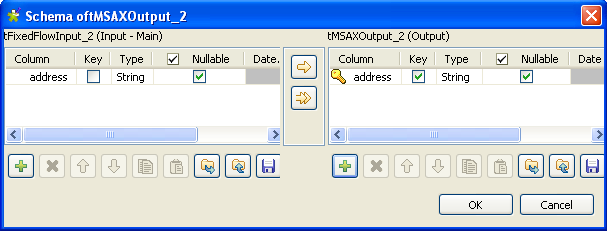
-
In the output schema, select the Key
check box next to the column name you want to define as a key column, and
then click OK to validate your changes and
close the dialog box.Note:When you select Delete as an action
on data, you must always define the Reference
column as a key column in order for tMSAXOutput to delete rows based on this key
column. -
In the Additional columns list, click the
plus button to add one line and define the parameters the component will use
as basis for the delete operation. -
Set a name, an operator, a data type, a local expression, a position and a
reference column in the corresponding columns for the line you added.In this example, we want to delete from the ADDRESS
table in the MicrosoftAX server all rows in which the address column is not
equal to the address in the key address column and that
reads as the following:New York-Midtown Manhattan.Note:When you select Delete as an action
on data, you must always set Position
to Replace. Otherwise, all settings in
the Additional columns will not be
taken into account when executing your Job.
Job execution
it.
ADDRESS table in the MicrosoftAX server all rows
where the address string is not equal to the address in the key column.