tRunJob
Manages complex Job systems which need to execute one Job after
another.
tRunJob executes the Job called in
the component’s properties, in the frame of the context defined.
Depending on the Talend solution you
are using, this component can be used in one, some or all of the following Job
frameworks:
-
Standard: see tRunJob Standard properties.
The component in this framework is generally available.
-
MapReduce: see tRunJob MapReduce properties.
The component in this framework is available only if you have subscribed to one
of the
Talend
solutions with Big Data. -
Spark Batch: see tRunJob properties for Apache Spark Batch.
The component in this framework is available only if you have subscribed to one
of the
Talend
solutions with Big Data.
tRunJob Standard properties
These properties are used to configure tRunJob running in the Standard Job framework.
The Standard
tRunJob component belongs to the System and the Orchestration families.
The component in this framework is generally available.
Basic settings
The tRunJob component is supported with limitations, which means
that only S4 (Minor) support cases are accepted and no patches are provided. If you
use tRunJob within Data Services and Routes (with
cTalendJob), support is provided on a “best effort” basis only.
In most cases, there are class loading issues which can sometimes be resolved but not
always.
This is because tRunJob is not designed to work in a Service/Route
style (ESB) deployment, so regular support is not provided if you decide to use it,
even though it may work in many cases. If you used tRunJob in the
past, it is recommended to change your Job Design to use Joblets instead.
For DI and non-ESB use cases, it is still a valuable component and has support.
|
Schema and Edit |
A schema is a row description. It defines the number of fields (columns) to Click Edit schema to make changes to the schema.
This component offers the This dynamic schema |
|
|
Built-In: You create and store the |
|
|
Repository: You have already created |
|
Copy Child Job Schema |
Click to fetch the child Job schema. |
|
Use dynamic job |
Select this check box to allow multiple Jobs to be called and Warning:
The Use dynamic job Warning:
This option is incompatible with the Use or register a shared DB Connection option Warning:
This option is not supported within ESB Routes or Data Services. |
|
Context job |
This field is visible only when the Use dynamic job option is selected. Enter the name of the Job |
|
Job |
Select the Job to be called in and processed. Make sure you |
|
Version |
Select the child Job version that you want to use. |
|
Context |
If you defined contexts and variables for the Job to be run by |
|
Use an independent process to run subjob |
Select this check box to use an independent process to run the Warning:
This option is not compatible with the Jobserver cache. Warning:
This option is incompatible with the Use or register a shared DB Connection option |
|
Die on child error |
Clear this check box to execute the parent Job even though |
|
Transmit whole context |
Select this check box to get all the context variables from the If this check box is selected when the parent and child Jobs
have the same context variables defined:
|
|
Context Param |
You can change the value of selected context parameters. Click The values defined here will be used during the child Job |
Advanced settings
|
Propagate the child result to the output |
Select this check box to propagate the output data stored in the This check box is cleared by default. It is invisible when the |
|
Print Parameters |
Select this check box to display the internal and external |
|
tStatCatcher Statistics |
Select this check box to gather the processing metadata at the Job |
Global Variables
|
Global Variables |
ERROR_MESSAGE: the error message generated by the
CHILD_RETURN_CODE: the return code of a child Job. This
CHILD_EXCEPTION_STACKTRACE: the exception stack trace A Flow variable functions during the execution of a component while an After variable To fill up a field or expression with a variable, press Ctrl + For further information about variables, see |
Usage
|
Usage rule |
This component can be used as a standalone Job or can help clarifying If you want to create a reusable This component also allows you to |
|
Connections |
Outgoing links (from this component to another): Row: Main.
Trigger: On Subjob Ok; On Subjob Incoming links (from one component to this one): Row: Main; Reject; Iterate.
Trigger: On Subjob Ok; On Subjob For further information regarding connections, see |
Calling a Job and passing the parameter needed to the called Job
This scenario describes a two-component Job named
ParentJob that calls another Job named
ChildJob to display the content of files specified in the
ParentJob on the Run
console.

Setting up the child Job
-
Create a new Job ChildJob and add a
tFileInputDelimited component and a
tLogRow component to it. -
Connect the tFileInputDelimited component to
the tLogRow component using a Row > Main link. -
Double-click the tFileInputDelimited component to open its Basic settings view.
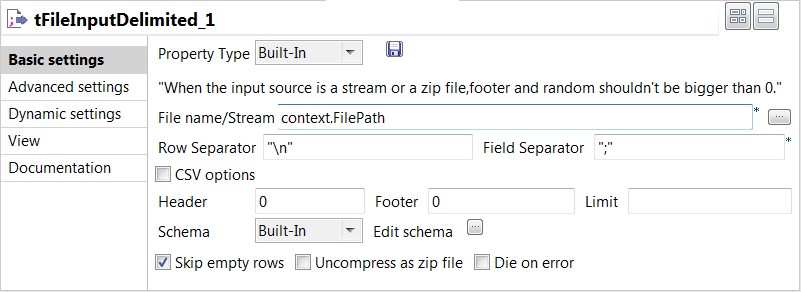
-
Click in the File Name field
and then press F5 to open the New Context Parameter dialog box and configure the
context variable.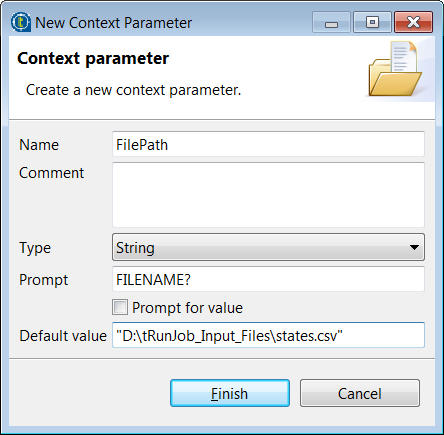
-
In the Name field, enter a
name for this new context variable, FilePath in this
example. -
In the Default value field,
enter the full path to the default input file. -
Click Finish to validate the
context parameter setup and fill the File Name
field with the context variable.You can also create or edit a context parameter in the Context tab view beneath the design workspace. For more
information, see
Talend Studio User Guide. -
Click the […] button next
to Edit schema to open the Schema dialog box where you can configure the schema
manually. -
In the dialog box, click the [+] button to add columns and name them according to the input file
structure.In this example, this component will actually read files defined in the parent
Job, and these files contain up to five columns. Therefore, add five string type
columns and name them Column1,
Column2, Column3,
Column4, and Column5
respectively, and then click OK to validate
the schema configuration and close the Schema
dialog box. -
Double-click the tLogRow
component and on its Basic settings view,
select the Table option to view displayed content in table
cells.
Setting up the parent Job
-
Create a new Job ParentJob and add a
tFileList component and a tRunJob component to it. -
Connect the tFileList component to the
tRunJob component using a Row > Iterate link. -
Double-click the tFileList
component to open its Basic settings
view.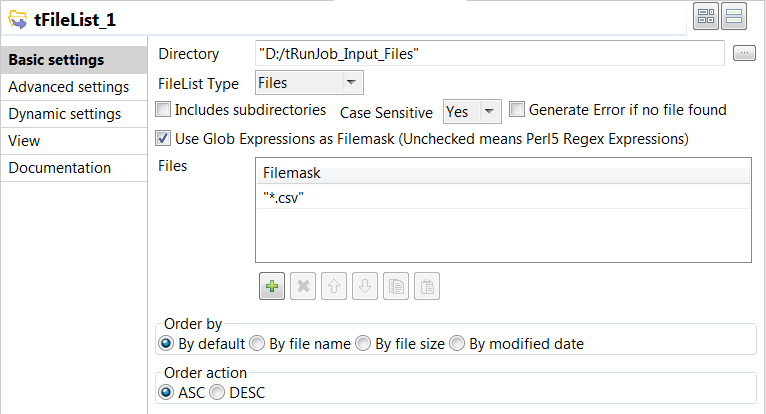
-
In the Directory field,
specify the path to the directory that holds the files to be processed, or click the
[…] button next to the field to browse to
the directory.In this example, the directory is D:/tRunJob_Input_Files
that holds three delimited files with up to five columns. -
In the FileList Type list,
select Files. -
Select the Use Glob Expressions as
Filemask check box, and then click the [+] button to add a line in the Files area and define a filter to match files. In this example, enter
"*.csv" to retrieve all delimited files. -
Double-click the tRunJob
component to display its Basic settings
view.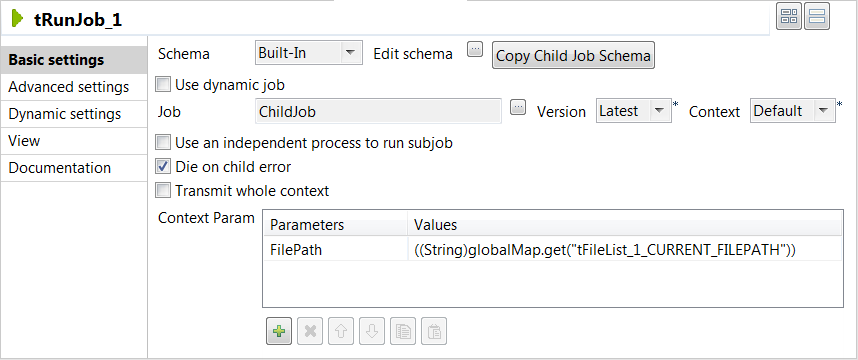
-
Click the […] button next
to the Job field and in the pop-up dialog box,
select the child Job you want to execute and click OK to close
the dialog box. The name of the selected Job appears in the
Job field.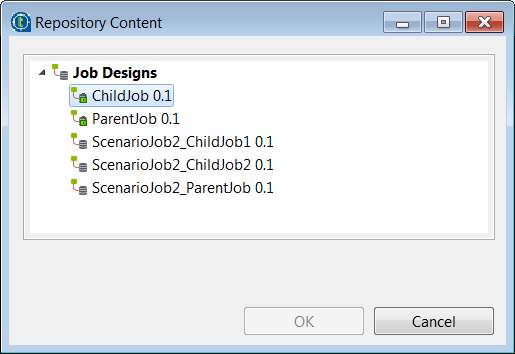
-
In the Context Param area,
click the [+] button to add a line and define the context
parameter. The only context parameter defined in the child Job, named
FilePath, appears in the Parameters cell. -
Click in the Values cell,
press Ctrl+Space on your keyboard to access
the list of context variables, and select
tFileList_1.CURRENT_FILEPATH.The corresponding context variable
((String)globalMap.get("tFileList_1_CURRENT_FILEPATH"))
appears in the Values cell.For more information on context variables, see
Talend Studio User Guide.
Executing the parent Job
-
Press Ctrl+S to save your
Jobs. -
Press F6 to execute the
parent Job.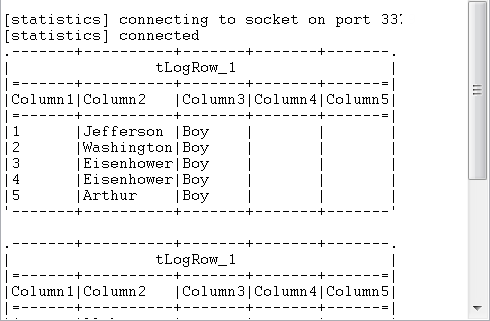
The parent Job calls the child Job, which reads the files defined in the parent
Job, and the content of the files is displayed on the Run console.
Running a list of child Jobs dynamically
This scenario describes a Job that calls two child Jobs dynamically. When called from
the parent Job, each of these simple child Jobs displays a message on the
console.
Setting up the child Jobs
-
Create a new Job named ChildJob1, and add
a tFixedFlowInput component and a
tLogRow component to it.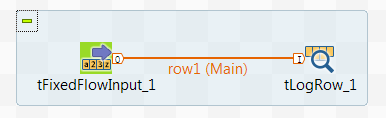
- Connect the tFixedFlowInput component to the tLogRow component using a Row > Main connection.
-
Double-click the tFixedFlowInput component to open its Basic settings view.
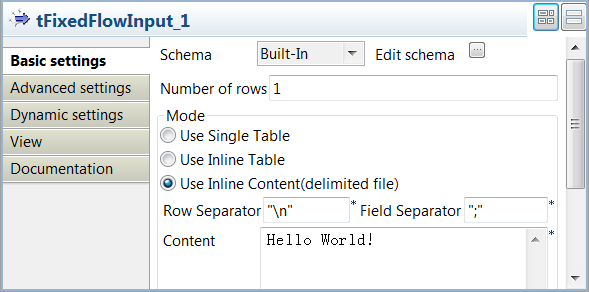
-
Click the […] button
next to Edit schema and in the pop-up
dialog box, define the schema of the input data by adding one column
Message of String type. When done, click
OK to close the dialog box and click
Yes when prompted to propagate the schema to the next
component. -
In the Mode area, select Use Inline Content(delimited file) and enter the
message you want to show on the console in the Content field, Hello World! in this
example. -
Double-click the tLogRow
component and on its Basic settings view, select the
Table mode to display the execution
result in table cells. -
Create copy of this Job and name it
ChildJob2, and enter another message in the
Content field of the tFixedFlowInput component, Hello
Talend! in this example.
Setting up the parent Job
-
Create a new Job named ParentJob and add a
tFixedFlowInput component, a
tFlowToIterate component, and a
tRunJob component to it.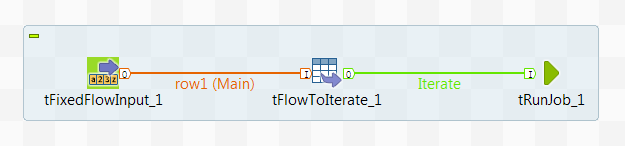
-
Connect the tFixedFlowInput component to the
tFlowToIterate component using a Row > Main connection and the tFlowToIterate
component to the tRunJob component using a Row > Iterate connection. -
Double-click the tFixedFlowInput component to open its
Basic settings view.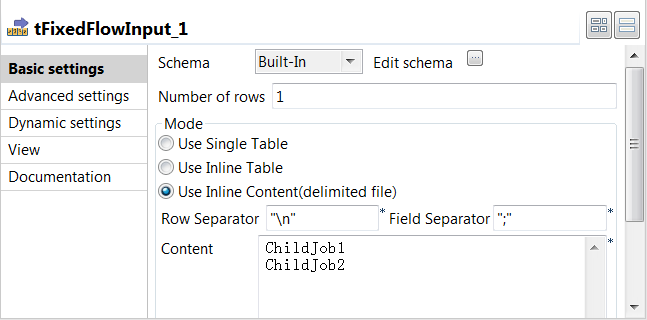
-
Click the […] button next to Edit
schema and in the pop-up dialog box, define the schema of the
input data by adding one column JobName of String type.
When done, click OK to close the dialog box. -
In the Mode area, select the Use Inline
Content(delimited file) option and specify the names of the
child Jobs to call from the parent Job in the Content
field.12ChildJob1ChildJob2 -
Double-click the tRunJob component to open its
Basic settings view.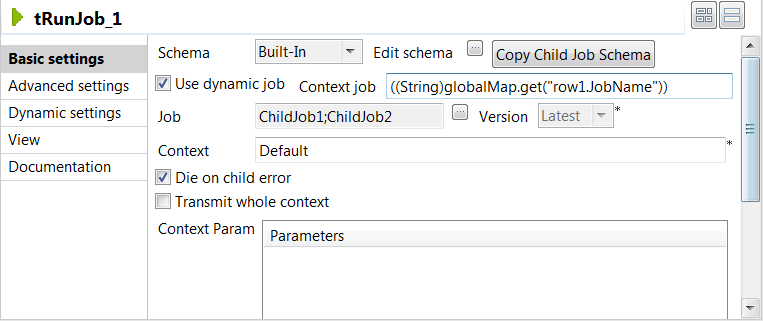
-
Select the Use dynamic job check box and in the
Conext job field displayed, press
Ctrl+Space and from the list of variables select the
iterative global variable created by the tFlowToIterate
component, tFlowToIterate_1.JobName in this example. The
Context job field is then filled with
((String)globalMap.get("row1.JobName")). Upon each
iteration, this variable will be resolved as the name of the Job to be
called. -
Click the […] button next to the
Job field and in the [Select
Job] dialog box, select all the Jobs you want to run and click
OK to close the dialog box. In this example, they are
ChildJob1 and ChildJob2.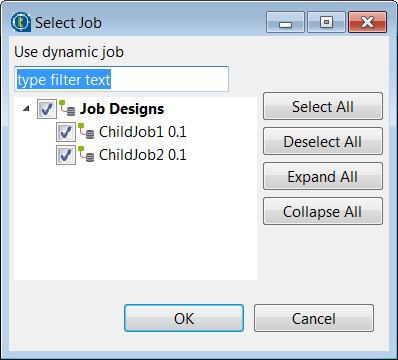
Executing the parent Job to run the child Jobs dynamically
- Save your child Jobs and parent Job.
-
Press F6 or click the Run button
on the Run console to execute the Job.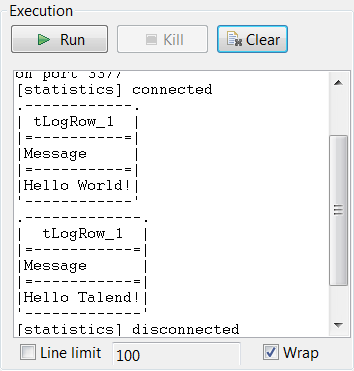
As shown above, the child Jobs are called one after another and messages
specified in the child Jobs are displayed on the console.
Propagating the buffered output data from the child Job to the parent
Job
In this scenario, a three-component Job calls a two-component child Job and displays
the buffered output data of the child Job, instead of the data from the input flow of
the parent Job, on the console.
Setting up the child Job
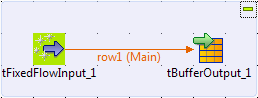
-
Create a Job named child, and add two
components by typing their names on the design workspace or dropping them
from the Palette to the design
workspace:-
a tFixedFlowInput, to generate a
message -
a tBufferOutput, to store the
generated message in the buffer memory
-
-
Connect the tFixedFlowInput component to
the tBufferOutput component using a
Row > Main connection. -
Double-click the tFixedFlowInput
component to open its Basic settings
view.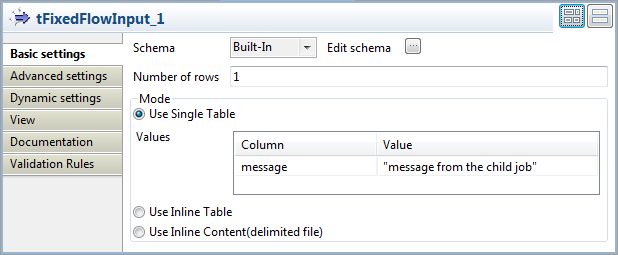
-
Click the […] button next to Edit schema to open the [Schema] dialog box and define the schema of the input data.
In this example, the schema has only one column message of the string type.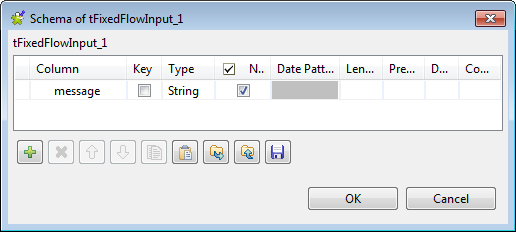 When done, click OK to validate the
changes and then click Yes in the pop-up
[Propagate] dialog box to propagate the
schema to the next component. -
In the Mode area, select Use Single Table option, and define the
corresponding value for the message
column in the Values table. In this
example, the value is “message from the child
job”.
Setting up the parent Job
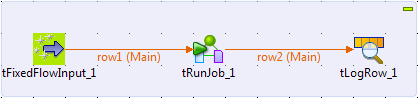
-
Create a Job, and add three components by typing their names on the design
workspace or dropping them from the Palette
to the design workspace:-
a tFixedFlowInput, to generate a
message -
a tRunJob, to call the Job named
child -
a tLogRow, to display the
execution result on the console
-
-
Connect the tFixedFlowInput component to
the tRunJob component and the tRunJob component to the tLogRow component using the Row > Main
connections. -
Double-click the tFixedFlowInput
component to open its Basic settings
view.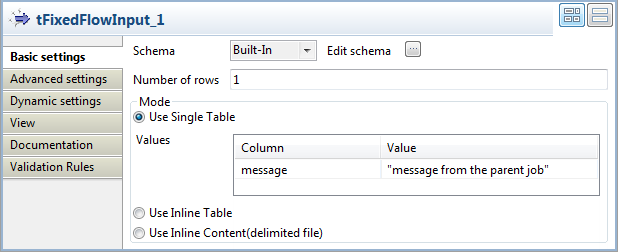
-
Click the […] button next to Edit schema to open the [Schema] dialog box and define the schema of the input data.
In this example, the schema has only one column message of the string type.
When done, click OK to validate the
changes. -
In the Mode area, select the Use Single Table option, and define the
corresponding value for the message
column in the Values table. In this
example, the value is “message from the parent
job”. -
Click the tRunJob component and then
click the Component tab to open its
Basic settings view.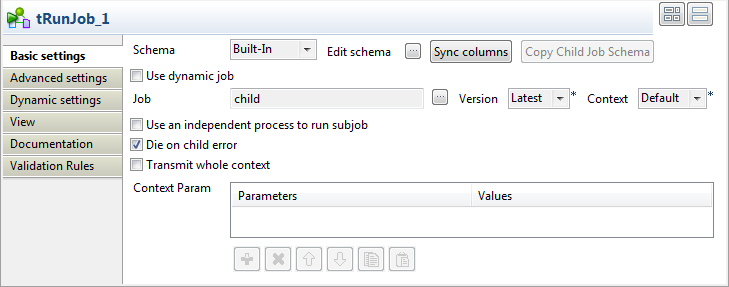
-
Click the Sync columns button and then
click Yes in the pop-up [Propagate] dialog box to retrieve the schema
from the preceding component. -
Click the […] button next to the
Job field to open the [Repository Content] dialog box.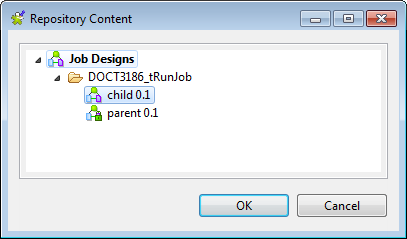 In the [Repository Content] dialog box,
select the Job named child and then click
OK to close the dialog box. -
In the Advanced settings view of the
tRunJob component, select the Propagate the child result to the output schema
check box. With this check box selected, the buffered output of the child
Job will be propagated to the output component.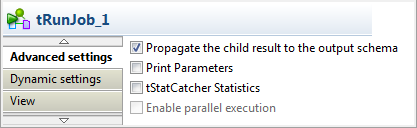
Executing the parent Job
- Press Ctrl+S to save the Job.
-
Press F6 or click the Run button on the Run console to execute the Job.
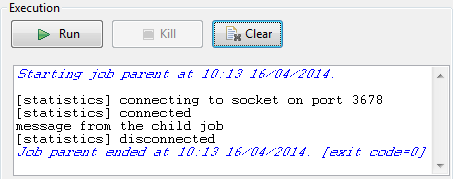 The child Job is called and the message specified in the child Job, rather
than the message defined in the parent Job, is displayed on the
console.
tRunJob MapReduce properties
These properties are used to configure tRunJob running in the MapReduce Job framework.
The MapReduce
tRunJob component belongs to the System family.
The component in this framework is available only if you have subscribed to one
of the
Talend
solutions with Big Data.
Basic settings
|
Use dynamic job |
Select this check box to allow multiple Jobs to be called and Warning:
The Use dynamic job option is Warning:
This option is incompatible with the Use |
|
Context job |
This field is visible only when the Use |
|
Job |
Select the Job to be called in and processed. Make sure you |
|
Version |
Select the child Job version that you want to use. |
|
Context |
If you defined contexts and variables for the Job to be run by the |
|
Die on child error |
Clear this check box to execute the parent Job even though there |
|
Transmit whole context |
Select this check box to get all the context variables from the If this check box is selected when the parent and child Jobs have
the same context variables defined:
|
|
Context Param |
You can change the value of selected context parameters. Click the The values defined here will be used during the child Job |
Advanced settings
|
Print Parameters |
Select this check box to display the internal and external |
Global Variables
|
Global Variables |
ERROR_MESSAGE: the error message generated by the
CHILD_RETURN_CODE: the return code of a child Job. This
CHILD_EXCEPTION_STACKTRACE: the exception stack trace A Flow variable functions during the execution of a component while an After variable To fill up a field or expression with a variable, press Ctrl + For further information about variables, see |
Usage
|
Usage rule |
In a You need to use the Hadoop Configuration tab in the This connection is effective on a per-Job basis. For further information about a Note that in this documentation, unless otherwise |
Related scenarios
No scenario is available for the Map/Reduce version of this component yet.
tRunJob properties for Apache Spark Batch
These properties are used to configure tRunJob running in the Spark Batch Job framework.
The Spark Batch
tRunJob component belongs to the System family.
The component in this framework is available only if you have subscribed to one
of the
Talend
solutions with Big Data.
Basic settings
|
Use dynamic job |
Select this check box to allow multiple Jobs to be called and Warning:
The Use dynamic job option is not |
|
Context job |
This field is visible only when the Use |
|
Job |
Select the Job to be called in and processed. Make sure you |
|
Version |
Select the child Job version that you want to use. |
|
Context |
If you defined contexts and variables for the Job to be run by the |
|
Die on child error |
Clear this check box to execute the parent Job even though there |
|
Transmit whole context |
Select this check box to get all the context variables from the If this check box is selected when the parent and child Jobs have
the same context variables defined:
|
|
Context Param |
You can change the value of selected context parameters. Click the The values defined here will be used during the child Job |
Advanced settings
|
Print Parameters |
Select this check box to display the internal and external |
Usage
|
Usage rule |
This component is used with no need to be connected to other components. This component, along with the Spark Batch component Palette it belongs to, appears only Note that in this documentation, unless otherwise |
|
Spark Connection |
You need to use the Spark Configuration tab in
the Run view to define the connection to a given Spark cluster for the whole Job. In addition, since the Job expects its dependent jar files for execution, you must specify the directory in the file system to which these jar files are transferred so that Spark can access these files:
This connection is effective on a per-Job basis. |
Related scenarios
No scenario is available for the Spark Batch version of this component
yet.