tSAPADSOInput
on an SAP HANA database.
tSAPADSOInput Standard properties
These properties are used to configure tSAPADSOInput running in
the Standard Job framework.
The Standard
tSAPADSOInput component belongs to the Business
family.
The component in this framework is available in any
subscription-based Talend
solution.
Basic settings
|
Host |
The IP address or hostname of the database. |
|
Port |
The listening port number of the database. |
|
Table Schema |
The table schema name. |
|
Username and Password |
The database user authentication data. To enter the password, click the […] button next to the |
|
Schema and Edit schema |
A schema is a row description. It defines the number of fields (columns) to
Click Edit schema to make changes to the
|
|
Name |
Enter the name of the active Advanced Data Store Object from which data will be |
Advanced settings
|
tStatCatcher Statistics |
Select this check box to gather the Job processing metadata at the Job level |
Global Variables
|
ERROR_MESSAGE |
The error message generated by the component when an error occurs. This is an After |
Usage
|
Usage rule |
This component is usually used as a start component of a Job or Subjob and it |
Retrieving ADSO data from SAP BW
system on an SAP HANA database.
Creating a Job for retrieving ADSO data from SAP BW
-
Create a new Job and add a tSAPADSOInput component and a
tFileOutputDelimited component onto its design
workspace.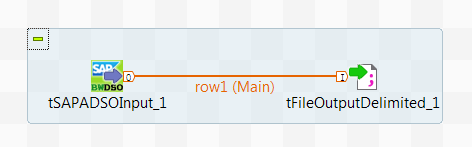
-
Connect the tSAPADSOInput component to the
tFileOutputDelimited component via a Row > Main connection.
Configuring the Job for retrieving ADSO data from SAP BW
-
Double-click the tSAPADSOInput component to open its
Basic settings view.
-
In the SAP HANA database connection configuration related fields, specify the
authentication information required to access your SAP HANA database. -
In the Name field, enter the name of the active Advanced
Data Store Object whose data will be retrieved, ZAD_FIGL
in this example. -
Click the […] button to open the schema dialog box and
define the schema by adding the columns whose data you want to retrieve. When
done, click OK to save the changes and close the dialog
box.In this example, nine columns are added, MANDT,
GJAHR, BELNR,
BLDAT, BSCHL,
BSTAT, BUDAT, and
HWAER of String type, and
DMSHB of BigDecimal type.
You can use the SAP metadata wizard to create a connection to your SAP HANA
database, save the connection in the Repository, retrieve the Advanced Data
Store Object and its schema to be used, drag and drop the retrieved ADSO
node onto the Job design workspace as a tSAPADSOInput
component, and the SAP HANA connection fields, the ADSO name field, and the
schema will be automatically filled. For more information, see the related
description of centralizing SAP metadata. You can then change the schema to
the Built-In mode and click the […] button next to
Edit schema to update the schema definition. -
Double-click the tFileOutputDelimited component to open
its Basic settings view. -
In the File Name field, specify the path to the file in
which retrieved data will be written,
D:/tsapadsoinput_out.csv in this example. -
Select the Include Header check box to include the
column names in the output file.
Executing the Job to retrieve ADSO data from SAP BW
- Press Ctrl + S to save your Job.
- Press F6 to execute your Job.
-
Open the file generated to check the retrieved data.
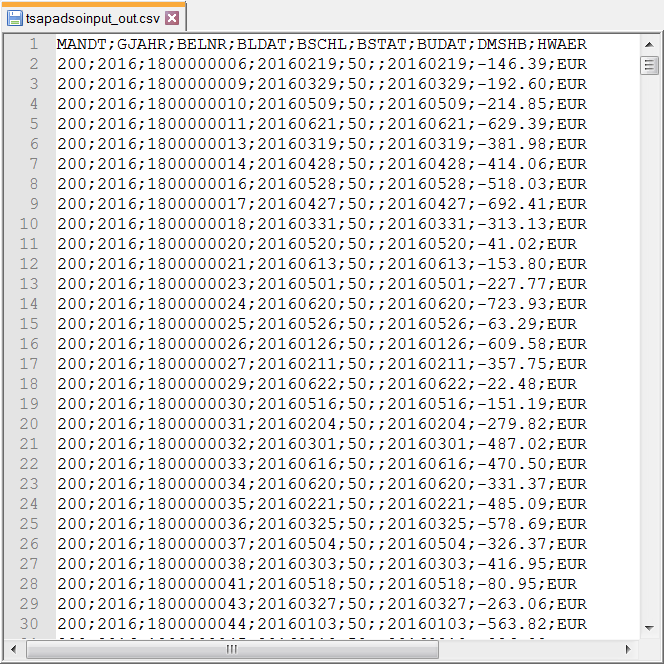
You will find only the data of the columns specified in the schema has
been retrieved and written into the file.