Aggregating the relations
-
Double-click tPigCoGroup to open its
Component view.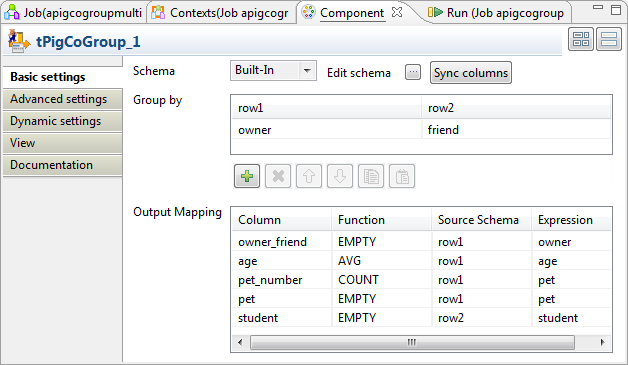
-
Click the […] button next to Edit
schema to open the schema editor. -
Click the [+] button five times to add five rows and in the
Column column, rename them to owner_friend, age, pet_number,
pet and student, respectively. - In the Type column of the age row, select Integer.
-
Click OK to validate these changes and accept the
propagation prompted by the pop-up dialog box. - In the Group by table, click the [+] button once to add one row.
-
Then you need to set the grouping condition in this Group by
table to aggregate the two input relations. In each column representing the
input relation, click the newly added row and select the column you need to
use to compose the grouping condition. In this scenario, the owner column from the owner-pet relation and
the friend column from the student-friend
relation are selected because they have common records. Based on these
columns, the two relations are aggregated into bags.The bags regarding the record Alice might read as
follow:
1Alice,{(Alice,turtle,17),(Alice,goldfish,17),(Alice,cat,17)},{(Cindy,Alice),(Mark,Alice)} -
In the Output mapping table,
the output schema you defined previously has been automatically fed into the
Column column. You need to complete
this table to define how the grouped bags are aggregated into the schema of the
output relation. The following list provides more details about how this
aggregation is configured for this scenario:Column
Description
owner_friend
Receive the literal records incoming from the columns that are used
as the grouping condition.For this reason, select the EMPTY function
from the Function drop-down list so that the
incoming records stay as is. Then select row1 from the
Source schema list and owner from
the Expression list to read the records from
the corresponding input column; you can as well select row2
and friend, the records to be received are the same because
the owner column and the friend column are joined when
they are used as grouping condition.Note that the label row1 is the ID of the input link and thus
may be different in your scenario.age
Receive the age data.
As shown in the example bags in the previous step, the age of an
owner repetitively appears in one of the bags after the grouping.
You can select the AVG function from the
Function list to make the average of the
repetitive values such that this age appears only once in the final
result. Then select row1 from the Source
schema list and age from the
Expression list.pet_number
Receive how many pets an owner has.
Select the COUNT function from the
Function list to perform this
calculation. Then select row1 from the Source
schema list and pet from the
Expression list.pet and student
Receive the grouped records from the input pet and
student columns, respectively.Select EMPTY for both of them and from the
Source schema list of each, select the
corresponding input schema and from the
Expression list, the corresponding
column.