Configuring key generation
-
Double-click tGenKey
to display the Basic
settings view and define the component
properties.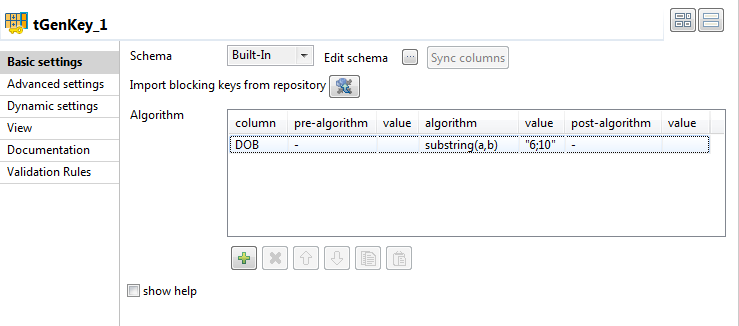 You can click
and import blocking keys from
the match rules created with the VSR algorithm and
tested in the
Profiling
perspective of
Talend Studio
and use them in your
Job. Otherwise, define the blocking key parameters
as described in the below steps. -
Under the Algorithm
table, click the [+] button to add a row in this
table. -
On the column column,
click the newly added row and select from the list
the column you want to process using an algorithm.
In this example, select
DoB. -
On the algorithm
column, click the newly added row and select from
the list the algorithm you want to apply to the
corresponding column. In this example, select
substring(a,b). -
Click in the value column and enter the value
for the selected algorithm, when needed. In this scenario, type in
6;10.The substring(a,b) algorithm allows you to extract the
characters from a string, between two specified indices, and to return the new
substring. First character is at index 0. In this scenario,
for a given DoB
“21-01-1995“, 6;10 will return only
the year of birth, that is to say “1995” which is the substring from the 7th to
the 10th character.In this example, we want to generate a functional key that holds the last four
characters of the date of birth, which correspond to the year of birth, for each
of the data rows and we do not want to define any extra options on these
columns.You can select the Show help check box to
display instructions on how to set algorithms/options parameters.Once you have defined the tGenKey properties,
you can display a statistical view of these parameters. To do so: -
Right-click on the tGenKey component and
select View Key Profile in the contextual
menu.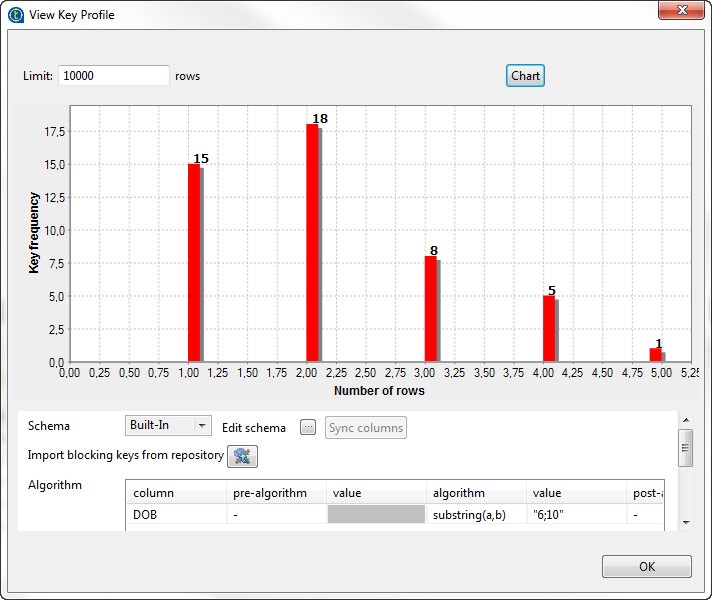 The View Key Profile editor displays,
allowing you to visualize statistics regarding the number of blocks and to adapt
the parameters according to the results you want to get.Note:When you are processing a large amount of data and when this component is
used to partition data in order to use them in a matching component (such as
tRecordMatching or tMatchGroup), it is preferable to have a limited number of rows
in one block. An amount of about 50 rows per block is considered optimal,
but it depends on the number of fields to compare, the total number of rows
and the time considered acceptable for data processing.From the key editor, you can:-
edit the Limit
of rows used to calculate the statistics. -
click
and import blocking keys
from the Studio repository and use them in your Job. -
edit the input column you want to process using an
algorithm. -
edit the parameters of the algorithm you want to
apply to input columns.
Every time you make a modification, you can see its implications by clicking
the Refresh button which is located at the top
right part of the editor. -
-
Click OK to close the
View Key Profile
editor.