Configuring the first pass
-
In the basic settings of the tMatchGroup
labelled pass1, select Simple VSR from the Matching
Algorithm list.In this scenario, the match rule is based on the VSR algorithm. -
Click the Preview button to display the
Configuration Wizard.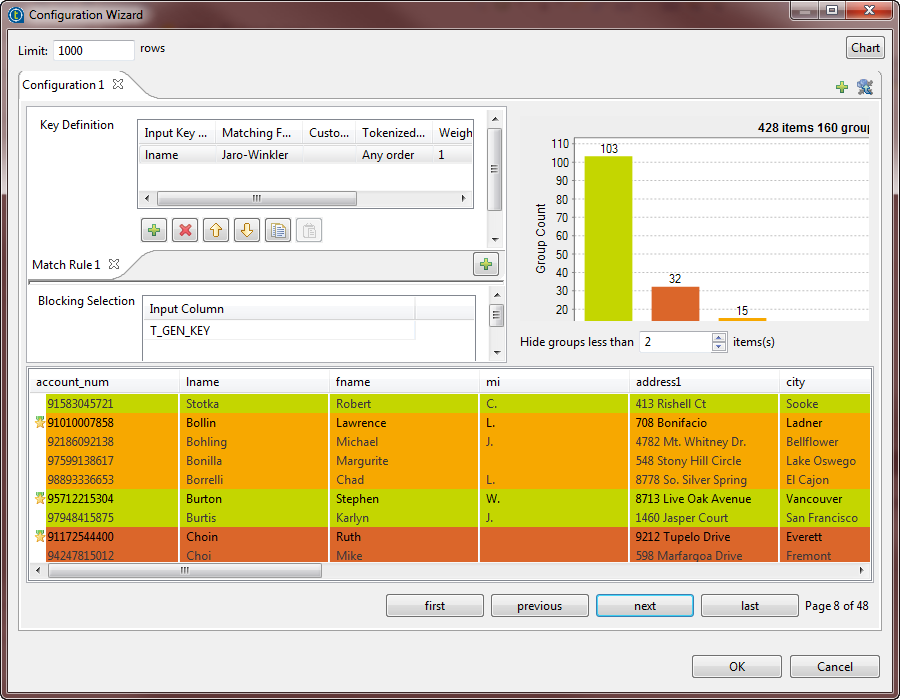
-
Click

and import matching keys from the match rules created and
tested in the
Profiling
perspective of
Talend Studio
and use them in your Job. Otherwise, define
the matching key parameters as described in the below steps.It is important to import or define the same type of the rule selected in the
basic settings of the component, otherwise the Job runs with default values for
the parameters which are not compatible between the two algorithms. -
In the Key definition table, click the
[+] button to add the column(s) on which
you want to do the matching operation, lname
in this scenario.Note:When you select a date column on which to apply an algorithm or a matching algorithm,
you can decide what to compare in the date format.For example, if you want to only compare the year in the date, in the component schema
set the type of the date column to Date and then enter
“yyyy” in the Date
Pattern field. The component then converts the date format to a string
according to the pattern defined in the schema before starting a string
comparison. - Select the Jaro-Winkler algorithm in the Matching Function column.
-
From the Tokenized measure list, select
Any order. -
Set Weight to 1 and in
the Handle Null column, select the null
operator you want to use to handle null attributes in the column, Null Match Null in this scenario. -
Click the [+] button below the Blocking Selection table to add one row in the table
then click in the line and select from the list the column you want to use as a
blocking value, T_GEN_KEY in this example.Using a blocking value reduces the number of pairs of records that needs to be
examined. The input data is partitioned into exhaustive blocks based on the
functional key. This will decrease the number of pairs to compare, as comparison
is restricted to record pairs within each block. -
If required, click Edit schema to open the
schema editor and see the schema retrieved from the previous component in the
Job.
-
Click the Advanced settings tab and select
the Sort the output data by GID check box to
arrange the output data by their group IDs. -
Select the Deactivate matching computation when opening
the wizard check box if you do not want to run the match rules
the next time you open the wizard.