Converting the tokenized text to the CoNLL format
To be able to learn a classification model from a text, you must divide this text
into tokens and convert it to the CoNLL format using
tNormalize.
into tokens and convert it to the CoNLL format using
tNormalize.
-
Double click the tNLPPreprocessing component to open its
Basic settings view and define its properties.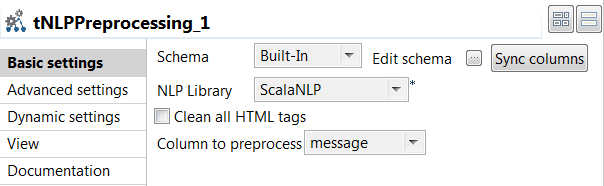
-
Click Sync columns to retrieve the
schema from the previous component connected in the Job.
-
From the NLP Library list, select the library to
be used for tokenization. In this example,
ScalaNLP is used.
-
-
From the Column to preprocess list, select the column
that holds the text to be divided into tokens, which is
message in this example. -
Double click the tFilterColumns component to open its
Basic settings view and define its properties. -
Click Edit schema to add the
tokens column in the output schema because this is
the column to be normalized, and click OK to
validate. -
Double click the tNormalize component to open its
Basic settings view and define its properties.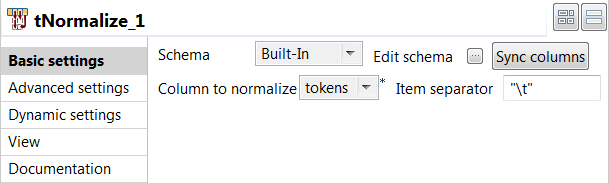
-
Click Sync columns to retrieve the
schema from the previous component connected in the Job.
-
From the Column to normalize list, select
tokens. -
In the Item separator field, enter
" " to separate tokens using a tab in the
output file.
-
-
Double click the tFileOutputDelimited component to open
its Basic settings view and define its properties.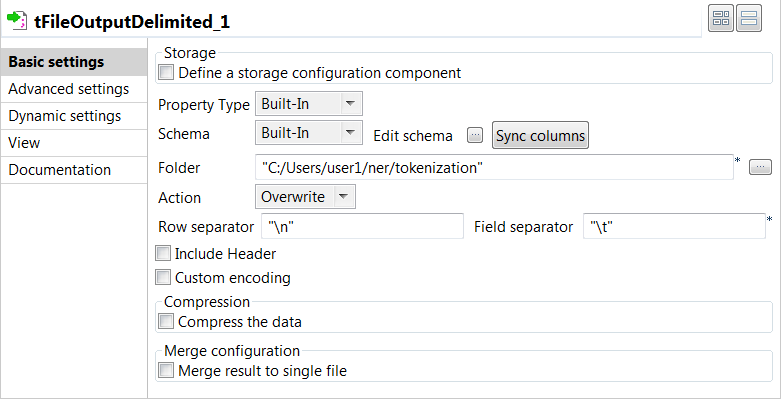
-
Click Sync columns to retrieve the
schema from the previous component connected in the Job.
-
In the Folder field, specify the path to the
folder where the CoNLL files will be stored. -
In the Row Separator field, enter
"
". -
In the Field Separator field, enter
" " to separate fields with a tab.
-
-
Press F6 to save and execute the
Job.
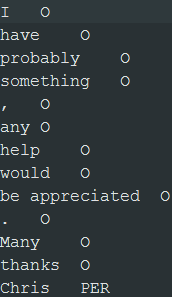
The output files are created in the specified folder. The files contain a single
column with one token per row.
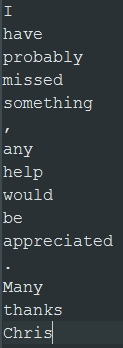
You can then manually label person names with PER and the
other tokens with O before you can learn a classification
model from this text data:
Document get from Talend https://help.talend.com
Thank you for watching.
Subscribe
Login
0 Comments