Deleting unused tasks
The second part of this scenario lets you delete those tasks which are no longer
used.
-
Drop a tStewardshipTaskInput component from the
Palette onto the workspace. Connect the tFixedFlowInput component called SampleData to the tStewardshipTaskInput
component using an OnSubjobOk trigger. -
In the tStewardshipTaskInput_1 component, in the
Basic settings tab, provide the connection information
(Url, User name and
Password) for the Data Stewardship Console to which you
want to connect, and information about the tasks you want to use as input (Owner, Tag, Start Date and End Date).For this scenario, make sure you specify the Tag as
tag1.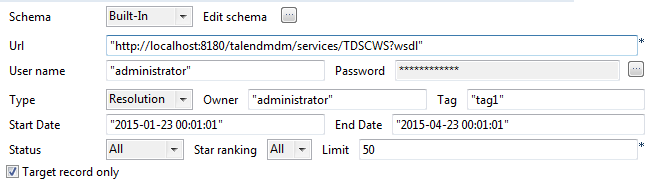
-
Drop a tLogRow component from the Palette onto the workspace. Connect the tStewardshipTaskInput_1 component to the new tLogRow component using a Row Main
link.The tLogRow component is used to monitor data
processed. -
Drop a tStewardshipTaskDelete component from the
Palette onto the workspace. Connect the tStewardshipTaskDelete component to the tStewardshipTaskInput_1 component using an OnSubjobOk trigger.The tStewardshipTaskDelete component helps streamline
processes by removing tasks that are no longer used or relevant when they match certain
criteria. -
In the tStewardshipTaskDelete component, in the
Basic settings tab, provide the connection information
(Url, User name and
Password) for the Data Stewardship Console to which you
want to connect. -
In the Task Configuration area of the Basic settings tab of the tStewardshipTaskDelete component, enter the criteria to use when deciding
which tasks to delete. An example is shown in the image below.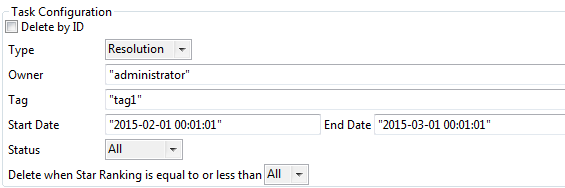
-
Drop a tJava component from the Palette onto the workspace. Connect the tStewardshipTaskDelete component to the tJava component using an OnSubjOk
trigger.The tJava component makes it possible to extend the
functionalities of a
Talend
Job through
using Java commands. In this case, it shows you which tasks are deleted. -
In the Basic settings tab of the tJava component, enter the following code:
1System.out.println("---------------:"+((Integer)globalMap.get("tStewardshipTaskDelete_1_DELETED_TASK_NUMBER")));
-
Press F6 to run your Job and refresh or reopen the
Data Stewardship Console to check that your tasks have been deleted.
Document get from Talend https://help.talend.com
Thank you for watching.
Subscribe
Login
0 Comments