Uploading files to Google Drive
-
Double-click the first tGoogleDrivePut to open its
Basic settings view in the Component tab.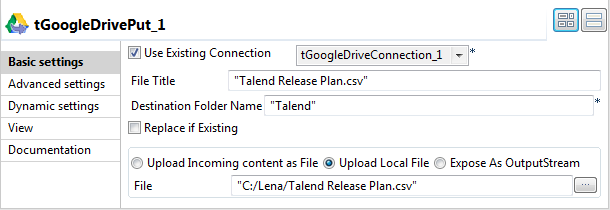
-
Select the Use Existing Connection check
box and from the list that appears select the component you have configured
to open your Google Drive connection. In this example, it is tGoogleDriveConnection_1. -
Select the Upload Local File option
button and in the File field, browse to or
enter the path to the file to be uploaded. In this example, it is C:/Talend/Talend Release Plan.csv. -
In the File Title field, enter the name
for the file after being uploaded. In this example, it is Talend Release Plan.csv. -
In the Destination Folder Name field,
enter the name of the folder in which the file will be stored in Google
Drive. In this example, it is Talend. -
Double-click the second tGoogleDrivePut to open its
Basic settings view in the Component tab.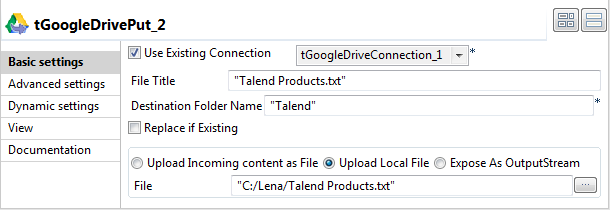
-
Repeat 2 through 5 to upload another
local file to the folder Talend in Google
Drive. In this example, it is Talend
Products.txt.
Document get from Talend https://help.talend.com
Thank you for watching.
Subscribe
Login
0 Comments