|
Component |
Routing |
|
|
Function |
cLoadBalancer distributes the messages it received to |
|
|
Purpose |
cLoadBalancer allows you to distribute messages |
|
|
Basic |
Strategy |
Select between Random, Round |
|
Random |
The receiving endpoint is |
|
|
Round |
Messages are distributed |
|
|
Sticky |
Language |
Select the language of the expression to use in |
|
|
Expression |
Type in the expression that will be used to |
|
Topic |
Select this option to |
|
|
Failover |
Basic mode |
By default, the failover load balancing always |
|
|
Specify exceptions |
Specify the exceptions to which the failover |
|
|
Use with Round robin |
Select this option to use failover with advanced From the Maximum failover –Attempt forever: always attempts to
–Never failover: gives up –A number of Inherit error Use Round robin: Select |
|
Custom |
Load balancer |
Type in the name of your custom load |
|
Usage |
cLoadBalancer is used as a middle component in a |
|
| Connections | Load Balance | Select this link to route messages to the next endpoint according to the selected load-balancing strategy. |
| Route | Select this link to route all the messages from the sender to the next endpoint. |
|
|
Limitation |
n/a |
|
In this scenario, a cLoadBalancer component is used
to distribute four messages evenly to two receiving endpoints in accordance with the
round robin load balancing method.
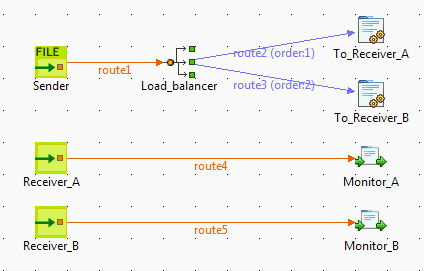
This scenario requires one cFile component as the
message sender, one cLoadBalancer component to
distribute the messages to two different receivers in a load balancing manner, two
cJavaDSLProcessor components to define the URIs
of the receivers, two cMessagingEndpoint components
to retrieve the messages routed to the two receivers, and two cProcessor components to display the effect of round robin load
balancing.
-
From the Messaging folder of the
Palette, drop one cFile component and two cMessagingEndpoint components onto the workspace, and label
them according to their roles in the Route: Sender, Receiver_A, and
Receiver_B respectively. -
From the Routing folder, drop a cLoadBalancer component onto the design
workspace, and label it Load_balancer. -
From the Processor folder, drop two cJavaDSLProcessor components and two cProcessor components onto the design workspace,
and label them according to their roles in the Route: To_Receiver_A, To_Receiver_B, Monitor_A,
and Monitor_B respectively. -
Link the cFile component to the cLoadBalancer component using a Row > Route
connection. -
Link cLoadBalancer to each of the two cJavaDSLProcessor components using a Row > Load
Balance connection. -
Link each of the two cMessagingEndpoint
components to the corresponding cProcessor
component using a Row > Route connection.
-
Double-click the cFile component to open
its Basic Settings view in the Component tab.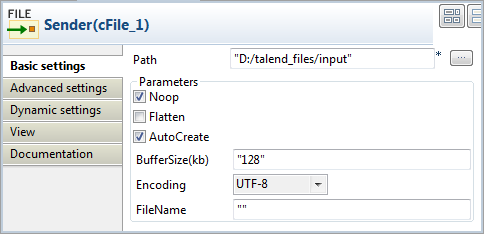
-
In the Path field, specify the file path
to message source. -
From the Encoding list, select the
encoding type of your message files. Leave the other parameters as they
are. -
Double-click the cLoadBalancer component
to open its Basic Settings view in the
Component tab, and select the load
balancing method you want to use from the Strategy list. In this scenario, we use the default
Round robin method.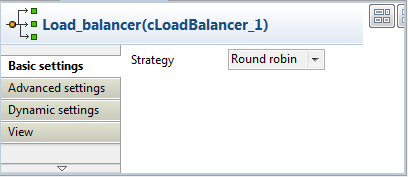
-
Double-click the cJavaDSLProcessor
component labeled To_Receiver_A to open
its Basic Settings view in the Component tab, and enter URI of the first
receiver between the double quotation marks in the Code area,direct:ain this example.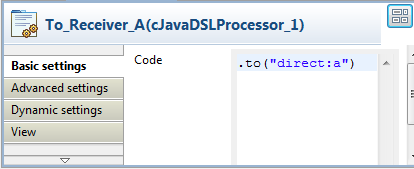
Repeat this step to define the URI of the other receiver,
direct:b, in the cJavaDSLProcessor component labeled To_Receiver_B. -
Double-click the cMessagingEndpoint
component labeled Receiver_A to open its
Basic Settings view in the Component tab, and enter URI of the first
receiver between the double quotation marks in the URI field,direct:ain this example.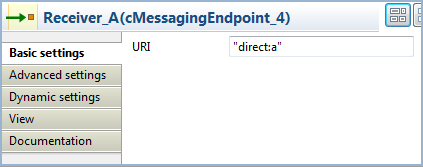
Repeat this step to define the URI of the other receiver,
direct:b, in the cMessagingEndpoint component labeled Receiver_B. -
Double-click the cProcessor component labeled Monitor_A to open its Basic Settings view in the Component tab, and customize the code in the Code area to display the file names of the
messages routed to Receiver_A on the
console:12System.out.println("Message on Receiver_A: "+exchange.getIn().getHeader("CamelFileName"));Repeat this step to customize the code in the cProcessor component labeled
Monitor_B to display the file names of the messages routed to Receiver_B on the console. -
Press Ctrl+S to save your Route.
-
Click the Code tab at the bottom of the
design workspace to check the generated code: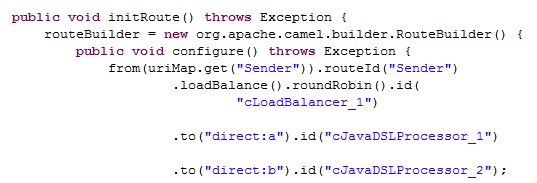
As shown above, while messages are routed
fromthe source endpoint
.tothe destination endpoints, routing load balancing is
implemented according to the.roundRobin()method by
cLoadBalancer_1. -
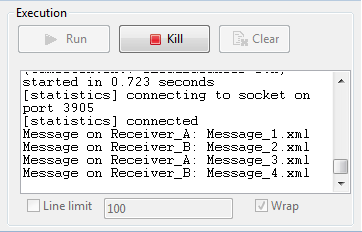
Press F6 to run your Route.
RESULT: Of the four messages from the sender, two are routed to Receiver_A and two are routed to Receiver_B in a round robin manner.