
|
Component family |
Internet |
|
|
Function |
tSendMail sends emails and |
|
|
Purpose |
tSendMail purpose is to notify |
|
|
Basic settings |
To |
Main recipient email address. |
|
|
From |
Sending server email address. |
|
|
Show sender’s name |
Select this check box if you want the sender name to show in the |
|
|
Cc |
Email addresses of secondary recipients of the email message |
|
|
Bcc |
Email addresses of secondary recipients of the email message. |
|
|
Subject |
Heading of the mail. |
|
|
Message |
Body message of the email. Press Ctrl+Space to display the list of available |
|
|
Die if the attachment file doesn’t |
This check box is selected by default. Clear this check box if you |
|
|
Attachments / File and Content Transfer |
Click the plus button to add as many lines as needed where you can |
|
|
Other Headers |
Click the plus button to add as many lines as needed where you can |
|
|
SMTP Host and Port |
IP address of SMTP server used to send emails. |
|
|
SSL Support |
Select this check box to authenticate the server at the client |
|
|
STARTTLS Support |
Select this check box to authenticate the server at the client |
|
|
Importance |
Select in the list the priority level of your messages. |
|
|
Need authentication / Username and |
Select this check box and enter a username and a password in the To enter the password, click the […] button next to the |
|
|
Die on error |
This check box is selected by default. Clear the check box to skip |
|
Advanced settings |
MIME subtype from the ‘text’ MIME type |
Select in the list the structural form for the text of the |
|
|
Encoding type |
Select the encoding from the list or select Custom and define it manually. |
|
|
tStatCatcher Statistics |
Select this check box to gather the Job processing metadata at a |
|
Global Variables |
ERROR_MESSAGE: the error message generated by the A Flow variable functions during the execution of a component while an After variable To fill up a field or expression with a variable, press Ctrl + For further information about variables, see Talend Studio |
|
|
Usage |
This component is typically used as one sub-job but can also be |
|
|
Log4j |
The activity of this component can be logged using the log4j feature. For more information on this feature, see Talend Studio User For more information on the log4j logging levels, see the Apache documentation at http://logging.apache.org/log4j/1.2/apidocs/org/apache/log4j/Level.html. |
|
|
Limitation |
n/a |
|
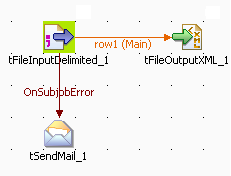
This scenario creates a three-component Job which sends an email to defined recipients
when an error occurs.
-
Drop the following components from your Palette to the design workspace: tFileInputDelimited, tFileOutputXML, tSendMail.
-
Define tFileInputdelimited properties.
Related topic: tFileInputDelimited. -
Right-click on the tFileInputDelimited
component and select Row > Main. Then drag it onto the
tFileOutputXML component and release when
the plug symbol shows up. -
Define tFileOutputXML properties.
-
Drag a Run on Error link from tFileDelimited to tSendMail component.
-
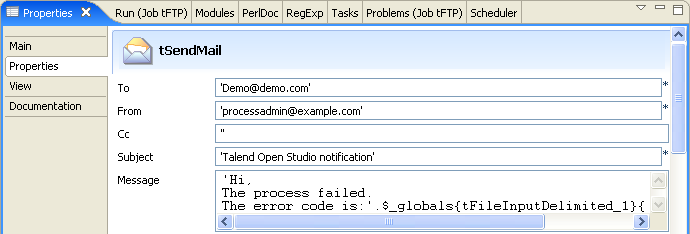
Define the tSendMail component
properties:
-
Enter the recipient and sender email addresses, as well as the email
subject. -
Enter a message containing the error code produced using the corresponding
global variable. Access the list of variables by pressing Ctrl+Space. -
Add attachments and extra header information if any. Type in the SMTP
information.
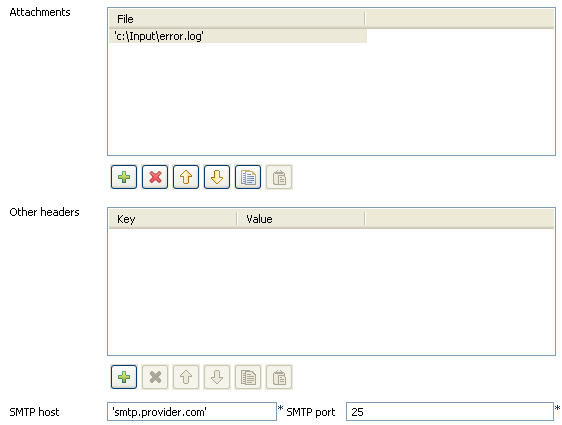
In this scenario, the file containing data to be transferred to XML output cannot be
found. tSendmail runs on this error and sends a
notification email to the defined recipient.