|
Component family |
Processing/Fields |
|
|
Function |
tExtractDelimitedFields generates If you have subscribed to one of the Talend solutions with Big Data, you are |
|
|
Purpose |
tExtractDelimitedFields helps to |
|
|
Basic settings |
Field to split |
Select an incoming field from the Field to |
|
Ignore NULL as the source data |
Select this check box to ignore the Null value in the source data. Clear this check box to generate the Null records that correspond |
|
|
|
Field separator |
Enter character, string or regular expression to separate fields for the transferred NoteSince this component uses regex to split a filed and the regex |
|
|
Die on error |
Clear the check box to skip any rows on error and complete the process for error-free rows. |
|
|
Schema and Edit |
A schema is a row description. It defines the number of fields to be processed and passed on Click Edit schema to make changes to the schema. If the
Click Sync columns to retrieve the schema from the |
|
|
|
Built-in: You create the schema |
|
|
|
Repository: The schema already |
|
Advanced settings |
Advanced separator (for number) |
Select this check box to modify the separators used for |
|
|
Trim column |
Select this check box to remove leading and trailing whitespace |
|
|
Check each row structure against schema |
Select this check box to check whether the total number of columns |
|
|
Validate date |
Select this check box to check the date format strictly against the input schema. |
|
|
tStatCatcher Statistics |
Select this check box to gather the processing metadata at the Job |
|
Global Variables |
ERROR_MESSAGE: the error message generated by the NB_LINE: the number of rows read by an input component or A Flow variable functions during the execution of a component while an After variable To fill up a field or expression with a variable, press Ctrl + For further information about variables, see Talend Studio |
|
|
Usage |
This component handles flow of data therefore it requires input |
|
|
Log4j |
The activity of this component can be logged using the log4j feature. For more information on this feature, see Talend Studio User For more information on the log4j logging levels, see the Apache documentation at http://logging.apache.org/log4j/1.2/apidocs/org/apache/log4j/Level.html. |
|
|
Limitation |
n/a |
|
Warning
The information in this section is only for users that have subscribed to one of
the Talend solutions with Big Data and is not applicable to
Talend Open Studio for Big Data users.
In a Talend Map/Reduce Job, tExtractDelimitedFields, as well as the whole Map/Reduce Job using it,
generates native Map/Reduce code. This section presents the specific properties of
tExtractDelimitedFields when it is used in that
situation. For further information about a Talend Map/Reduce Job, see the Talend Big Data Getting Started Guide.
|
Component family |
Processing / Fields |
|
|
Basic settings |
Property type |
Either Built-in or Repository. |
|
Built-in: no property data stored |
||
|
Repository: reuse properties The fields that come after are pre-filled in using the fetched For further information about the Hadoop |
||
|
Field |
Select the column in which the fields are to be split. |
|
|
Schema and Edit |
A schema is a row description. It defines the number of fields to be processed and passed on Click Edit Schema to make changes to the schema. Note that if you make changes, the schema automatically becomes |
|
|
Built-In: You create and store the schema locally for this |
||
|
Repository: You have already created the schema and |
||
|
Die on error |
Clear the check box to skip any rows on error and complete the process for error-free rows. |
|
|
|
Field separator |
Enter character, string or regular expression to separate fields for the transferred |
|
CSV options |
Select this check box to include CSV specific parameters such as |
|
|
Advanced settings |
Custom Encoding |
You may encounter encoding issues when you process the stored data. In that situation, select Then select the encoding to be used from the list or select |
|
Advanced separator (for number) |
Select this check box to change the separator used for numbers. By |
|
|
Trim all columns |
Select this check box to remove the leading and trailing |
|
|
Check column to trim |
This table is filled automatically with the schema being used. Select the check box(es) |
|
|
Check each row structure against |
Select this check box to check whether the total number of columns |
|
|
Check date |
Select this check box to check the date format strictly against the input schema. |
|
|
Permit hexadecimal (0xNNN) or octal (0NNNN) for numeric |
Select this check box if any of your numeric types (long, integer, short, or byte type), will |
|
|
|
tStatCatcher Statistics |
Select this check box to collect log data at the component |
|
Global Variables |
ERROR_MESSAGE: the error message generated by the A Flow variable functions during the execution of a component while an After variable To fill up a field or expression with a variable, press Ctrl + For further information about variables, see Talend Studio |
|
|
Usage |
If you have subscribed to one of the Talend solutions with Big Data, you can also Once a Map/Reduce Job is opened in the workspace, tExtractDelimitedFields as well as the Note that in this documentation, unless otherwise explicitly stated, a scenario presents |
|
|
Hadoop Connection |
You need to use the Hadoop Configuration tab in the This connection is effective on a per-Job basis. |
|
This scenario describes a three-component Job where the tExtractdelimitedFields component is used to extract two columns from a
comma-delimited file.
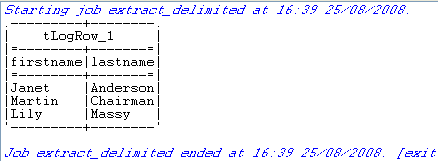
First names and last names are extracted and displayed in the corresponding defined
columns on the console.
-
Drop the following components from the Palette onto the design workspace: tFileInputDelimited, tExtractDelimitedFields, and tLogRow.
-
Connect them using the Row Main
links.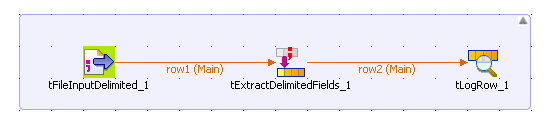
-
Double-click the tFileInputDelimited
component to open its Basic settings
view.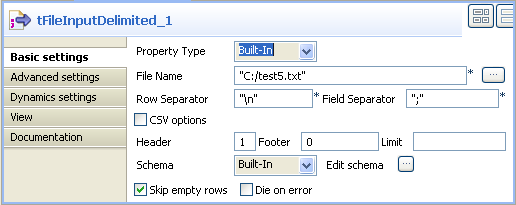
-
In the Basic settings view, set Property Type to Built-In.
-
Click the […] button next to the
File Name field to select the path to
the input file.Note
The File Name field is mandatory.
The input file used in this scenario is called test5.
It is a text file that holds comma-delimited data.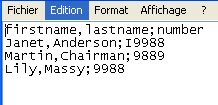
-
In the Basic settings view, fill in all
other fields as needed. For more information, see tFileInputDelimited. In this scenario, the header and the
footer are not set and there is no limit for the number of processed
rows -
Click Edit schema to describe the data
structure of this input file. In this scenario, the schema is made of one
column, name.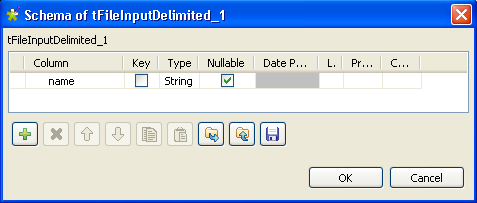
-
Double-click the tExtractDelimitedFields
component to open its Basic settings
view.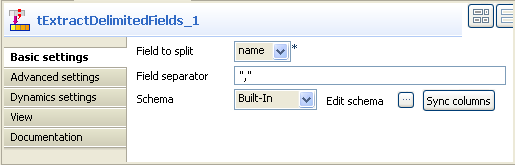
-
From the Field to split list, select the
column to split, name in this scenario. -
In the Field separator field, enter the
corresponding separator. -
Click Edit schema to describe the data
structure of this processing component. -
In the output panel of the [Schema of
tExtractDelimitedFields] dialog box, click the plus button to
add two columns for the output schema, firstname and
lastname.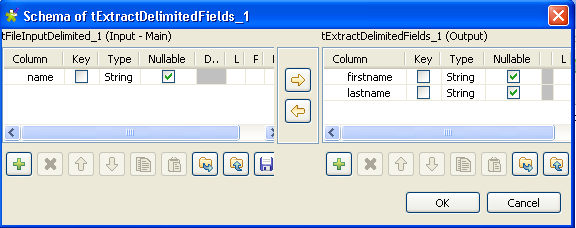
In this scenario, we want to split the name column
into two columns in the output flow, firstname and
lastname. -
Click OK to close the [Schema of tExtractDelimitedFields] dialog
box. -
In the design workspace, select tLogRow
and click the Component tab to define its
basic settings. For more information, see tLogRow.