
|
Component family |
XML or File/Input |
|
|
Function |
tFileInputXML reads an XML If you have subscribed to one of the Talend solutions with Big Data, you are |
|
|
Purpose |
Opens an XML structured file and reads it row by row to split them |
|
|
Basic settings |
Property type |
Either Built-in or Repository. |
|
|
|
Built-in: No property data stored |
|
|
|
Repository: Select the Repository |
|
|
Schema and Edit |
A schema is a row description, it defines the number of fields Click Edit schema to make changes to the schema. If the
|
|
|
|
Built-in: The schema will be |
|
|
|
Repository: The schema already |
|
|
File name/Stream |
File name: Name and path of the
Stream: The data flow to be This variable could be already pre-defined in your Studio or In order to avoid the inconvenience of hand writing, you could Related topic to the available variables: see Talend Studio User Guide. Related scenario to |
|
|
Loop XPath query |
Node of the tree, which the loop is based on. |
|
|
Mapping |
Column: Columns to map. They XPath Query: Enter the fields to Get nodes: Select this check box For further information about the Document type, see NoteThe Get Nodes option |
|
|
Limit |
Maximum number of rows to be processed. If Limit = 0, no row is |
|
|
Die on error |
Select this check box to stop the execution of the Job when an error occurs. Clear the check box to skip any rows on error and complete the process for error-free rows. |
| Advanced settings | Ignore DTD file |
Select this check box to ignore the DTD file indicated in the XML |
|
Advanced separator (for number) |
Select this check box to change data separator for numbers:
Thousands separator: define the
Decimal separator: define the |
|
|
|
Ignore the namespaces |
Select this check box to ignore name spaces. Generate a temporary file: click |
|
|
Use Separator for mode Xerces |
Select this check box if you want to separate concatenated NoteThis field can only be used if the selected Generation mode is Xerces. The following field displays:
Field separator: Define the |
|
|
Encoding |
Select the encoding from the list or select Custom and |
|
|
Generation mode |
From the drop-down list select the generation mode for the XML
|
|
|
Validate date |
Select this check box to check the date format strictly against |
|
|
tStatCatcher Statistics |
Select this check box to gather the Job processing metadata at a |
|
Global Variables |
ERROR_MESSAGE: the error message generated by the NB_LINE: the number of rows processed. This is an After A Flow variable functions during the execution of a component while an After variable To fill up a field or expression with a variable, press Ctrl + For further information about variables, see Talend Studio |
|
|
Usage |
tFileInputXML is for use as an |
|
|
Log4j |
The activity of this component can be logged using the log4j feature. For more information on this feature, see Talend Studio User For more information on the log4j logging levels, see the Apache documentation at http://logging.apache.org/log4j/1.2/apidocs/org/apache/log4j/Level.html. |
|
|
Limitation |
n/a |
|
Warning
The information in this section is only for users that have subscribed to one of
the Talend solutions with Big Data and is not applicable to
Talend Open Studio for Big Data users.
In a Talend Map/Reduce Job, tFileInputXML, as well as the whole Map/Reduce Job using it, generates
native Map/Reduce code. This section presents the specific properties of tFileInputXML when it is used in that situation. For further
information about a Talend Map/Reduce Job, see the Talend Big Data Getting Started Guide.
|
Component family |
MapReduce/Input |
|
|
Basic settings |
Property type |
Either Built-in or Repository. |
|
|
|
Built-in: No property data stored |
|
|
|
Repository: reuse properties The fields that come after are pre-filled in using the fetched For further information about the Hadoop |
|
|
Schema and Edit |
A schema is a row description, it defines the number of fields Click Edit schema to make changes to the schema. If the
|
|
|
|
Built-in: The schema will be |
|
|
|
Repository: The schema already |
|
|
Folder/File |
Browse to, or enter the directory in HDFS where the data you need to use is. If the path you set points to a folder, this component will read If you want to specify more than one files or directories in this If the file to be read is a compressed one, enter the file name
Note that you need |
|
Element to extract |
Enter the element from which you need to read the contents and the The element defined in this field is used at the root node of any Note that any content outside this element is ignored and the |
|
|
|
Loop XPath query |
Node of the tree, which the loop is based on. Note its root is the element you have defined in the Element to extract field. |
|
|
Mapping |
Column: Columns to map. They XPath Query: Enter the fields to Get nodes: Select this check box For further information about the Document type, see |
|
|
Die on error |
Select this check box to stop the execution of the Job when an error occurs. Clear the check box to skip any rows on error and complete the process for error-free rows. |
|
Advanced settings |
Ignore the namespaces |
Select this check box to ignore name spaces. |
|
|
Custom encoding |
You may encounter encoding issues when you process the stored data. In that situation, select Select the encoding from the list or select Custom and |
|
Global Variables |
ERROR_MESSAGE: the error message generated by the A Flow variable functions during the execution of a component while an After variable To fill up a field or expression with a variable, press Ctrl + For further information about variables, see Talend Studio |
|
|
Usage |
Because of the characteristics of the MapReduce framework, the In a Talend Map/Reduce Job, it is used as a start component and requires Once a Map/Reduce Job is opened in the workspace, tFileInputXML as well as the MapReduce Note that in this documentation, unless otherwise explicitly stated, a scenario presents |
|
|
Hadoop Connection |
You need to use the Hadoop Configuration tab in the This connection is effective on a per-Job basis. |
|
This scenario describes a basic Job that reads a defined XML directory and extracts
specific information and outputs it on the Run console
via a tLogRow component.
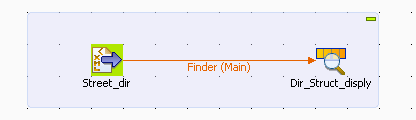
-
Drop tFileInputXML and tLogRow from the Palette to the
design workspace. -
Connect both components together using a Main Row
link. -
Double-click tFileInputXML to open its
Basic settings view and define the
component properties.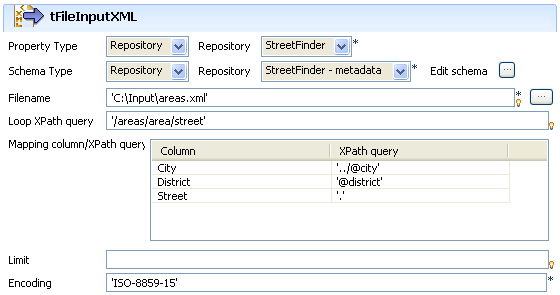
-
As the street dir file used as input file has been previously defined in the
Metadata area, select Repository as Property type. This way, the properties are
automatically leveraged and the rest of the properties fields are filled in
(apart from Schema). For more information regarding the metadata
creation wizards, see Talend Studio User
Guide. -
Select the same way the relevant schema in the Repository metadata list.
Edit schema if you want to make any change
to the schema loaded. -
The Filename shows the structured file to be
used as input -
In Loop XPath query, change if needed the
node of the structure where the loop is based. -
On the Mapping table, fill the fields to be
extracted and displayed in the output. -
If the file size is consequent, fill in a Limit of rows to be read.
-
Enter the encoding if needed then double-click on tLogRow to define the separator character.
-
Save your Job and press F6 to execute
it.
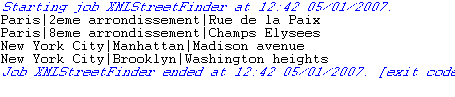
The fields defined in the input properties are extracted from the XML structure and
displayed on the console.
This Java scenario describes a three-component Job that reads an XML file and:
-
first, returns correct XML data in an output XML file,
-
and second, displays on the console erroneous XML data which type does not
correspond to the defined one in the schema.
-
Drop the following components from the Palette to the design workspace: tFileInputXML, tFileOutputXML
and tLogRow.Right-click tFileInputXML and select
Row > Main in the contextual menu and then click tFileOutputXML to connect the components together.Right-click tFileInputXML and select
Row > Reject in the contextual menu and then click tLogRow to connect the components together using a
reject link.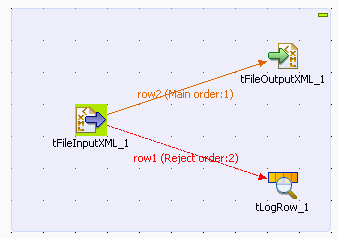
-
Double-click tFileInputXML to display the
Basic settings view and define the
component properties.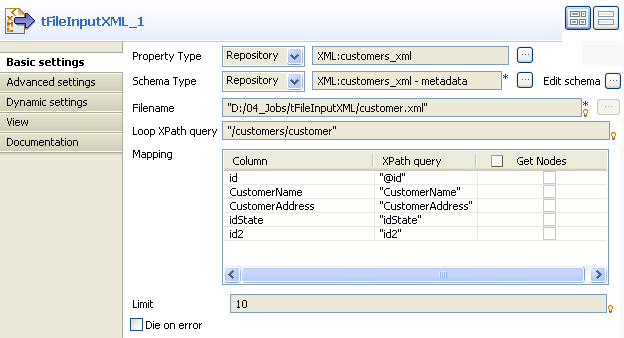
-
In the Property Type list, select Repository and click the three-dot button next to the
field to display the [Repository Content]
dialog box where you can select the metadata relative to the input
file if you have already stored it in the File xml node under the Metadata folder of the Repository tree view. The fields that follow are automatically
filled with the fetched data. If not, select Built-in and fill in the fields that follow manually.For more information about storing schema metadat in the Repository tree
view, see Talend Studio User Guide. -
In the Schema Type list, select Repository and click the three-dot button to open the
dialog box where you can select the schema that describe the structure of the
input file if you have already stored it in the Repository tree view. If not, select Built-in and click the three-dot button next to Edit schema to open a dialog box where you can define
the schema manually.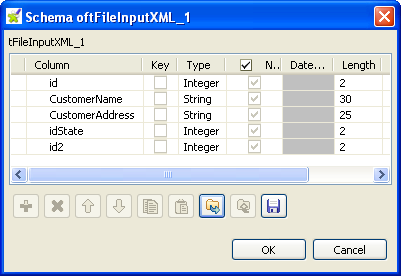
The schema in this example consists of five columns: id,
CustomerName, CustomerAddress, idState and
id2. -
Click the three-dot button next to the Filename field and browse to the XML file you want to
process. -
In the Loop XPath query, enter between
inverted commas the path of the XML node on which to loop in order to retrieve
data.In the Mapping table, Column is automatically populated with the defined
schema.In the XPath query column, enter between
inverted commas the node of the XML file that holds the data you want to extract
from the corresponding column. -
In the Limit field, enter the number of lines
to be processed, the first 10 lines in this example. -
Double-click tFileOutputXML to display its
Basic settings view and define the
component properties.
-
Click the three-dot button next to the File
Name field and browse to the output XML file you want to collect
data in, customer_data.xml in this example.In the Row tag field, enter between inverted
commas the name you want to give to the tag that will hold the recuperated
data.Click Edit schema to display the schema
dialog box and make sure that the schema matches that of the preceding
component. If not, click Sync columns to
retrieve the schema from the preceding component. -
Double-click tLogRow to display its Basic settings view and define the component
properties.Click Edit schema to open the schema dialog
box and make sure that the schema matches that of the preceding component. If
not, click Sync columns to retrieve the schema
of the preceding component.In the Mode area, select the Vertical option.
-
Save your Job and press F6 to execute
it.

The output file customer_data.xml holding the correct XML data is
created in the defined path and erroneous XML data is displayed on the console of the
Run view.