
Warning
This component will be available in the Palette of
Talend Studio on the condition that you have subscribed to one of
the Talend
solutions with Big Data.
|
Component family |
Big Data / MongoDB |
|
|
Function |
tMongoDBInput retrieves certain |
|
|
Purpose |
This component allows you to retrieve records from a collection in |
|
|
Basic settings |
Use existing connection |
Select this check box and in the Component List click the |
|
|
DB Version |
List of the database versions. Available when the Use existing |
|
|
Use replica set address |
Select this check box to show the Replica In the Replica address table, you Available when the Use existing |
|
|
Server and Port |
IP address and listening port of the database server. Available when the Use existing |
|
|
Database |
Name of the database. |
|
Use SSL connection |
Select this check box to enable the SSL encrypted connection. Then you need to use the tSetKeystore component in the For further information about tSetKeystore, see tSetKeystore. Note that the SSL connection is available only for the version 2.4 + of MongoDB. |
|
|
Set read preference |
Select this check box and from the Read preference If you leave this check box clear, the Job reads the default member of the replica For further information, see MongoDB’s documentation about Replication and its Read |
|
|
|
Required authentication |
Select this check box to enable the database |
|
|
Username and Password |
DB user authentication data. To enter the password, click the […] button next to the Available when the Required |
|
|
Collection |
Name of the collection in the MongoDB database. |
|
Schema and Edit |
A schema is a row description. It defines the number of fields to be processed and passed on Click Edit schema to make changes to the schema. If the
|
|
|
|
Query |
Specify the query condition. For example, type in NoteDifferent from the query statements required in the MongoDB |
|
|
Mapping |
Specify the parent node for the column in the MongoDB |
|
Sort by |
Specify the column and choose the order for the sort |
|
|
Limit |
Type in the maximum number of records to be retrieved. |
|
| Advanced settings |
tStatCatcher Statistics |
Select this check box to collect the log data at the component |
|
Global Variables |
NB_LINE: the number of rows read by an input component or ERROR_MESSAGE: the error message generated by the A Flow variable functions during the execution of a component while an After variable To fill up a field or expression with a variable, press Ctrl + For further information about variables, see Talend Studio |
|
|
Usage |
As a start component, tMongoDBInput allows you to retrieve records from a |
|
|
Log4j |
The activity of this component can be logged using the log4j feature. For more information on this feature, see Talend Studio User For more information on the log4j logging levels, see the Apache documentation at http://logging.apache.org/log4j/1.2/apidocs/org/apache/log4j/Level.html. |
|
In this scenario, advanced MongoDB queries are used to retrieve the post by the author
Anderson.
There are such posts in the collection blog of the
MongoDB database talend:
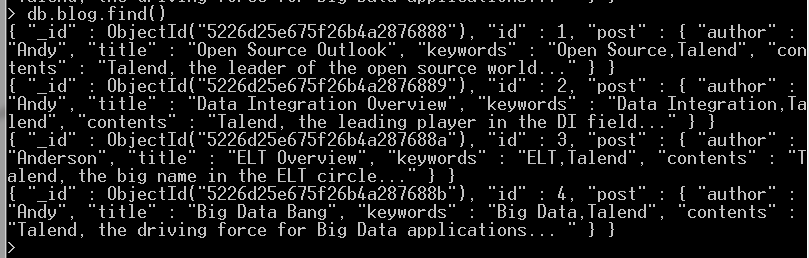
To insert data into the database, see Scenario 1: Creating a collection and writing data to it.
-
Drop tMongoDBConnection, tMongoDBClose, tMongoDBInput and tLogRow
onto the workspace. -
Link tMongoDBConnection to tMongoDBInput using the OnSubjobOk trigger.
-
Link tMongoDBInput to tMongoDBClose using the OnSubjobOk trigger.
-
Link tMongoDBInput to tLogRow using a Row > Main
connection.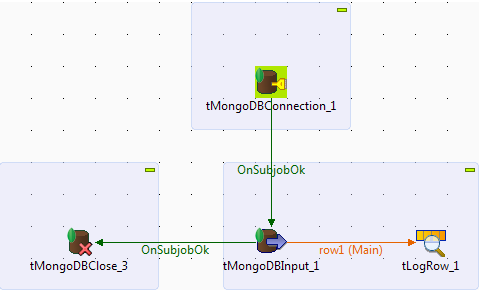
-
Double-click tMongoDBConnection to open
its Basic settings view.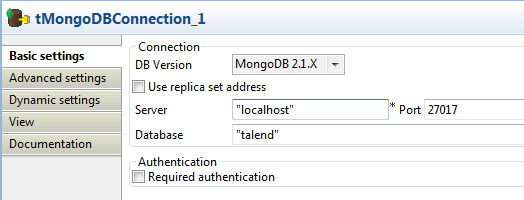
-
From the DB Version list, select the
MongoDB version you are using. -
In the Server and Port fields, enter the connection details.
-
In the Database field, enter the name of the MongoDB
database. -
Double-click tMongoDBInput to open its
Basic settings view.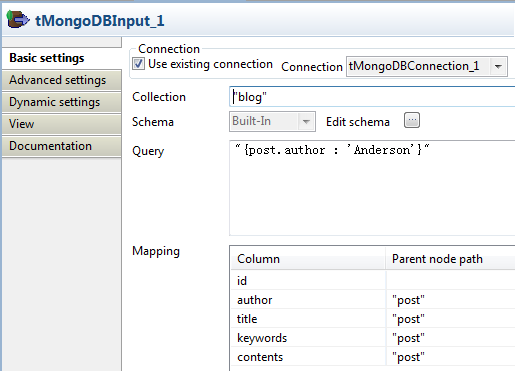
-
Select the Use existing connection
option. -
In the Collection field, enter the name
of the collection, namely blog. -
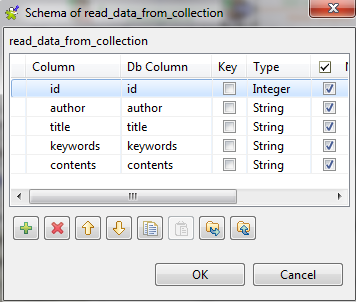
Click the […] button next to Edit schema to open the schema editor.
-
Click the [+] button to add five columns,
namely id, author, title, keywords and contents, with the type as Integer and String
respectively. -
Click OK to close the editor.
-
The columns now appear in the left part of the Mapping area.
-
For columns author, title, keywords and contents,
enter their parent node post so that the
data can be retrieved from the correct positions. -
In the Query box, enter the advanced
query statement to retrieve the posts whose author is Anderson:1"{post.author : 'Anderson'}"This statement requires that the sub-node of post, the node author,
should have the value “Anderson”. -
Double-click tLogRow to open its
Basic settings view.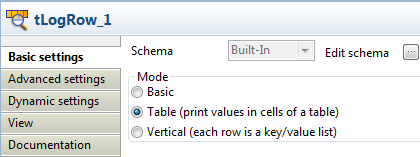
Select Table (print values in cells of a
table) for a better display of the results.

For related scenarios, see: