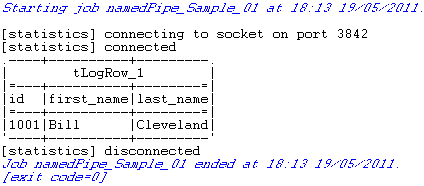
|
Component family |
File/Input |
|
|
Function |
tNamedPipeOutput writes data into |
|
|
Purpose |
This component allows you to write data into an existing open |
|
|
Basic settings |
Use existing pipe |
Select this check box to use an existing named-pipe in the |
|
|
Pipe component |
Select an existing named-pipe component from the list. NoteThis check box will display only when you select Use existing pipe connection. |
|
|
Pipe name |
Fill in the field with the name of an existing named-pipe. NoteThis check box will display only when you clear Use existing pipe connection. |
|
|
Row separator |
String (ex: ” |
|
|
Field separator |
Character, string or regular expression to separate fields of the |
|
|
CSV options |
Select this check box to take into account all parameters specific |
|
|
Schema and Edit |
A schema is a row description, it defines the number of fields to be processed and Since version 5.6, both the Built-In mode and the Repository mode are Click Edit schema to make changes to the schema. If the
Click Sync columns to retrieve |
|
|
|
Built-in: The schema will be |
|
|
|
Repository: The schema already |
|
|
Delete pipe if it exists |
Select this check box to avoid duplicate named-pipe. |
|
Advanced settings |
Boolean type |
Select a boolean type from the list. |
|
|
tStatCatcher Statistics |
Select this check box to gather the Job processing metadata at a |
|
Dynamic settings |
Click the [+] button to add a row The Dynamic settings table is For more information on Dynamic settings and context |
|
|
Global Variables |
NB_LINE: the number of rows read by an input component or PIPE_NAME: the name of the named-pipe. This is a Flow PIPE_NATIVE_NAME: the native name of the named-pipe. This PIPE_OUTPUTSTREAM: the output stream of the named-pipe. ERROR_MESSAGE: the error message generated by the A Flow variable functions during the execution of a component while an After variable To fill up a field or expression with a variable, press Ctrl + For further information about variables, see Talend Studio |
|
|
Usage |
This component is usually connected to another component in a |
|
| Limitation |
Due to license incompatibility, one or more JARs required to use this component are not |
|
The following scenario creates a multi-component Job, which writes data into an open
named-pipe and displays the data onto the console.
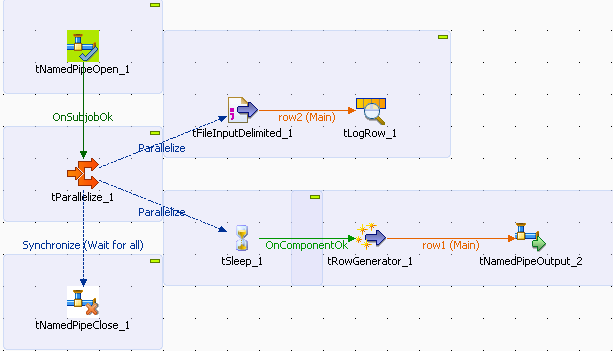
-
Drop the following components from the Palette to the design workspace: tNamedPipeOpen, tParallelize, tNamedPipeClose, tFileInputDelimited, tSleep, tLogRow, tRowGenerator and tNamedPipeOutput.
-
Connect tNamedPipeOpen to tParallelize using a Trigger > OnSubjobOk connection.
-
Connect tParallelize to tFileInputDelimited using a Trigger > Parallelize
connection. -
Connect tParallelize to tSleep using a Trigger > Parallelize
connection. -
Connect tFileInputDelimited to tLogRow using a Row > Main
connection. -
Connect tParallelize to tNamedPipeClose using a Trigger > Synchronize (Wait for
all) connection. -
Connect tSleep to tRowGenerator using a Trigger > OnComponentOk
connection. -
Connect tRowGenerator to tNamedPipeOutput using a Row > Main
connection.
Configuring the input component
-
Double-click tNamedPipeOpen to define its
propeties in its Basic settings view.Fill in the Name field with the name of a
named-pipe and select Delete if already
exist to avoid duplicate named-pipe.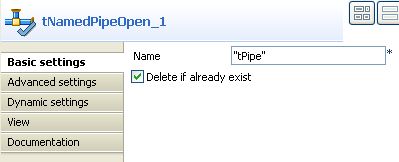
-
Double-click tParallelize to define its
properties in its Basic settings
view.Select end of all subjobs from the
Wait for list.Fill in the Sleep Duration field with
100 to set the sleep duration.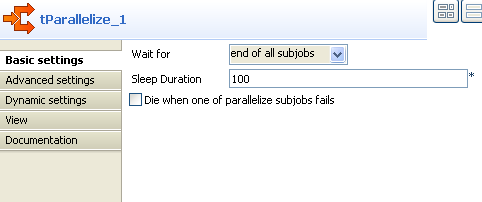
-
Double-click tFileInputDelimited to
define its properties in its Basic settings
view.Fill in the File name/Stream field with
the following expression to use the name of the existing named-pipe defined
in the Basic settings view of tNamedPipeOpen: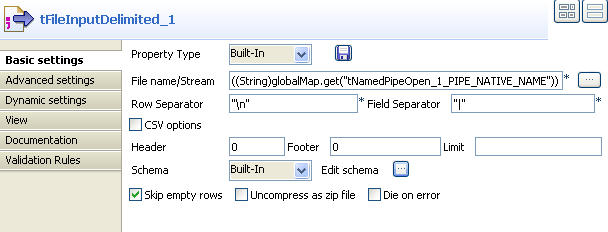
-
((String)globalMap.get("tNamedPipeOpen_1_PIPE_NATIVE_NAME")) -
Click the three-dot button next to Edit
schema.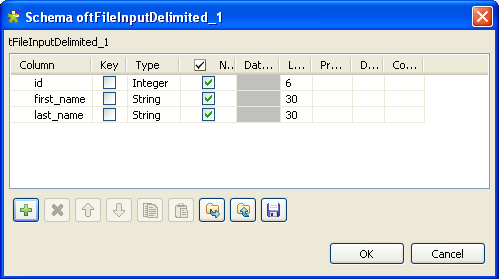
-
Click the plus button to add three columns for tFileInputDelimited. Fill the three Column fields with id,
first_name and last_name and
set the Type of id to
Integer. Keep the rest of the settings
as default. -
Click OK to save the settings for the
schema. -
Keep the rest of the settings in the Basic
settings view of tFileInputDelimited as default. -
Double-click tSleep and fill the
Pause (in seconds) field with
1. -
Double-click tRowGenerator to define its
properties in its Basic settings
view. -
Click RowGenerator Editor to define the
schema.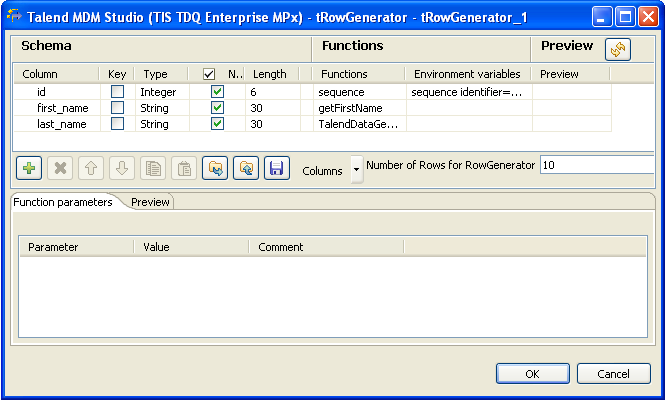
-
Click the plus button to add three columns for tRowGenerator. Fill the three Column fields with id,
first_name and last_name and
set the Type of id to
Integer. Keep the rest of the settings of Type as default. -
Select sequence from the list in the
Functions field for
id. -
Select getFirstName from the list in the
Functions field for Column
first_name. -
Select TalendDataGenerator.getLastName from the list
in the Functions field for Column
last_name. -
Select id, fill the Value field under Function
parameters tab with s1 for sequence identifier, 1001
for start value and 1
for step. -
Click OK to save the settings.
Configuring the output component
-
Double-click tNamedPipeOutput to define
its properties in its Basic settings
view.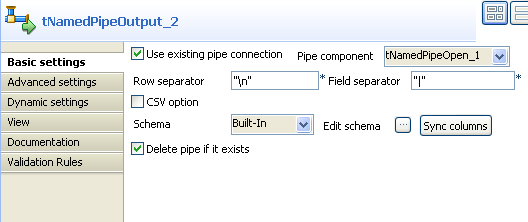
-
Select the Use existing pipe connection
check box and select tNamedPipeOpen_1 from
the Pipe component list. -
Select Delete pipe if it exists to avoid
duplicate named-pipe. -
Click Sync columns to retrieve the schema
from the preceding component. -
Leave the rest of the settings as they are.
-
Double-click tLogRow to define its
properties in its Basic settings
view.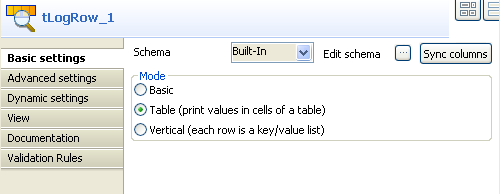
-
Click Sync columns to retrieve the schema
from the preceding component. -
Select Table in the Mode area.
-
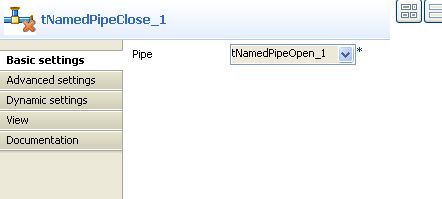
Double-click tNamedPipeClose to define
its properties in its Basic settings
view. -
Select tNamedPipeOpen_1 from the
Pipe list.