
Warning
This component will be available in the Palette of
Talend Studio on the condition that you have subscribed to one of
the Talend Platform products.
The address management components discussed here are the result of Talend collaboration with
Experian QAS, one of the world leaders for global address data quality.
For more information about the enterprise and its software tools, visit http://www.qas.com.
|
Component family |
Data Quality |
|
|
Function |
tQASBatchAddressRow verifies addresses in a The advantages of this component over tQASAddressRow is that For further information on installation and on configuration parameters, see tQASBatchAddressRow uses Batch 4.80 on both |
|
|
Purpose |
tQASBatchAddressRow corrects any formatting or For more information about the verification status, see QuickAccess verification levels (verification status). |
|
|
Basic settings |
Schema |
A schema is a row description, it defines the number of fields to be processed Since version 5.6, both the Built-In mode and the Repository mode are Click Sync columns to retrieve the schema from |
|
|
|
Built-in: You create the schema and store it |
|
|
|
Repository: You have already created the schema |
|
|
Edit schema |
Click the […] button and define the input and The output schema of tQASBatchAddressRow |
|
|
Country |
Select from the list the country corresponding to your input addresses. If you want to have a global output schema, select Universal from this list. |
|
|
Choose the address column |
Select from the list the address column you want to analyze. |
|
|
Specify the configuration file |
Click the […] button and browse to set the |
|
Advanced settings |
tStat |
Select this check box to collect log data at the component level. |
|
Global Variables |
ERROR_MESSAGE: the error message generated by the A Flow variable functions during the execution of a component while an After variable To fill up a field or expression with a variable, press Ctrl + For further information about variables, see Talend Studio |
|
|
Usage |
This component is an intermediary step. It requires an input flow as well as an |
|
|
Limitation/prerequisite |
Before being able to use this component, you must install the QAS Batch |
|
After installing the QAS Batch as outlined in QuickAddress Batch, you must configure some parameters in the QAS files so that they
match with the component output schema.
For Linux:
-
Open the ~/.profile file in your home folder and add the
following lines, modify them according to your extract location:1# for QAS Batch JNI1export PATH=$PATH:/path/to/qasbatch/apps #the folder which contains qaworld.ini1export LD_LIBRARY_PATH=$LD_LIBRARY_PATH:/path/to/jni_wrapper_folder -
Configure the QAS Application as the following:
-
Add a new line at the end of ./apps/qalicn.ini and put a
valid license. -
Put valid files which contain country address data into the right folder, and
configure qawserve.ini to add country support.There must be three elements for each country line: a short name, a full country
name, and data path which can be relative or absolute.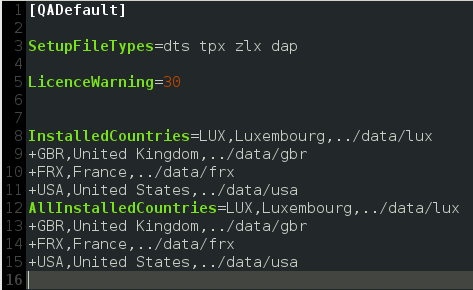
-
For both Linux and Windows:
-
In the qaworld.ini file, configure the related country section
for output schema.The example below shows the configuration for UK addresses. The
AddressLine1toAddressLine5indicate address validation
results, which correspond to the first five output columns of the tQASBatchAddressRow component.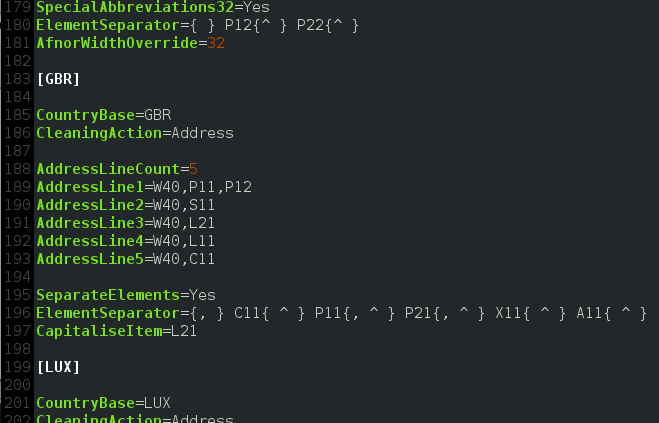
Below is a three-component Job created in Talend Studio.
This Job:
-
generates random address information,
-
uses the tQASBatchAddressRow component to analyze
the output columns and display the correct formatted address along with their verification
status on the console,
Complete the following to design and execute the above scenario:
-
Drop the following components from the Palette
onto the design workspace: tFixedFlowInput, tQASBatchAddressRow and tLogRow.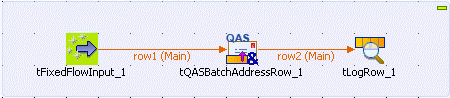
-
Connect the component together using Main
links.
-
Double-click tFixedFlowInput to display its
Basic settings view and define the component
properties.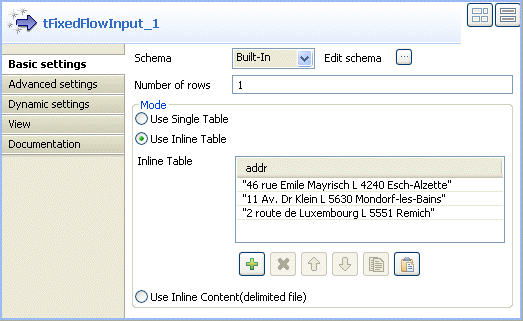
-
Click the […] button next to Edit Schema to open a dialog box, and add one column: addr. Then click OK to close
the dialog box.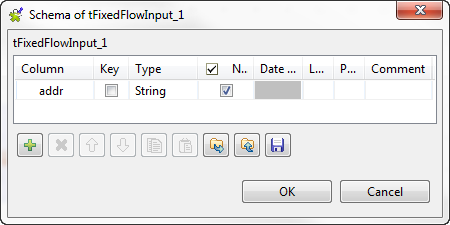
-
In the Mode area, select the Use Inline Table option, add three lines in the table by clicking the
[+] button, and define the data for the input column,
three address rows in this example.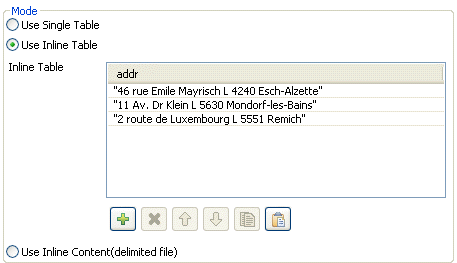
-
Double-click the tQASBatchAddressRow component to
display its Basic settings and define the component
properties.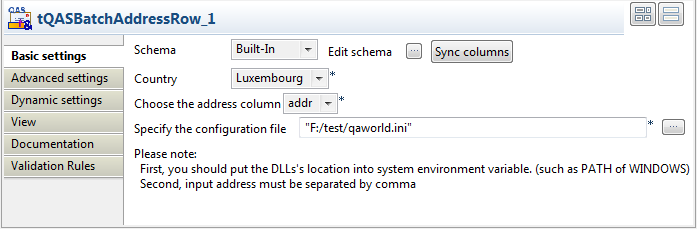
-
Click the […] button next to Edit schema, if required, to view the input and output data
flow. The output schema should include the addr column.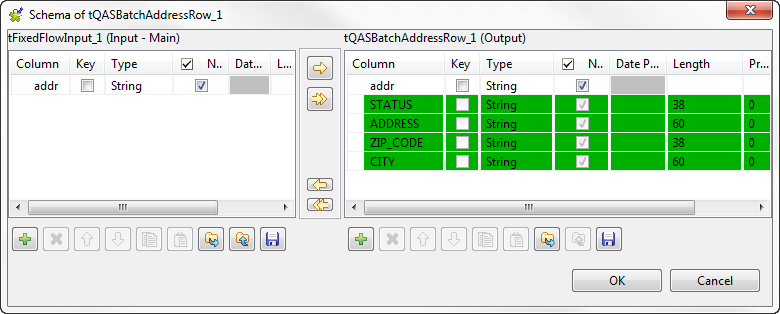
The output schema of any of the QuickAddress components depends on the selected
country in the Country list since every country has
different address norms.Click OK to close the dialog box.
-
Select from the Country list the country
corresponding to your input addresses. -
Select from the Choose the address column list the
address column you want to analyze, addr in this example. -
Click the […] button next to the Specify the configuration file field and browse to the QAS
configuration file installed locally. -
Double-click the tLogRow component to display its
Basic settings view and select Table in the Mode area to display the Job
execution result in table cells.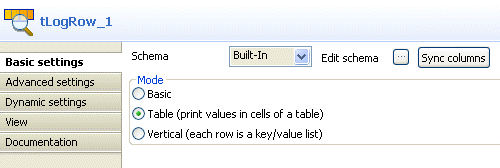
-
Save your Job and press F6 to execute it and
display the result on the console.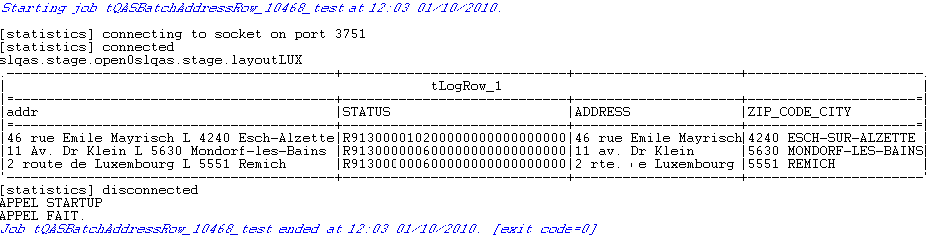
In the result shown above, tQASBatchAddressRow
reads input rows, corrects and formats addresses, gives the result in the
ADDRESS and ZIP_CODE_CITY columns, and gives
the verification status in the STATUS row. For further information
on the status column, check the corresponding documentation at http://www.qas.com.