Warning
This component is available only to users of Talend Studio with ESB.
|
Component family |
ESB/Route |
|
|
Function |
tRouteOutput sends messages from |
|
|
Purpose |
tRouteOutput allows you to |
|
|
Basic settings |
Output Schema |
A schema is a row description. It defines the number of fields to be processed and passed on Click Edit schema to make changes to the schema. If the
Click Sync columns to retrieve |
|
|
|
Built-in: No property data stored |
|
|
|
Repository: Select the Repository |
|
|
Camel |
Enter the message parameters corresponding to the columns you |
|
|
Type |
Select between: Body: Used to set the body of a Property: Used to set the System: Used to set the system Header: Used the set the output |
|
|
Name |
This column is used to set the name for the parameter when its |
| Advanced settings |
tStatCatcher Statistics |
Select this check box to gather the Job processing metadata at a |
|
Global Variables |
ERROR_MESSAGE: the error message generated by the A Flow variable functions during the execution of a component while an After variable To fill up a field or expression with a variable, press Ctrl + For further information about variables, see Talend Studio |
|
|
Usage |
This component can be used as the end component and thus requires |
|
|
Limitation |
The Job using a tRouteOutput |
|
This scenario describes how to send messages from a Job to a Route using the tRouteOutput component. To do this, we need to build a Job to
send the message and then create a Route using the cTalendJob component to call the Job and receive the message.
For more information about how to use the Mediation components, see Talend ESB Mediation Components Reference Guide.
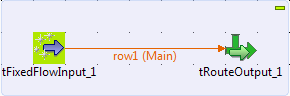
In this section, we will build a Job named RouteCommunication
to send the message to a Route.
-
Drag and drop a tFixedFlowInput and a
tRouteOutput from the Palette onto the design workspace. -
Right-click the tFixedFlowInput
component, select Row > Main from the contextual menu and click the
tRouteOutput component.
-
Double-click the tFixedFlowInput
component to open its Basic settings
view in the Component tab.
-
Click the three-dot button next to Edit
Schema. In the schema dialog box, click the plus button
to add a new line of String type and
name it body. Click OK to close the dialog box.
-
In the Number of rows field, set the
number of rows as 1. -
In the Mode area, select Use Single Table and input the following
request in double quotation marks into the Value field:Hello from Talend Job! -
Double-click the tRouteOutput
component to display its Basic settings
view in the Component tab.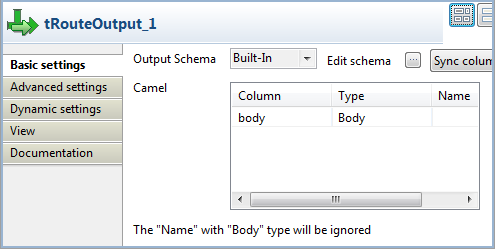
-
Make sure that tRouteOutput has one
element body. Set its type to Body. -
Press Ctrl+S to save your Job.
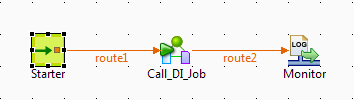
In this section, we will switch to the Mediation
perspective and create a Route to receive the message sent from the Job.
-
Drag and drop a cMessagingEndpoint, a
cTalendJob, and a cLog component from the Palette onto the design workspace. -
Link the components with the Row >
Route connection as shown
above. -
Label the components for better identification of their roles.
-
Double-click the cMessagingEndpoint
component to open its Basic settings
view in the Component tab.
-
In the URI field, enter
"timer://myTimer?period=2000"to start message
exchanges every 2000 milliseconds. -
Double-click the cTalendJob component
to display its Basic settings view in
the Component tab.
-
Select Job RouteCommunication from the
repository. -
The cLog component will monitor the
message exchanges and does not need any configuration. -
Press Ctrl+S to save your
Route.