August 17, 2023

tSqoopMerge – Docs for ESB 5.x

tSqoopMerge

tsqoopmerge_icon32_white.png

Warning

This component will be available in the Palette of
Talend Studio on the condition that you have subscribed to one of
the Talend
solutions with Big Data.

tSqoopMerge Properties

Component family

Big Data / Sqoop


Function

tSqoopMerge reads two datasets in
HDFS and combines them both using a merge class that is able to
parse the datasets, with the newer records overwriting the older
records.

Note

Sqoop is typically installed in every Hadoop distribution. But if the Hadoop
distribution you need to use have no Sqoop installed, you have to install one on your
own and ensure to add the Sqoop command line to the PATH variable of that distribution.
For further information about how to install Sqoop, see the documentation of
Sqoop.

Purpose

tSqoopMerge is typically used to
perform an incremental import that updates an older dataset with
newer records. The file types of the newer and the older datasets
must be the same.

Basic settings

Mode

Select the mode in which Sqoop is called in a Job execution.

Use Commandline: the Sqoop shell is used to call Sqoop.
In this mode, you have to deploy and run the Job in the host where Sqoop is installed.
Therefore, if you are a subscription-based user, we recommend installing and using a
Jobserver provided by Talend in that host to run the Job; if you are using one of the
Talend solutions
with Big Data, you have to ensure that the Studio and the Sqoop to be used are in the same
machine. For further information about how to install a Jobserver, see Talend Installation
and Upgrade Guide.

Use Java API: the Java API is used to call Sqoop. In this
mode, the Job can be run locally in the Studio but you need to configure the connection to
the Hadoop distribution to be used. Note that JDK is required to execute the Job in the Java
API mode and the versions of the JDK kits installed in both machines must be compatible with
each other; for example, the versions are the same or the JDK version of the Hadoop machine
is more recent.


Hadoop properties

Either Built-in or Repository:

  • Built-in: you enter the configuration
    information of the Hadoop distribution to be used locally for this component
    only.

  • Repository: you have already created the
    Hadoop connection and stored it in the Repository; therefore, you reuse it directly for the component
    configuration and the Job design. For further information about how to create a
    centralized Hadoop connection, see Talend Big Data Getting Started Guide.

Version

Distribution

Select the cluster you are using from the drop-down list. The options in the list vary
depending on the component you are using. Among these options, the following ones requires
specific configuration:

  • If available in this Distribution drop-down list, the
    Microsoft HD Insight option allows you to use a
    Microsoft HD Insight cluster. For this purpose, you need to configure the
    connections to the WebHCat service, the HD Insight service and the Windows Azure
    Storage service of that cluster in the areas that are displayed. A demonstration
    video about how to configure this connection is available in the following link:
    https://www.youtube.com/watch?v=A3QTT6VsNoM

  • The Custom option allows you to connect to a
    cluster different from any of the distributions given in this list, that is to
    say, to connect to a cluster not officially supported by Talend.

In order to connect to a custom distribution, once selecting Custom, click the dotbutton.png button to display the dialog box in which you can
alternatively:

  1. Select Import from existing version to import an
    officially supported distribution as base and then add other required jar files
    which the base distribution does not provide.

  2. Select Import from zip to import a custom
    distribution zip that, for example, you can download from http://www.talendforge.org/exchange/index.php.

    Note

    In this dialog box, the active check box must be kept selected so as to import
    the jar files pertinent to the connection to be created between the custom
    distribution and this component.

    For an step-by-step example about how to connect to a custom distribution and
    share this connection, see Connecting to a custom Hadoop distribution.


Hadoop Version

Select the version of the Hadoop distribution you are using. The available options vary
depending on the component you are using. Along with the evolution of Hadoop, please note
the following changes:

  • If you use Hortonworks Data Platform V2.2, the
    configuration files of your cluster might be using environment variables such as
    ${hdp.version}. If this is your situation, you
    need to set the mapreduce.application.framework.path property in the Hadoop properties table of this component with the path value
    explicitly pointing to the MapReduce framework archive of your cluster. For
    example:

  • If you use Hortonworks Data Platform V2.0.0, the
    type of the operating system for running the distribution and a Talend
    Job must be the same, such as Windows or Linux. Otherwise, you have to use Talend
    Jobserver to execute the Job in the same type of operating system in which the
    Hortonworks Data Platform V2.0.0 distribution you
    are using is run. For further information about Talend Jobserver, see
    Talend Installation
    and Upgrade Guide
    .

Configuration

NameNode URI

Select this check box to indicate the location of the NameNode of the Hadoop cluster to be
used. The NameNode is the master node of a Hadoop cluster. For example, we assume that you
have chosen a machine called masternode as the NameNode
of an Apache Hadoop distribution, then the location is hdfs://masternode:portnumber.

For further information about the Hadoop Map/Reduce framework, see the Map/Reduce tutorial
in Apache’s Hadoop documentation on http://hadoop.apache.org.


JobTracker Host

Select this check box to indicate the location of the Jobtracker service within the Hadoop
cluster to be used. For example, we assume that you have chosen a machine called machine1 as the JobTracker, then set its location as machine1:portnumber. A Jobtracker is the service that assigns
Map/Reduce tasks to specific nodes in a Hadoop cluster. Note that the notion job in this
term JobTracker does not designate a Talend Job, but rather a Hadoop job
described as MR or MapReduce job in Apache’s Hadoop documentation on http://hadoop.apache.org.

This property is required when the query you want to use is executed in Windows and it is
a Select query. For example, SELECT your_column_name FROM
your_table_name

If you use YARN in your Hadoop cluster such as Hortonworks Data
Platform V2.0.0
or Cloudera CDH4.3 + (YARN
mode)
, you need to specify the location of the Resource
Manager
instead of the Jobtracker. Then you can continue to set the following
parameters depending on the configuration of the Hadoop cluster to be used (if you leave the
check box of a parameter clear, then at runtime, the configuration about this parameter in
the Hadoop cluster to be used will be ignored ):

  1. Select the Set resourcemanager scheduler
    address
    check box and enter the Scheduler address in the field
    that appears.

  2. Allocate proper memory volumes to the Map and
    the Reduce computations and the ApplicationMaster of YARN by selecting the Set memory check box in the Advanced settings view.

  3. Select the Set jobhistory address check box
    and enter the location of the JobHistory server of the Hadoop cluster to be
    used. This allows the metrics information of the current Job to be stored in
    that JobHistory server.

  4. Select the Set staging directory check box
    and enter this directory defined in your Hadoop cluster for temporary files
    created by running programs. Typically, this directory can be found under the
    yarn.app.mapreduce.am.staging-dir
    property in the configuration files such as yarn-site.xml or mapred-site.xml of your distribution.

  5. Select the Set Hadoop user check box and
    enter the user name under which you want to execute the Job. Since a file or a
    directory in Hadoop has its specific owner with appropriate read or write
    rights, this field allows you to execute the Job directly under the user name
    that has the appropriate rights to access the file or directory to be
    processed.

  6. Select the Use datanode hostname check box to
    allow the Job to access datanodes via their hostnames. This actually sets the
    dfs.client.use.datanode.hostname property
    to true.

For further information about these parameters, see the documentation or
contact the administrator of the Hadoop cluster to be used.

For further information about the Hadoop Map/Reduce framework, see the Map/Reduce tutorial
in Apache’s Hadoop documentation on http://hadoop.apache.org.

 Authentication

Use kerberos authentication

If you are accessing the Hadoop cluster running with Kerberos security, select this check
box, then, enter the Kerberos principal name for the NameNode in the field displayed. This
enables you to use your user name to authenticate against the credentials stored in
Kerberos.

In addition, since this component performs Map/Reduce computations, you also need to
authenticate the related services such as the Job history server and the Resource manager or
Jobtracker depending on your distribution in the corresponding field. These principals can
be found in the configuration files of your distribution. For example, in a CDH4
distribution, the Resource manager principal is set in the yarn-site.xml file and the Job history principal in the mapred-site.xml file.

This check box is available depending on the Hadoop distribution you are connecting
to.

  Use a keytab to authenticate

Select the Use a keytab to authenticate check box to log
into a Kerberos-enabled Hadoop system using a given keytab file. A keytab file contains
pairs of Kerberos principals and encrypted keys. You need to enter the principal to be used
in the Principal field and the access path to the keytab
file itself in the Keytab field.

Note that the user that executes a keytab-enabled Job is not necessarily the one a
principal designates but must have the right to read the keytab file being used. For
example, the user name you are using to execute a Job is user1 and the principal to be used is guest; in this situation, ensure that user1 has the right to read the keytab file to be used.


Hadoop user name

Enter the user name under which you want to execute the Job. Since a file or a directory in
Hadoop has its specific owner with appropriate read or write rights, this field allows you
to execute the Job directly under the user name that has the appropriate rights to access
the file or directory to be processed. Note that this field is available depending on the
distribution you are using.

Folders to merge

Old data directory

Enter the path to the older dataset to be merged.


New data directory

Enter the path to the newer dataset to be merged.


Target directory

Enter the directory where you need to put the output of the
merging.


Merge key

Enter the name of the column used as the key of each record for
the merging.

This primary key must be unique.


Need to generate the JAR file

Select this check box to generate the merge jar file and the merge
class required to parse the datasets to be merged. The default name
of the jar file and the class is SqoopMerge_component_ID. This compnent_ID is the ID of the tSqoopMerge component that generates the
jar file and the class, such as tSqoopMerge_1, or tSqoopMerge_2.

As this jar file is generated from the source table of the
imported data, selecting this check box displays the corresponding
parameters to be set for connecting to that table.


JDBC property

Either Built-in or Repository:

  • Built-in: you enter the connection
    information of the database to be used locally for this component only.

  • Repository: you have already created the
    database connection and stored it in the Repository; therefore, you reuse it directly for the component
    configuration and the Job design. For further information about how to create a
    centralized database connection, see Talend Studio User
    Guide
    .

    Note that only the General JDBC connection
    stored in the Repository is supported.


Connection

Enter the JDBC URL used to connect to the database where the source data is stored.


User name and
Password

Enter the authentication information used to connect to the source database.

To enter the password, click the […] button next to the
password field, and then in the pop-up dialog box enter the password between double quotes
and click OK to save the settings.


Table Name

Type in the name of the source table.

This name is used to name the generated jar file.


Driver JAR

In either the Use Commandline mode or the Java API mode, you must add the driver file of the database to be
used to the lib folder of the Hadoop distribution you are
using. For that purpose, use this Driver JAR table to add
that driver file for the current Job you are designing.

This driver jar is required only when you need to connect to the
database to be used to generate the merge jar file; therefore this
Driver JAR table is available
only when you have selected the Need to
generate the JAR file
check box.


JAR file

If a required merge class already exists and is available, specify
the access path to the jar file that contains that class for reusing
the class.

In this situation, you need to enter the name of the class in the
Class name field in the
Advanced settings tab.


Print Log

Select this check box to activate the Verbose check
box.


Verbose

Select this check box to print more information while working, for example, the debugging
information.

  Advanced settings

Custom class name

Select this check box to display the Class
name
field and enter the name of the merge class you
need to use.

This check box must be clear if you use Generate the JAR file in the Basic settings tab.


Additional arguments

Complete this table to use additional arguments if needs be.

By adding additional arguments, you are able to perform multiple operations in one single
transaction. For example, you can use --hive-import and
--hive-table in the Commandline mode or hive.import and
hive.table.name in the Java API mode to create Hive table and write data in
at the runtime of the transaction writing data in HDFS. For further information about the
available Sqoop arguments in the Commandline mode and the Java API mode, respectively, see
Additional arguments.


Hadoop properties

Talend Studio uses a default configuration for its engine to perform
operations in a Hadoop distribution. If you need to use a custom configuration in a specific
situation, complete this table with the property or properties to be customized. Then at
runtime, the customized property or properties will override those default ones.

  • Note that if you are using the centrally stored metadata from the Repository, this table automatically inherits the
    properties defined in that metadata and becomes uneditable unless you change the
    Property type from Repository to Built-in.

For further information about the properties required by Hadoop and its related systems such
as HDFS and Hive, see the documentation of the Hadoop distribution you
are using or see Apache’s Hadoop documentation on http://hadoop.apache.org/docs and then select the version of the documentation you want. For demonstration purposes, the links to some properties are listed below:


Mapred job map memory mb and
Mapred job reduce memory
mb

If the Hadoop distribution to be used is Hortonworks Data Platform V1.2 or Hortonworks
Data Platform V1.3, you need to set proper memory allocations for the map and reduce
computations to be performed by the Hadoop system.

In that situation, you need to enter the values you need in the Mapred
job map memory mb
and the Mapred job reduce memory
mb
fields, respectively. By default, the values are both 1000 which are normally appropriate for running the
computations.

If the distribution is YARN, then the memory parameters to be set become Map (in Mb), Reduce (in Mb) and
ApplicationMaster (in Mb), accordingly. These fields
allow you to dynamically allocate memory to the map and the reduce computations and the
ApplicationMaster of YARN.


Path separator in server

Leave the default value of the Path separator in server as
it is, unless you have changed the separator used by your Hadoop distribution’s host machine
for its PATH variable or in other words, that separator is not a colon (:). In that
situation, you must change this value to the one you are using in that host.


tStatCatcher Statistics

Select this check box to collect log data at the component
level.

Global Variables

ERROR_MESSAGE: the error message generated by the
component when an error occurs. This is an After variable and it returns a string. This
variable functions only if the Die on error check box is
cleared, if the component has this check box.

EXIT_CODE: the exit code of the remote command. This is
an After variable and it returns an integer.

A Flow variable functions during the execution of a component while an After variable
functions after the execution of the component.

To fill up a field or expression with a variable, press Ctrl +
Space
to access the variable list and choose the variable to use from it.

For further information about variables, see Talend Studio
User Guide.

Usage

This component is used standalone. It respects the Sqoop prerequisites. You need necessary
knowledge about Sqoop to use it.

We recommend using the Sqoop of version 1.4+ in order to benefit the full functions of
these components.

For further information about Sqoop, see the Sqoop manual on: http://sqoop.apache.org/docs/

Prerequisites

The Hadoop distribution must be properly installed, so as to guarantee the interaction
with Talend Studio. The following list presents MapR related information for
example.

  • Ensure that you have installed the MapR client in the machine where the Studio is,
    and added the MapR client library to the PATH variable of that machine. According
    to MapR’s documentation, the library or libraries of a MapR client corresponding to
    each OS version can be found under MAPR_INSTALL
    hadoophadoop-VERSIONlib
    ative
    . For example, the library for
    Windows is lib
    ativeMapRClient.dll
    in the MapR
    client jar file. For further information, see the following link from MapR: http://www.mapr.com/blog/basic-notes-on-configuring-eclipse-as-a-hadoop-development-environment-for-mapr.

    Without adding the specified library or libraries, you may encounter the following
    error: no MapRClient in java.library.path.

  • Set the -Djava.library.path argument, for example, in the Job Run VM arguments area
    of the Run/Debug view in the [Preferences] dialog box. This argument provides to the Studio the
    path to the native library of that MapR client. This allows the subscription-based
    users to make full use of the Data viewer to view
    locally in the Studio the data stored in MapR. For further information about how to
    set this argument, see the section describing how to view data of Talend Big Data Getting Started Guide.

For further information about how to install a Hadoop distribution, see the manuals
corresponding to the Hadoop distribution you are using.

Log4j

The activity of this component can be logged using the log4j feature. For more information on this feature, see Talend Studio User
Guide
.

For more information on the log4j logging levels, see the Apache documentation at http://logging.apache.org/log4j/1.2/apidocs/org/apache/log4j/Level.html.

Limitation

If you have selected the Use Commandline mode, you need
to use the host where Sqoop is installed to run the Job using this component.

Connections

Outgoing links (from this component to another):

Trigger: Run if; On Subjob Ok; On
Subjob Error; On Component Ok; On Component Error.

Incoming links (from one component to this one):

Row: Iterate;

Trigger: Run if; On Subjob Ok; On
Subjob Error; On Component Ok; On Component Error

For further information regarding connections, see Talend Studio User Guide.

Scenario: Merging two datasets in HDFS

This scenario illustrates how to use tSqoopMerge to
merge two datasets that are sequentially imported to HDFS from the same MySQL table,
with modifications of a record in between.

use_case-tsqoopmerge1.png

The first dataset (the old one before the modifications) to be used in this scenario
reads as follows:

The path to it in HDFS is /user/ychen/target_old.

The second dataset (the new one after the modifications) to be used reads as follows:

The path to it in HDFS is /user/ychen/target_new.

These datasets were both imported by tSqoopImport.
For a scenario about how to use tSqoopImport, see Scenario: Importing a MySQL table to HDFS.

The Job in this scenario merges these two datasets with the newer record overwriting
the older one.

Before starting to replicate this scenario, ensure that you have appropriate rights
and permissions to access the Hadoop distribution to be used. Then proceed as
follows:

Dropping the component

  1. In the Integration perspective
    of the Studio, create an empty Job from the Job
    Designs
    node in the Repository tree view.

    For further information about how to create a Job, see Talend Studio User Guide.

  2. Drop tSqoopMerge onto the
    workspace.

    In this scenario, the required jar file for the merge is not available,
    you then need to use tSqoopMerge to
    generate it at runtime from the source MySQL table..

Configuring tSqoopMerge

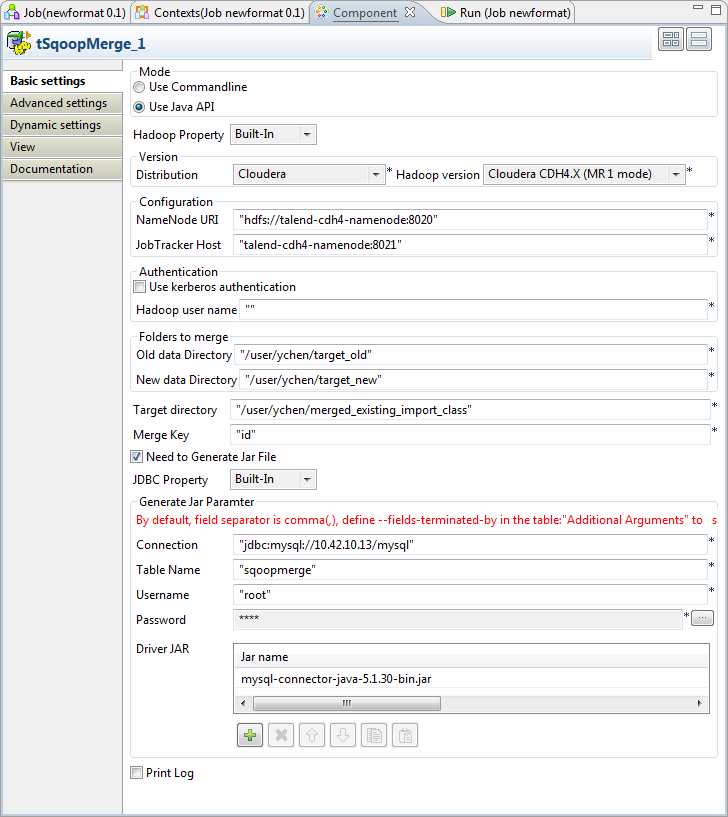
  1. Double-click tSqoopMerge to open its
    Component view.
    use_case-tsqoopmerge2.png
  2. In the Mode area, select Use Java API.

  3. In the Version area, select the Hadoop
    distribution to be used and its version. If you cannot find from the list
    the distribution corresponding to yours, select Custom so as to connect to a Hadoop distribution not
    officially supported in the Studio.

    For a step-by-step example about how to use this Custom option, see Connecting to a custom Hadoop distribution.

  4. In the NameNode URI field, enter the
    location of the master node, the NameNode, of the distribution to be used.
    For example, hdfs://talend-cdh4-namenode:8020.

  5. In the JobTracker Host field, enter the
    location of the JobTracker of your distribution. For example, talend-cdh4-namenode:8021.

    Note that the notion Job in this term JobTracker designates the MR or the
    MapReduce jobs described in Apache’s documentation on http://hadoop.apache.org/.

  6. If the distribution to be used requires Kerberos authentication, select
    the Use Kerberos authentication check box
    and complete the authentication details. Otherwise, leave this check box
    clear.

    If you need to use a Kerberos keytab file to log in, select Use a
    keytab to authenticate
    . A keytab file contains pairs of Kerberos principals
    and encrypted keys. You need to enter the principal to be used in the Principal field and the access path to the keytab file itself in the
    Keytab field.

    Note that the user that executes a keytab-enabled Job is not necessarily the one a
    principal designates but must have the right to read the keytab file being used. For
    example, the user name you are using to execute a Job is user1 and the principal to be used is guest; in this situation, ensure that user1 has the right to read the keytab file to be used.

  7. In the Old data directory and the
    New data directory fields, enter the
    path, or browse to the directory in HDFS where the older and the newer
    datasets are stored, respectively.

  8. In the Target directory field, enter the
    path, or browse to the folder you need to store the merge result in.

  9. In the Merge key field, enter the column
    to be used as the key for the merge. In this scenario, the column is
    id.

  10. Select Need to generate the JAR file to
    display the connection parameters to the source database table.

  11. In the Connection field, enter the URI of
    the MySQL database where the source table is stored. For example, jdbc:mysql://10.42.10.13/mysql.

  12. In the Table Name field, enter the name
    of the source table. In this scenario, it is sqoopmerge.

  13. In Username and Password, enter the authentication information.

  14. Under the Driver JAR table, click the
    [+] button to add one row, then in this
    row, click the […] button to display the
    drop-down list and select the jar file to be used from that list. In this
    scenario, it is mysql-connector-java-5.1.30-bin.jar.

    If the […] button does not appear,
    click anywhere in this row to make it displayed.

  15. If the field delimiter of the source table is not coma (,), you still need
    to specify the delimiter in the Additional
    Arguments
    table in the Advanced
    settings
    tab. The argument to be used is codegen.output.delimiters.field for the
    Use Java API mode or –fields-terminated-by for the Use Commandline mode.

Executing the Job

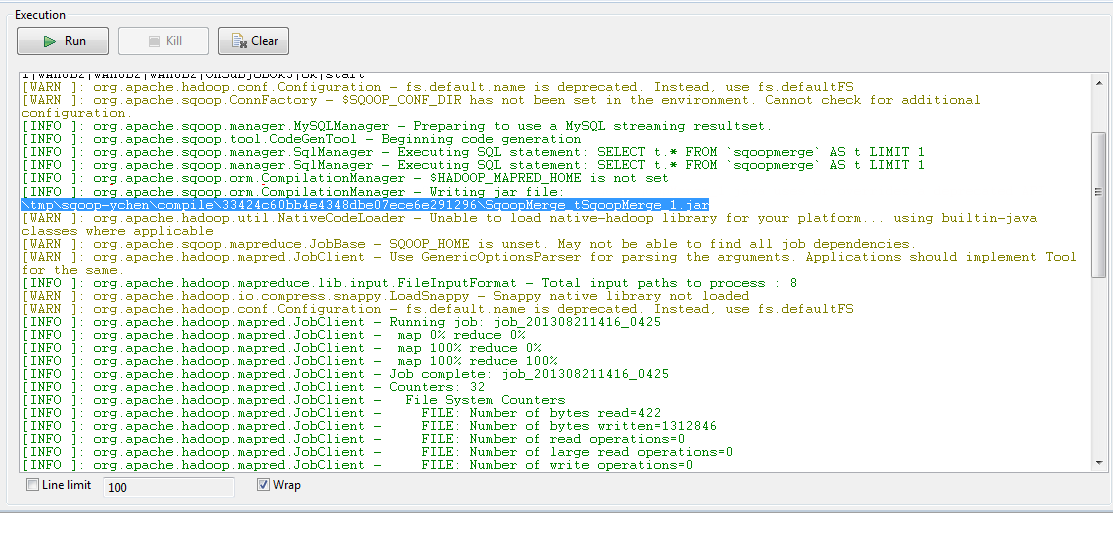
Then you can press F6 to run this Job.

During the execution, the jar file and the class for the merge are generated in
the local machine.
use_case-tsqoopmerge3.png

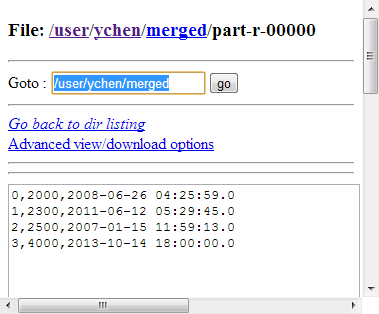
Once done, you can verify the results in the target directory you have specified,
in the web console of the Hadoop distribution used.
use_case-tsqoopmerge4.png

If you need to obtain more details about the Job, it is recommended to use the web
console of the Jobtracker provided by the Hadoop distribution you are using.

If you continue to import updated datasets to HDFS from the same source table, you
can reuse the generated merge class to merge the datasets.


Document get from Talend https://help.talend.com
Thank you for watching.
Subscribe
Notify of
guest
0 Comments
Inline Feedbacks
View all comments
0
Would love your thoughts, please comment.x
()
x