Advanced settings of tMDMOutput
-
In the Component view, click Advanced settings to set the advanced parameters for
the tMDMOutput component.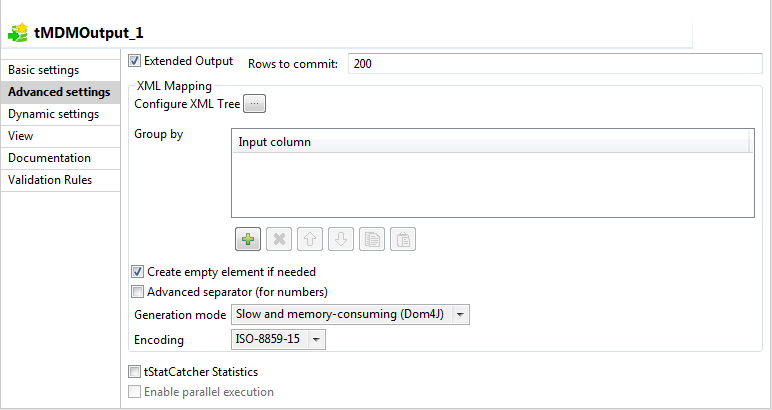
-
Select the Extended Output check box if you
want to commit master data in batches, and specify the number of lines per batch
in the Rows to commit field.Click the […] next to Configure XML Tree to open the tMDMOutput editor.Alternatively, double-click tMDMOutput to
open the editor.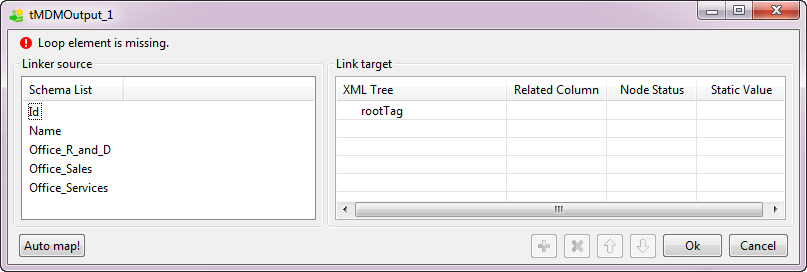
-
In the Link target area to the right, click
in the XML Tree field and then replace
rootTag with the name of the business
entity into which you want to insert the data record,
Agency in this example.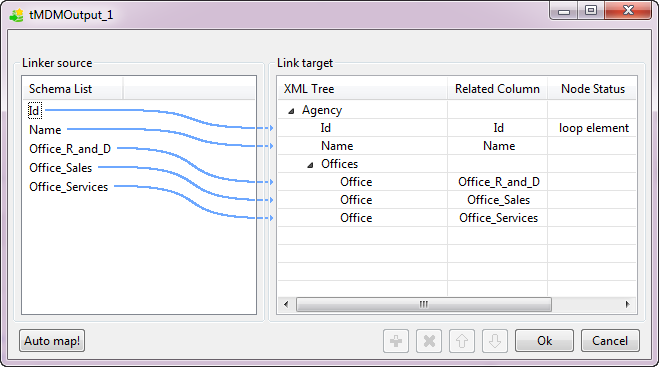
-
In the Linker source area, select the two
schema columns Id and Name and drop them on the Agency node respectively.The [Selection] dialog box is
displayed.Select the Create as sub-element of target
node option so that the two columns are linked to the two XML
sub-elements of the Agency node. -
Right-click the root node Agency and then
select Add Sub-element.In the dialog box that pops up, enter a name for the new sub-element,
Offices in this example.Repeat the same procedure to create three new sub-elements Office for the Offices node which corresponds to the multi-occurence element
Offices of the business entity Agency. -
In the Linker source area, select the three
schema columns Office_R_and_D, Office_Sales and Office_Services and drop them on the three new Office nodes respectively.The [Selection] dialog box is
displayed.Select the Create as sub-element of target
node option so that the three columns are linked to the three XML
sub-elements of the Offices node. - Click Ok to proceed to the next step.
-
Right-click the element in the Link Target
area you want to set as a loop element and select Set As
Loop Element from the contextual menu.In this example, Id is the iterating
object. -
Click OK to validate your changes and close
the dialog box.
Document get from Talend https://help.talend.com
Thank you for watching.
Subscribe
Login
0 Comments