Configuring the body of the response
-
Connect tRESTRequest to tXMLMap using the Row > UserInfo
connection. -
Double-click tXMLMap in the design
workspace to open the Map
Editor.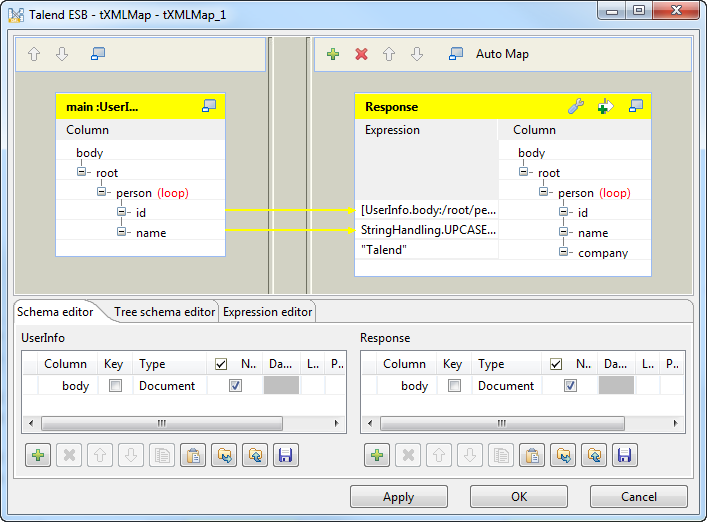
-
Right-click on the root node of the
input table and select Create
Sub-Element. Name the sub-element as
person in the popup dialog box. -
Right-click on the person node created in the
previous step and select As loop
element. -
Create two sub-elements to the person node by
selecting Create Sub-Element in the
contextual menu, id and name
in this use case. -
Click the [+] button on the top right
to add an output and name it as Response. -
Click the [+] button on the bottom
right to add a column body ofDocument
type for the output. -
Right-click the node root in the
output table and select Create
Sub-Element. Name the sub-element as
person in the popup dialog box. -
Right-click the person node created in the
previous step and select As loop
element. -
Create three sub-elements to the person node by
selecting Create Sub-Element in the
contextual menu, id, name and
company in this use case. -
Select the id column from the input
table and drop it onto the Expression
field of the id node of the output
table. -
Select the name column from the
input table and drop it onto the Expression field of the name node in the output table.Click the Expression field of the
name node in the output table,
and click […] in this field to show
the [Expression Builder] wizard.In the Expression area, enter
StringHandling.UPCASE([UserInfo.body:/root/person/name])
to convert the name of the user to upper case. Click OK to close the wizard.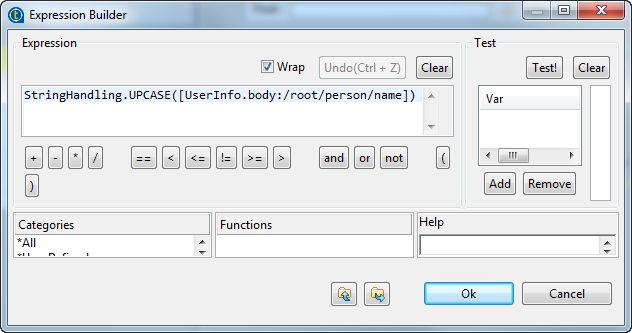 For further information about using the Expression Builder, see
Talend Studio User Guide. -
In the Expression field of the
company node, enter
“Talend”. - Click OK to save the settings.
Document get from Talend https://help.talend.com
Thank you for watching.
Subscribe
Login
0 Comments