Configuring the output mapping
-
Click Next to open a new view in the
editor.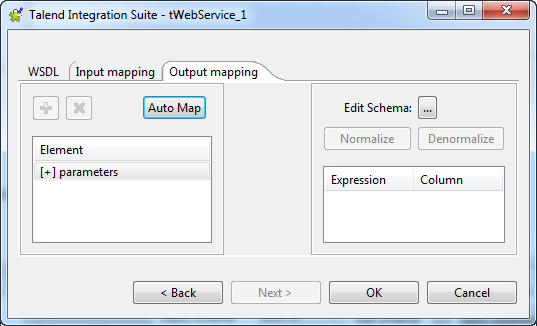 In the Element list to the left of the
view, the output parameter of the web service displays automatically.
However, you can add other parameters if you select [+] parameters and then click the plus button on top to
display the [Parameter Tree] dialog box
where you can select any of the parameters listed.The Web service in this example has only one output parameter: GetCountryByCountryCodeResult. -
In the panel to the right of the view, click the three-dot button next to
Edit Schema to open a dialog box in
which you can define the output schema. -
In the Output list to the right of the
dialog box, click the plus button to add a column to the output
schema. -
Click in the column and type in a name, Result in
this example. This will retrieve the names of the country.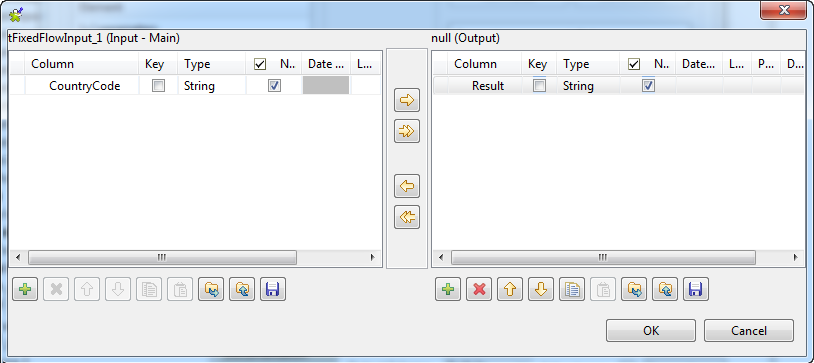
-
Click OK to validate your changes and to
close the schema definition dialog box.You now need to create a connection between the output parameter of the
defined Web service and the schema of the output component. -
In the Element list to the right of the
editor, drag parameters.GetCountryByCountryCodeResult to the field that
corresponds to the Result column to the
right of the editor.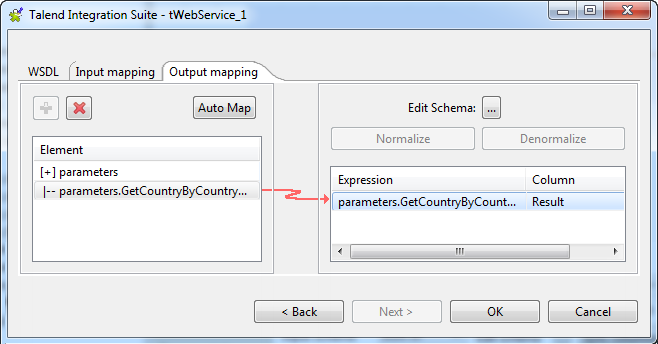 Note:
Note:If available, use the Auto map!
button, located at the bottom left of the interface, to carry out the
mapping operation automatically. -
Click OK to validate your changes and to
close the editor. -
Click the […] button to open the
[Schema] dialog box, and add a column
to the output schema, Result in this
example. Then click OK to validate the
schema setting and close the dialog box. -
Double-click the tLogRow component to
open its Basic settings view, and click
Sync columns to retrieve the schema
from the proceeding component.
Document get from Talend https://help.talend.com
Thank you for watching.
Subscribe
Login
0 Comments