Configuring the tJavaFlex component
-
Double-click tJavaFlex to display its
Basic settings view and define its
properties.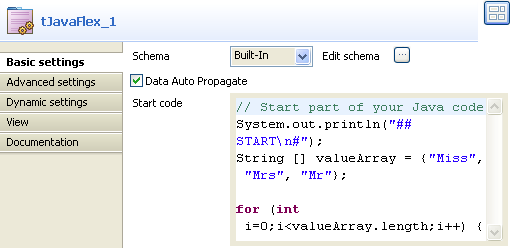
-
Click
the three-dot button next to Edit schema to
open the corresponding dialog box where you can define the data structure to
pass to the component that follows.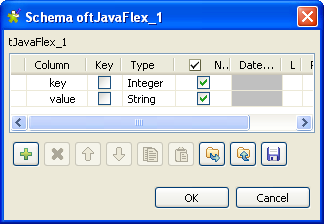
-
Click the [+] button to add two columns:
key and value and then set
their types to Integer and String respectively. -
Click OK to validate your changes and
close the dialog box. -
In the Basic settings view of tJavaFlex, select the Data
Auto Propagate check box to automatically propagate data to
the component that follows.In this example, we do not want to do any transformation on the retrieved
data. -
In the Start code field, enter the code
to be executed in the initialization phase.In this example, the code indicates the initialization of tJavaFlex by displaying the START message and
sets up the loop and the variables to be used afterwards in the Java
code:12345System.out.println("## START#");String [] valueArray = {"Miss", "Mrs", "Mr"};for (int i=0;i<valueArray.length;i++) { -
In the Main code field, enter the code
you want to apply on each of the data rows.In this example, we want to display each key with its value:12row1.key = i;row1.value = valueArray[i];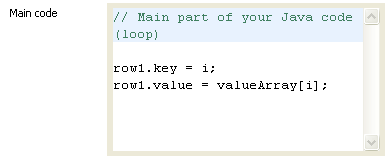 Warning:
In the Main
code field, “row1” corresponds to the name of the
link that comes out of tJavaFlex.
If you rename this link, you have to modify the code of this field
accordingly. -
In the End code field, enter the code
that will be executed in the closing phase.In this example, the brace (curly bracket) closes the loop and the code
indicates the end of the execution of tJavaFlex by displaying the END message:123}System.out.println("### END");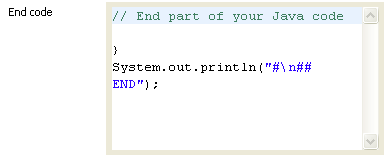
-
If needed, double-click tLogRow and in
its Basic settings view, click the
[…] button next to Edit schema to make sure that the schema has been
correctly propagated.
Document get from Talend https://help.talend.com
Thank you for watching.
Subscribe
Login
0 Comments