Configuring the tLoqateAddressRow component
-
Double-click tLoqateAddressRow to display the
Basic settings view and define the
component properties.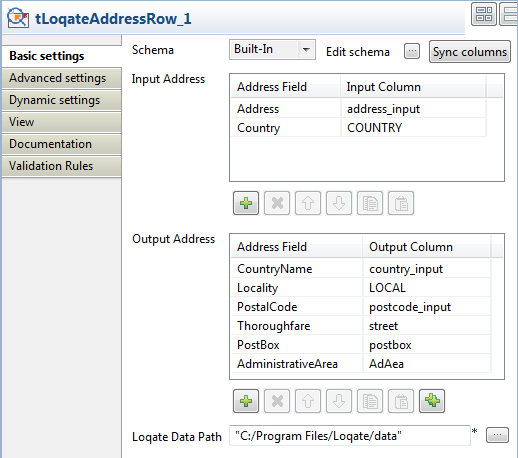
-
Click the Edit schema button and define in
the output schema all the columns necessary to hold the formatted address you
want to get from tLoqateAddressRow.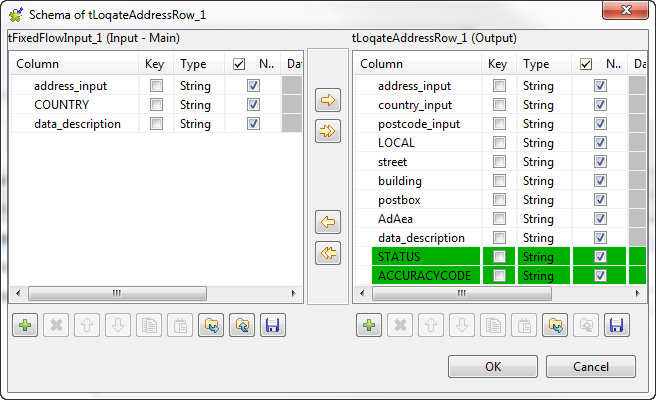 Two output columns are read-only:
STATUS
and
ACCURACYCODE. The first column returns the status of processing
input addresses. For further information about process status, see Process status in tLoqateAddressRow. The second
column returns the verification code for the processed address. For further
information about what values this code is made up of and the implications of
each segment, see Address verification codes in tLoqateAddressRow.In this example, using the same address-input
column in the output schema will output the input address. This could be helpful
to compare how the address elements were parsed and standardized. -
Click OK and accept to propagate the
changes. -
In the Input Address table:
-
add lines in the table,
-
in the Address Field column, click a
line and select from the list, predefined in the component, the fields
that hold the input address, Address
and Country in this example. -
in the Input Column column, click a
line and select from the list of the input schema the columns that hold
the input address, address-input and
COUNTRY in this example.
-
-
In the Output Address table:
-
add lines in the table,
-
in the Address Field column, click a
line and select from the list, predefined in the component, the fields
that will hold the output address.The component will map the values of these fields to the output
columns you set in this table.tLoqateAddressRow provides a long
list of individual fields because some countries have more complex
addressing structures than others. For further information about the
output fields, see Address fields in tLoqateAddressRow. -
in the Output Column column, click a
line and select from the list the columns that will hold the
standardized output address.
-
-
In the Loqate Data Path field, set the path
to the Loqate data folder provided by Loqate and installed locally.