Configuring the tXMLMap component
-
Right-click tMysqlInput, hold and
drag to tXMLMap to connect the two
components together. -
Double-click tXMLMap in the design
workspace to open the Map Editor.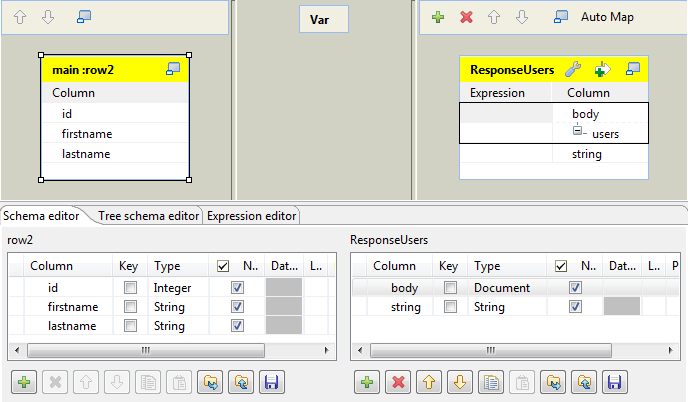
-
Click the [+] button on the top right
to add an output and name it as ResponseUsers. -
Click the [+] button on the bottom
right to add two columns for the output.Name the first column as body and
set the Type to Document.Name the second column as string
and set the Type to String. -
Right-click on the root node, select
Rename in the list and rename it
users
-
Right-click on the users node and
select Create Sub-Element to create a
sub-element. Name the sub-element user in the popup
dialog box. -
Right-click on the user node created in the
previous step and select As loop
element. -
Select the id column of the
row2 table to the left and drop
it onto the user node of the
ResponseUsers table to the
right.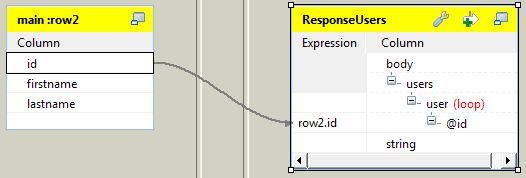
-
In the [Selection] dialog box, select
the Create as attribute of target node
option and click OK. -
Select the firstname and lastname columns of the row2 table to the left and drop it onto the
user node of the ResponseUsers table to the right.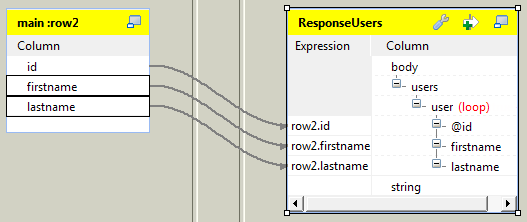
-
In the [Selection] dialog box, select
the Create as sub-element of target
node option and click OK. -
Click the wrench icon on the top of the ResponseUsers table to open the setting panel.
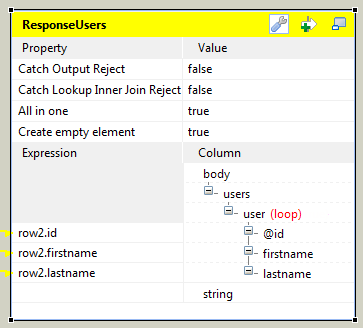
-
Set the All in one feature as
true, this way all XML data is
outputted in one single flow. - Click OK to save the settings.
Document get from Talend https://help.talend.com
Thank you for watching.
Subscribe
Login
0 Comments