Creating the DRL rules
-
In the Outputs table, click in the
Rule column and then click the
[…] button of the
Paris schema.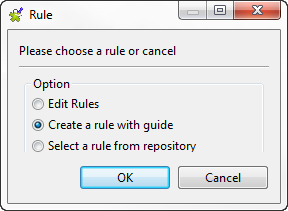
-
In the open dialog box, select one of the options as the following:
Select
To…
Edit Rules
open the rule in the rule editor in the
workspace.Create a rule with
guideopen a dialog box where you can define a rule in the
rule template.select a rule from
repositoryselect a predefined rule from the rule template
created and stored in the Repository tree view.In this example, select the Create a rule with
guide option. -
In the open dialog box, use the Drools syntax to set the condition of the
“Paris” rule as the following:zipCode, and then click OK.
matches "75\d{3}"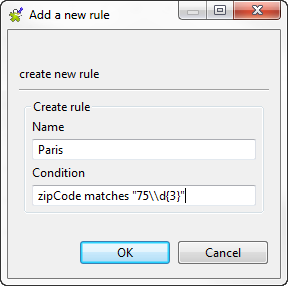 The new “Paris” rule is generated and displayed in
the Rule column. This rule retrieves from
the Paris schema all zip codes that start with 75 and
the three figures that follow. -
Click in the Rule column and then click
the three-dot button of the “Paris” rule.The rule template is opened in the rule editor in the workspace.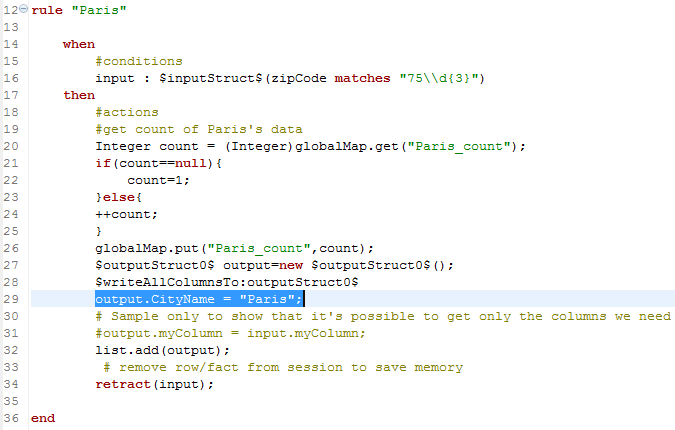
-
In the “Paris” rule, add the code
output.CityName = "Paris"to output
Paris as the city name in the first output
flow. -
Repeat the above steps to create a “Suresnes” rule
and set its condition as the followingzipCode ==.
"92150"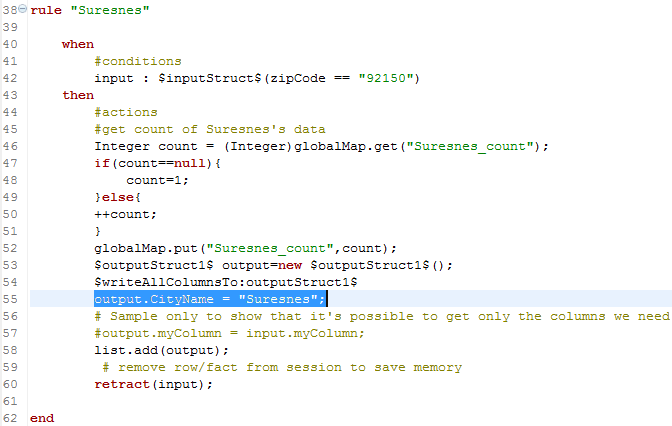 The new rule is displayed in the Rule
column. This rule retrieves from the Suresnes schema
all zip codes that are equal to 92150. -
In the “Suresnes” rule, add the code
output.CityName = "Suresnes"to output
Suresnes as the city name in the second output
flow. -
In the design workspace, double-click each of the tLogRow components to define its properties.
For more information, see tLogRow.
-
Save your Job and press F6 to execute
it.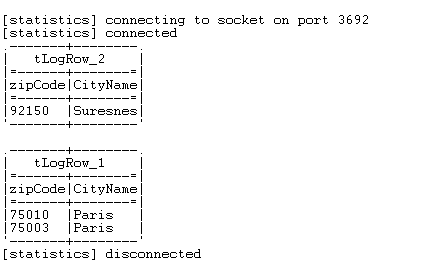 The Run console displays two output flows
with zip codes and city names.In the first output flow, the “Paris” rule retrieves
all zip codes that start with 75 and writes the city name as
Paris.In the second output flow, the “Suresnes” rule retrieves all zip
codes that are equal to 92150 and writes the city name as
Suresnes.
Document get from Talend https://help.talend.com
Thank you for watching.
Subscribe
Login
0 Comments