Creating the Job communicating the MDM message
Linking the components
- Create a Job named update_product.
-
Drop tMDMTriggerInput,
tXMLMap, tMDMTriggerOutput
and tLogRow from Palette onto
the workspace. -
Right-click tMDMTriggerInput and from the contextual
menu, select the Row > Main link to connect it to tXMLMap. -
Do the same to connect tXMLMap to
tMDMTriggerOutput, and name the connection
output. -
Double-click tMDMTriggerOutput to open its
Component view. -
Click the […] button next to Edit
schema to open the editor. -
Select the single pre-defined column of
tMDMTriggerOutput, and then click to
to
reproduce this column on the input side (left). -
Connect tMDMTriggerOutput to
tLogRow using the Row > Main connection.
Configuring the transformation of the MDM message
-
Double-click tXMLMap
to open its editor. -
In the table representing the input flow (upper left of the
editor), right-click the column name MDM_Message on the top of the XML tree and select
Import From Repository.The Metadata wizard is displayed. -
Select the entity schema
ProductReceive retrieved earlier using the
Receive MDM model, then click
OK. -
Click OK in the
dialog box that prompts you to add the schema of the Update Report to the
input XML tree.This builds a complete input document for an MDM event. In the input
XML tree, the Features element is set as the loop
element automatically.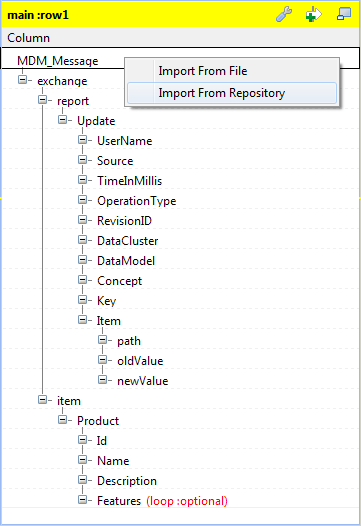
-
In the table representing the output flow (upper right of
the editor), develop the output XML tree as presented in the figure below.This tree is constructed depending on the required static model of the
MDM output report.The XML construct required to return the validation-success message is
<report><message, and the
type="info">message</message></report>
XML construct required to return the validation-failure message is
<report><message.
type="error">message</message></report>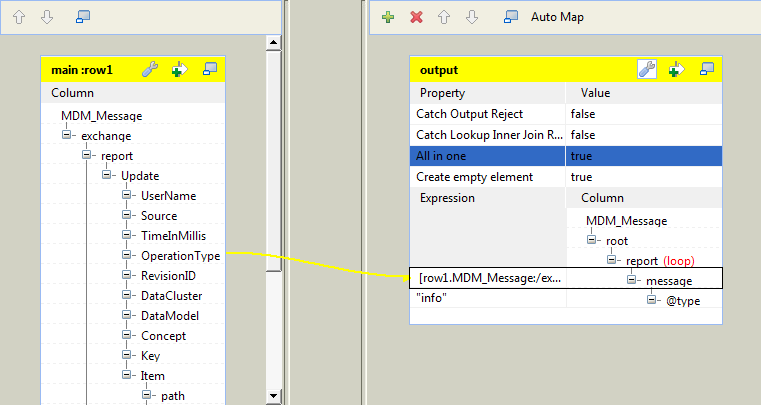
-
Map the OperationType element on the input side to
the message element on the output side.This will output the information about the type of the event occurring
on the MDM record. -
In the Expression
column, enter"info"in the row
corresponding to @type. -
Click the pincer icon to display the output settings panel,
and then set the All in one option to
true. -
Click OK to close
the editor and validate these changes. -
Double click tLogRow
to open its Component view, then,
click Sync columns.
Document get from Talend https://help.talend.com
Thank you for watching.
Subscribe
Login
0 Comments