Generating the matching model
-
Double-click tMatchModel to display the
Basic settings view and define the component
properties.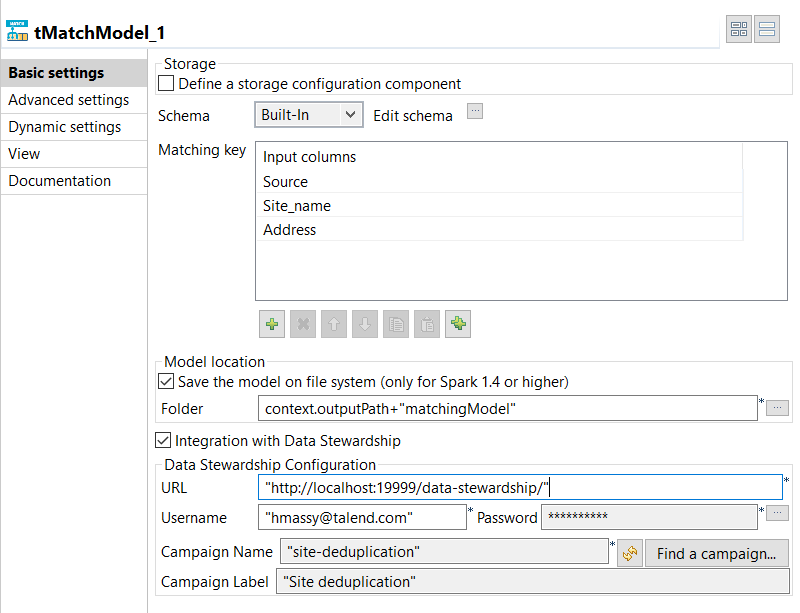
-
In the Matching Key table, click the
[+] button to add rows in the table and select the
columns on which you want to base the match computation.The Original_Id column is ignored in the computation
of the matching model. -
Select the Save the model on file system check box and
in the Folder field, set the path to the local folder
where you want to generate the matching model file. -
Select the Integration with Data Stewardship check box
and set the connection parameters to the Talend Data Stewardship
server.-
In the URL field, enter the address of
the server suffixed with /data-stewardship/, for example http://localhost:19999/data-stewardship/.
-
Enter your login information to the server in the
Username and Password
fields.To enter your password, click the […] button next to the Password field, enter your password between double
quotes in the dialog box that opens and click OK. -
Click Find a campaign to open a dialog
box which lists the campaigns defined on the server and for which you are the owner or
you have the access rights.
-
Select the campaign from which to read the grouping tasks,
Site deduplication in this example, and click
OK.
-
-
Click Advanced settings and set the below
parameters:-
Set the maximum number of the tokens to be used in the phonetic
comparison in the corresponding field. -
In the Random Forest hyper parameters tuning
field, enter the ranges for the decision trees you want to build and
their depth.These parameters are important for the accuracy of the
model. - Leave the other by-default parameters unchanged.
-
Set the maximum number of the tokens to be used in the phonetic
-
Press F6 to execute the
Job and generate the matching model in the output folder.
You can now use this model with the tMatchPredict component to
label all the duplicates computed by tMatchPairing.
For further information, see the online publication about
labeling suspect pairs on Talend Help Center (https://help.talend.com).
Document get from Talend https://help.talend.com
Thank you for watching.
Subscribe
Login
0 Comments