Listing files and folders in Google Drive
-
Double-click tGoogleDriveList to open its
Basic settings view in the Component tab.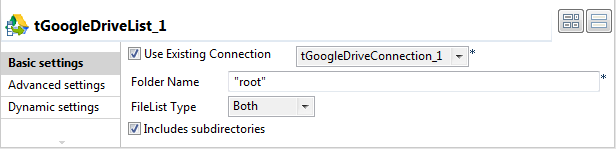
-
Select the Use Existing Connection check
box and from the list that appears select the component you have configured
to open your Google Drive connection. -
In the Folder Name field, enter the name of the folder
to be iterated on. In this example, it is the root directory of Google Drive
and you can use the alias root to refer
to it. -
Select Both from the FileList
Type drop-down list to list both files and folders in the
root directory.Select the Includes subdirectories check box to iterate
also on the subdirectories of the root directory. -
Double-click tIterateToFlow to open its
Basic settings view in the Component tab.
-
Click the […] button next to Edit schema to open the schema editor.
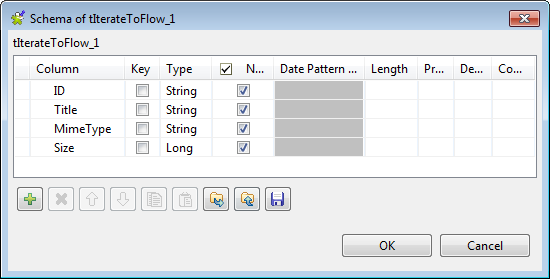 Click the [+] button to add four columns:
ID, Title, and MimeType of
the type string, and Size of the type
long.Click OK to validate the changes and accept the
propagation prompted by the pop-up dialog box. -
In the Mapping table,
fill in the value for each column by selecting the corresponding cell in the
Value column and then press
Ctrl+Space and from the list of
variables that appears select the corresponding global variable of the
tGoogleDriveList component. In this
example:Column
Value
ID
((String)globalMap.get(“tGoogleDriveList_1_ID”))
Title
((String)globalMap.get(“tGoogleDriveList_1_TITLE”))
MimeType
((String)globalMap.get(“tGoogleDriveList_1_MIME_TYPE”))
Size
((Long)globalMap.get(“tGoogleDriveList_1_SIZE”))
-
Double-click the third tLogRow to open
its Basic settings view in the Component tab.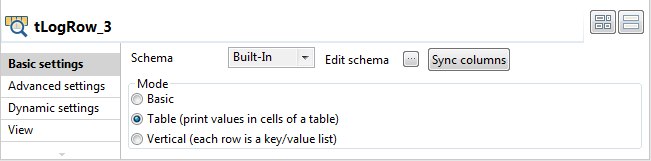
-
In the Mode area, select Table (print values in cells of a table) for a
better display of the results.
Document get from Talend https://help.talend.com
Thank you for watching.
Subscribe
Login
0 Comments