Procedure
-
Drop the following components required for this use case:
tFixedFlowInput,
tSplitRow and
tLogRow from the
Palette to the
design workspace. -
Connect them together using Row
Main connections. -
Double-click tFixedFlowInput
to open its Basic settings
view.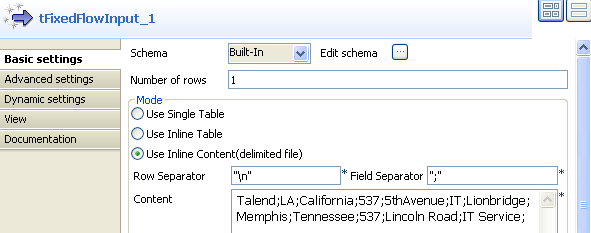
-
Select Use Inline Content(delimited
file) in the Mode area. -
Fill the Content area with
the following scripts:Talend;LA;California;537;5thAvenue;IT;Lionbridge;Memphis;Tennessee;537;Lincoln
Road;IT Service; -
Click Edit schema to open a
dialog box to edit the schema for the input data.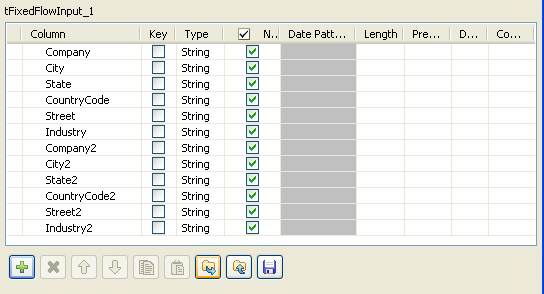
-
Click the plus button to add twelve lines for the input
columns: Company,
City,
State,
CountryCode,
Street,
Industry,
Company2,
City2,
State2,
CountryCode2,
Street2 and
Industry2. -
Click OK to close the dialog
box. -
Double-click tSplitRow to
open its Basic settings
view.
-
Click Edit schema to set the
schema for the output data.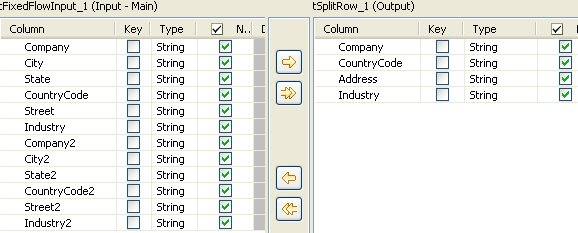
-
Click the plus button beneath the
tSplitRow_1(Output) table to
add four lines for the output columns:
Company,
CountryCode,
Address and
Industry. -
Click OK to close the dialog
box. Then an empty table with column names defined in the
preceding step will appear in the Columns mapping area: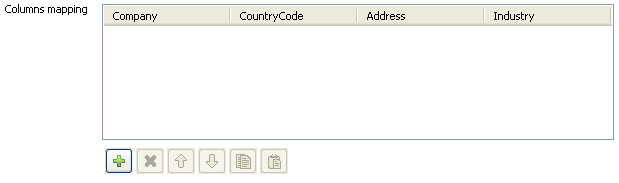
-
Click the plus button beneath the empty table in the Columns mapping area to add
two lines for the output rows. -
Fill the table in the Columns
mapping area by columns with the
following values:Company:
row1.Company,
row1.Company2;Country:
row1.CountryCode,
row1.CountryCode2;Address:
row1.Street+“,”+row1.City+“,”+row1.State,
row1.Street2+“,”+row1.City2+“,”+row1.State2;Industry:
row1.Industry,
row1.Industry2;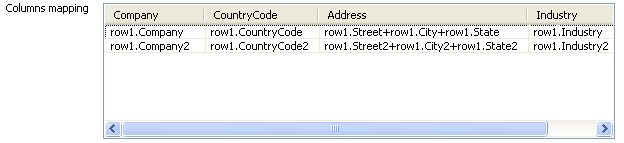 Note:
Note:The value in Address
column, for example,
row1.Street+“,”+row1.City+“,”+row1.State,
will display an absolute address by combining
values in Street column,
City column and
State column together. The
“row1” used in the values of
each column refers to the input row from tFixedFlowInput. -
Double-click tLogRow to open
its Basic settings
view.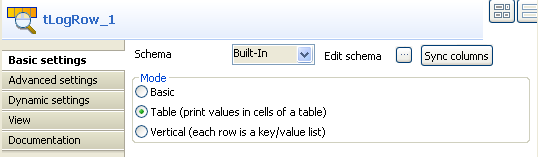
-
Click Sync columns to
retrieve the schema defined in the preceding
component. - Select Table in the Mode area.
-
Save the Job and press F6 to
run it.
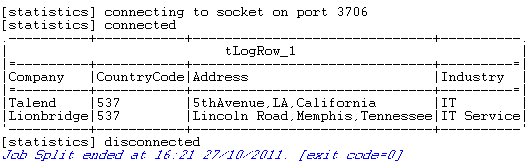
The input data in one row is split into two rows of data containing the same
company information.