Setting up the tWriteJSONField
-
Click tWriteJSONField to display its
Basic settings view.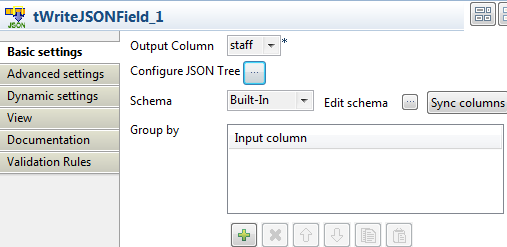
-
Click Configure JSON Tree to open the XML
tree editor.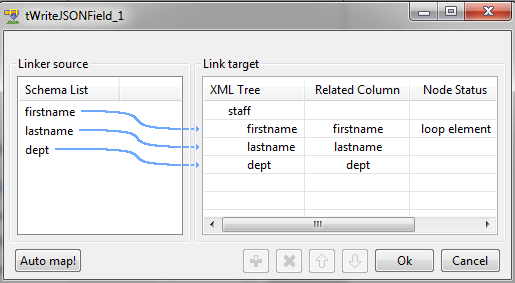 The schema of tFixedFlowInput appears in
the Linker source panel. -
In the Linker target panel, click the
default rootTag and type in staff, which is the root node of the JSON field
to be generated. - Right-click staff and select Add Sub-element from the context menu.
-
In the pop-up box, enter the sub-node name, namely firstname.
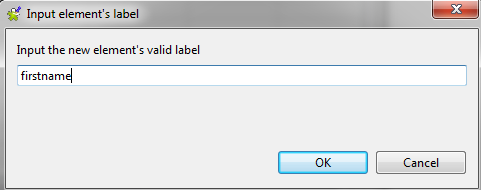 Repeat the steps to add two more sub-nodes, namely lastname and dept.
 -
Right-click firstname and select
Set As Loop Element from the context
menu. -
Drop firstname from the Linker source panel to its counterpart in the
Linker target panel.In the pop-up dialog box, select Add linker to
target node.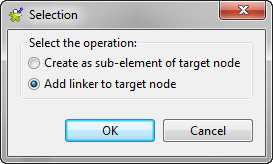 Click OK to close the dialog box.
 -
Repeat the steps to link the two other items.
Click OK to close the XML tree
editor. -
Click Edit schema to open the schema
editor.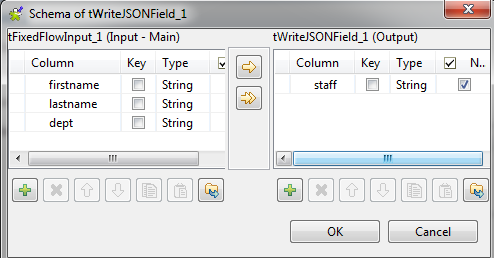
-
Click the [+] button in the right panel
to add one column, namely staff, which
will hold the JSON data generated.Click OK to close the editor.
Document get from Talend https://help.talend.com
Thank you for watching.
Subscribe
Login
0 Comments