Step 3: Extracting change data
After setting up the CDC environment, you can now design a job using the Oracle
CDC component to incrementally extract the change data from the
LEADFACT table. To do that:
- From the Palette, drop the OracleCDC and tLogRow components to the design workspace.
-
Link the two components using a Row Main
link.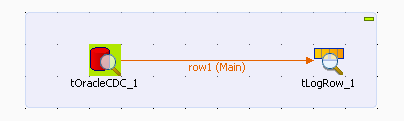
-
Double-click tOracleCDC to open its
Basic settings view and define its
properties.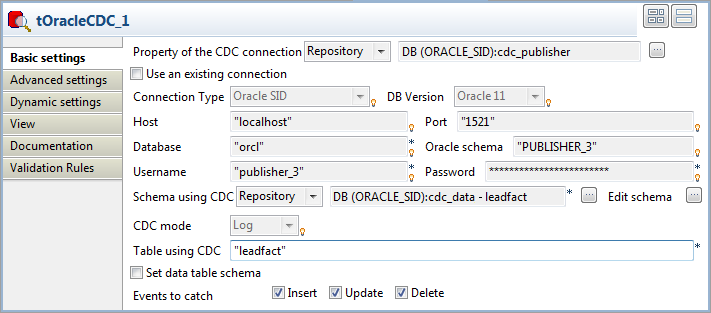
-
Set Property Type to Repository and then select the schema
corresponding to your Oracle DB table, cdc_publisher in
this scenario. The connection details will display automatically in the
corresponding fieldsNote:If you have not stored the data warehouse connection details in the
Metadata folder in the Repository tree view, select Built-in in the property type list and set
the connection details manually. -
In the Schema using CDC field, select
Repository and then select the schema
of the LEADFACT table stored in the Metadata folder. -
In the Table using CDC field, enter the
name of the table captured by the CDC, in this scenario
Leadfact. -
In the Events to catch field, select the
check boxes corresponding to the type of the modified data the subscriber
will extract. In this scenario, select the three check boxes for the three
subscribers. -
Double-click tLogRow to display its
Basic settings view and define its
properties.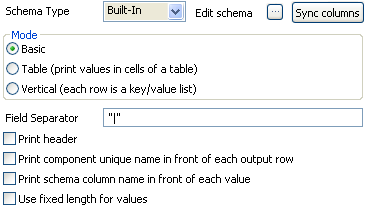
-
Click the Sync columns button to retrieve
the schema from the preceding component. -
Click Edit schema to open the schema
dialog box. -
In the TALEND_CDC_CREATION_DATE line of
the Date Pattern column, enter between
brackets the desired date format:"yyyy-MM-dd". -
Save your Job and press F6 to execute
it.
In the Redo log mode, changes done on data are
indicated in the following way: modifications are equal to first, an “update and
delete” operation (UO), and then to an “update and
insert” operation (UN). Thus, client data displays
twice:
– First, data is deleted (UO).
-Second, data is inserted (UN).
Once these modifications are extracted, they are no more available in the modified
table. To verify their extraction, right-click the LEADFACT
table catched by the CDC and then select Views All
Changes. The extracted changes do not display anymore.
For another CDC scenario using the Trigger mode,
see Scenario 2: Retrieving modified data using CDC.