tBigQueryInput
Performs the queries supported by Google BigQuery.
This component connects to Google BigQuery and performs queries in
it.
tBigQueryInput Standard properties
These properties are used to configure tBigQueryInput running in the Standard Job framework.
The Standard
tBigQueryInput component belongs to the Big Data family.
The component in this framework is generally available.
Basic settings
|
Schema and Edit Schema |
A schema is a row description. It defines the number of fields (columns) to Click Edit schema to make changes to the schema.
|
|
|
Built-In: You create and store the |
|
|
Repository: You have already created |
|
Client ID and Client secret |
Paste the client ID and the client secret, both created and viewable on the To enter the client secret, click the […] button next |
|
Project ID |
Paste the ID of the project hosting the BigQuery service you The ID of your project can be found in the URL of the Google |
|
Authorization code |
Paste the authorization code provided by Google for the access you are To obtain the authorization code, you need to execute the Job using this |
|
Query |
Enter the query you need to use. |
|
Result size |
Select the option depending on the volume of the query result. By default, the Small option is used, but when the If the volume of the result is not certain, select |
Advanced settings
|
token properties File Name |
Enter the path to, or browse to the refresh token file you need to use. At the first Job execution using the Authorization With only the token file name entered, For further information about the refresh token, see the manual of Google |
|
Advanced Separator (for number) |
Select this check box to change the separator used for the |
|
Encoding |
Select the encoding from the list or select Custom and define it manually. This field is compulsory for database |
|
tStatCatcher Statistics |
Select this check box to collect the log data at the component |
Global Variables
|
Global Variables |
ERROR_MESSAGE: the error message generated by the A Flow variable functions during the execution of a component while an After variable To fill up a field or expression with a variable, press Ctrl + For further information about variables, see |
Usage
|
Usage rule |
This is an input component. It sends the extracted data to the |
Scenario: Performing a query in BigQuery
This scenario uses two components to perform the SELECT query in BigQuery and present
the result in the Studio.

The following figure shows the schema of the table, UScustomer, we use as example to perform the SELECT query in.

We will select the State records and count the occurrence of each State among those
records.
Linking the components
-
In the
Integration
perspective
of Studio, create an empty Job, named BigQueryInput for example, from the
Job Designs node in the Repository tree view.For further information about how to create a Job, see the
Talend Studio
User
Guide. - Drop tBigQueryInput and tLogRow onto the workspace.
-
Connect them using the Row > Main
link.
Creating the query
Building access to BigQuery
-
Double-click tBigQueryInput to open its
Component view.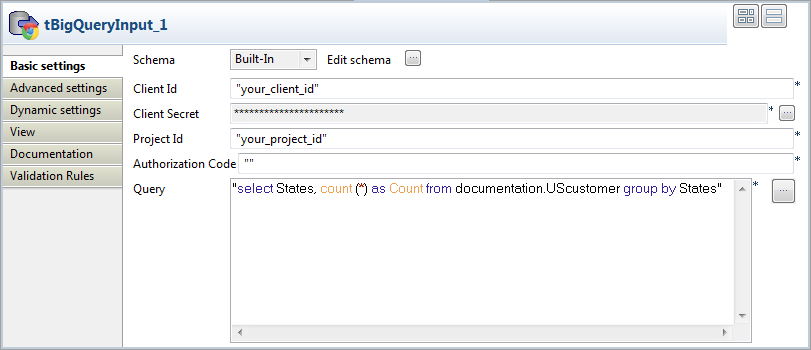
-
Click Edit schema to open the
editor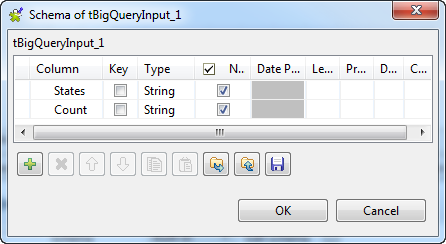
-
Click the

button twice to add two rows and enter the names of
your choice for each of them in the Column
column. In this scenario, they are: States and Count. -
Click OK to validate these changes and
accept the propagation prompted by the pop-up dialog box. -
Navigate to the Google APIs Console in your web browser to access the
Google project hosting the BigQuery and the Cloud Storage services you need
to use. - Click the API Access tab to open its view.
-
In the Component view of the Studio,
paste Client ID, Client secret and Project ID from the API Access tab view
to the corresponding fields, respectively.
Getting Authorization code
-
In the Run view of the Studio, click
Run to execute this Job. The execution
will pause at a given moment to print out in the console the URL address
used to get the authorization code. -
Navigate to this address in your web browser and copy the authorization
code displayed. -
In the Component view of tBigQueryInput, paste the authorization code in
the Authorization Code field.
Writing the query
select States, count (*) as Count from documentation.UScustomer group by States
Executing the Job
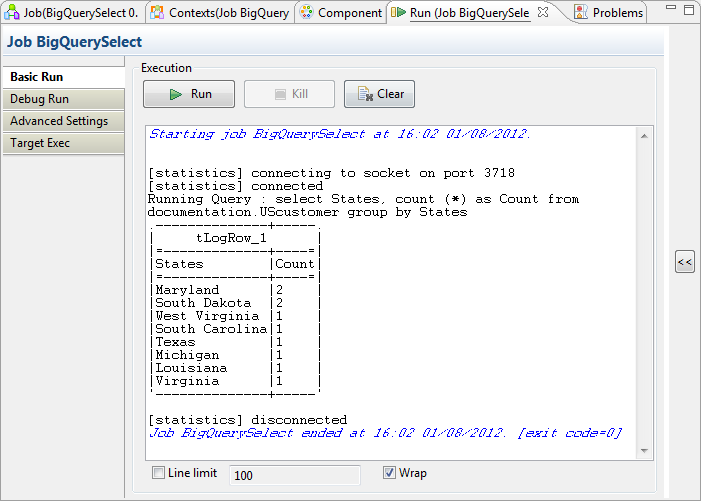
The tLogRow component presents the execution
result of the Job. You can configure the presentation mode on its Component view.
To do this, double-click tLogRow to open the
Component view and in the Mode area, select the Table (print values in
cells of a table) option.
Once done, the Run view is opened automatically,
where you can check the execution result.
tBigQueryInput properties for Apache Spark Batch
These properties are used to configure tBigQueryInput running in the Spark Batch Job framework.
The Spark Batch
tBigQueryInput component belongs to the Databases family.
The component in this framework is available only if you have subscribed to one
of the
Talend
solutions with Big Data.
Basic settings
|
Source type |
Select the way you want tBigQueryInput to read data
from BigQuery:
|
|
Schema and Edit Schema |
A schema is a row description. It defines the number of fields (columns) to Click Edit schema to make changes to the schema.
|
|
|
Built-In: You create and store the |
|
|
Repository: You have already created |
When the Source type is Table:
|
Project ID |
If your BigQuery service uses the If the BigQuery service uses The ID of your project can be found in the URL of the Google |
|
Dataset |
Enter the name of the dataset to which the table to be copied When you use BigQuery with Dataproc, in |
|
Table |
Enter the name of the table to be copied. |
When the Source type is Query:
|
Query |
Enter the query to be used. When you use BigQuery with Dataproc, in |
Usage
|
Usage rule |
This is an input component. It sends data extracted from Place a |
|
Spark Connection |
You need to use the Spark Configuration tab in
the Run view to define the connection to a given Spark cluster for the whole Job. In addition, since the Job expects its dependent jar files for execution, you must specify the directory in the file system to which these jar files are transferred so that Spark can access these files:
This connection is effective on a per-Job basis. |
tBigQueryInput properties for Apache Spark Streaming
These properties are used to configure tBigQueryInput running in the Spark Streaming Job framework.
The Spark Streaming
tBigQueryInput component belongs to the Databases family.
The component in this framework is available only if you have subscribed to Talend Real-time Big Data Platform or Talend Data
Fabric.
Basic settings
|
Source type |
Select the way you want tBigQueryInput to read data
from BigQuery:
|
|
Schema and Edit Schema |
A schema is a row description. It defines the number of fields (columns) to Click Edit schema to make changes to the schema.
|
|
|
Built-In: You create and store the |
|
|
Repository: You have already created |
When the Source type is Table:
|
Project ID |
If your BigQuery service uses the If the BigQuery service uses The ID of your project can be found in the URL of the Google |
|
Dataset |
Enter the name of the dataset to which the table to be copied When you use BigQuery with Dataproc, in |
|
Table |
Enter the name of the table to be copied. |
When the Source type is Query:
|
Query |
Enter the query to be used. When you use BigQuery with Dataproc, in |
Usage
|
Usage rule |
This is an input component. It sends data extracted from Place a |
|
Spark Connection |
You need to use the Spark Configuration tab in
the Run view to define the connection to a given Spark cluster for the whole Job. In addition, since the Job expects its dependent jar files for execution, you must specify the directory in the file system to which these jar files are transferred so that Spark can access these files:
This connection is effective on a per-Job basis. |