tFTPRename
tFTPRename Standard properties
These properties are used to configure tFTPRename running in the Standard Job framework.
The Standard
tFTPRename component belongs to the Internet family.
The component in this framework is generally available.
Basic settings
|
Property Type |
Either Built-in or Repository. |
|
|
Built-in: No property data stored |
|
|
Repository: Select the Repository |
|
Use an existing connection/Component List |
Select this check box and in the Component |
|
Host |
FTP IP address. |
|
Port |
FTP server listening port number. |
|
Username |
Connection login to the FTP server. |
|
Password |
Connection password to the FTP server. To enter the password, click the […] button next to the |
|
Remote directory |
Path to the remote directory. |
|
Move to the current directory |
This option appears when Use an existing |
|
Overwrite file |
List of available options for the transferred file. |
|
SFTP Support |
Select this check box to connect to the FTP server via an SFTP connection. The following
Authentication method: Select the SFTP authentication
method, either Public key or Password.
Filename encoding: Select this check box to set the
encoding used to convert file names from Strings to bytes. It should be the same encoding used on the SFTP server. Note:
If the SFTP server’s version is greater than 3, the encoding should be UTF-8, or |
|
Files |
Click the [+] button to add the
Filemask: enter the filename or
New name: name to give to the FTP |
|
Connection Mode |
Select the SFTP connection mode you want to use:
Active: You determine the
Passive: the FTP server determines |
|
Encoding |
Select an encoding type from the list, or select Custom and define it manually. This field |
|
Die on error |
This check box is selected by default. Clear the check box to skip |
Advanced settings
|
Use Socks Proxy |
Select this check box if you want to use a proxy. Then, set the |
|
Ignore Failure At Quit (FTP) |
Select this check box to ignore library closing errors or FTP |
|
tStatCatcher Statistics |
Select this check box to gather the Job processing metadata at a |
Global Variables
|
Global Variables |
ERROR_MESSAGE: the error message generated by the
NB_FILE: the number of files processed. This is an After
CURRENT_STATUS: the execution result of the component. A Flow variable functions during the execution of a component while an After variable To fill up a field or expression with a variable, press Ctrl + For further information about variables, see |
Usage
|
Usage rule |
This component is generally used as a subjob with one component, |
|
Limitation |
Due to license incompatibility, one or more JARs required to use this component are not |
Scenario: Renaming a file located on an FTP server
Creating a Job for renaming a file on an FTP server
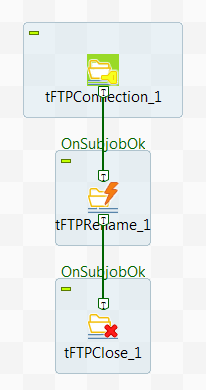
Create a Job to connect to an FTP server, then rename a file on the
server, finally close the connection to the server.
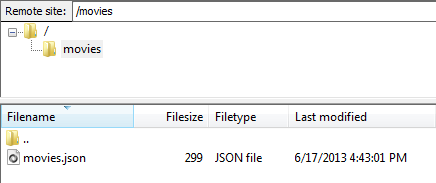
scenario, an FTP server must be started and a file must be put onto the server. In this
example, the file movies.json has been put into the folder movies under the root directory of the FTP server.
-
Create a new Job and add a tFTPConnection component, a tFTPRename component, and a tFTPClose component by typing their names in the design workspace or
dropping them from the Palette. -
Link the tFTPConnection component to
the tFTPRename component using a Trigger > OnSubjobOk
connection. -
Link the tFTPRename component to the
tFTPClose component using a Trigger > OnSubjobOk
connection.
Opening a connection to the FTP server
component to open a connection to the FTP server.
-
Double-click the tFTPConnection
component to open its Basic settings view.
-
In the Host and Port fields, enter the FTP server IP address and the listening port
number respectively. - In the Username and Password fields, enter the authentication details.
Renaming the file on the FTP server
component to rename the file on the FTP server.
-
Double-click the tFTPRename component
to open its Basic settings view.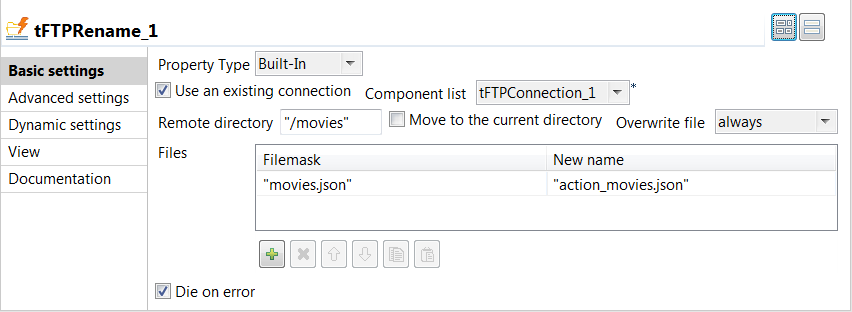
-
Specify the connection details required to access the FTP server. In
this example, select the Use an existing connection
check box and from the Component list drop-down
list displayed, select the connection component to reuse its connection details you
have already defined. -
In the Remote directory field, enter
the directory on the FTP server where the file to be renamed exists. In this
example, it is /movies. -
Clear the Move to the current
directory check box. -
In the Files table, click the
[+] button to add a line, and then enter the
existing file name in the Filemask column field and
the new file name in the New name column field. In
this example, they are movies.json and action_movies.json respectively.
Closing the connection to the FTP server
component to close the connection to the FTP server.
-
Double-click the tFTPClose component
to open its Basic settings view.
-
From the Component list drop-down
list, select the tFTPConnection component that
opens the connection you need to close. In this example, only one tFTPConnection component is used and it is selected by
default.
Executing the Job to rename the file on the FTP server
the Job for renaming the file on the FTP server, you can then execute the Job and verify
the Job execution result.
-
Press Ctrl + S to save the Job and
then F6 to execute the Job. -
Connect to the FTP server to verify the result.
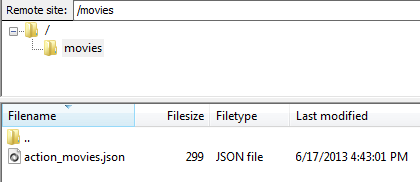 As shown above, the file on the FTP server has been renamed from movies.json to action_movies.json.