tHMapFile
Runs a
Talend Data Mapper
map where input and output structures may differ, as a Spark batch
execution.
tHMapFile transforms data from a
single source, in a Spark environment.
tHMapFile properties for Apache Spark Batch
These properties are used to configure tHMapFile running in the Spark Batch Job framework.
The Spark Batch
tHMapFile component belongs to the Processing family.
This component is available in the Palette of the Studio only if you have subscribed to any Talend Platform product with Big Data or Talend Data Fabric.
Basic settings
|
Storage |
To connect to an HDFS installation, select the Define a storage configuration component check box and then This option requires you to have previously configured the connection If you leave the Define a storage |
|
Configure Component |
To configure the component, click the […] button and, in the [Component
|
|
Input |
Click the […] button to define the path to where the input |
|
Output |
Click the […] button to define the path to where the output |
|
Action |
From the drop-down list, select:
|
|
Open Map Editor |
Click the […] button to open the map for editing in the For more information, see |
Advanced settings
|
Die on error |
This check box is selected by default. Clear the check box to skip |
Usage
|
Usage rule |
This component is used with a tHDFSConfiguration component which defines the |
Scenario: Transforming data in a Spark environment
This scenario applies only to a subscription-based Talend Platform solution with Big data or Talend Data Fabric.
The following scenario creates a two-component Job that transforms data in a Spark
environment using a map that was previously created in
Talend Data Mapper
.

Downloading the input files
-
Retrieve the input files for this scenario from the Downloads tab of the online version of this page at https://help.talend.com.
The thmapfile_transform_scenario.zip file
contains two files: gdelt.json is a JSON file built using data
from the GDELT project http://gdeltproject.org, and
gdelt-onerec.json is a subset of gdelt.json
containing just one record and is used as a sample document for creating the
structure in Talend Data Mapper. -
Save the thmapfile_scenario.zip file on your
local machine and unpack the .zip file.
Creating the input and output structures
-
In the Integration perspective, in the Repository tree view, expand Metadata >
Hierarchical Mapper, right click Structures, and then click New >
Structure. -
In the New Structure dialog box that opens,
select Import a structure definion, and then click
Next. -
Select JSON Sample Document, and then click
Next. -
Select Local file, browse to the location on your
local file system where you saved the source files, import gdelt-onerec.json as your sample document, and then click Next. -
Give your new structure a name, gdelt-onerec in
this example, click Next, and then click Finish.
Creating the map
-
In the Repository tree view, expand Metadata > Hierarchical Mapper, right click Maps, and then click New >
Map. -
In the Select Type of New Map dialog box that
opens, select Standard Map and then click Next. -
Give your new map a name, json2xml in this
example, and then click Finish. -
Drag the gdelt-onerec structure you created
earlier into both the Input and Output sides of the map. -
On the Output side of the map, change the
representation used from JSON to XML by double-clicking Output
(JSON) and selecting the XML output
representation. -
Drag the Root element from the Input side of the map to the Root element on the Output side. This
maps each element from the Input side with its
corresponding element on the Outside side, which is
a very simple map just for testing purposes. - Press Ctrl+S to save your map.
Adding the components
-
In the
Integration
perspective, create a new
Job and call it thmapfile_transform. -
Click any point in the design workspace, start typing tHDFSConfiguration, and then click the name of the component when it
appears in the list proposed in order to select it.Note that for testing purposes, you can also perform this scenario locally. In
that case, do not add the tHDSFConfiguration
component and skip the Configuring the connection to the
file system used by Spark section below. -
Do the same to add a tHMapFile component, but do
not link the two components.
Configuring the connection to the file system to be used by Spark
-
Double-click tHDFSConfiguration to open its
Component view. -
In the Version area, select the Hadoop
distribution you need to connect to and its version. -
In the NameNode URI
field, enter the location of the machine hosting the NameNode service of the
cluster. If you are using WebHDFS, the location should be
webhdfs://masternode:portnumber; if this WebHDFS is secured
with SSL, the scheme should be swebhdfs and you need to use
a tLibraryLoad in the Job to load the library required by
the secured WebHDFS. -
In the Username field, enter the authentication
information used to connect to the HDFS system to be used.
Defining the properties of tHMapFile
-
In the Job, select the tHMapFile component to define its
properties.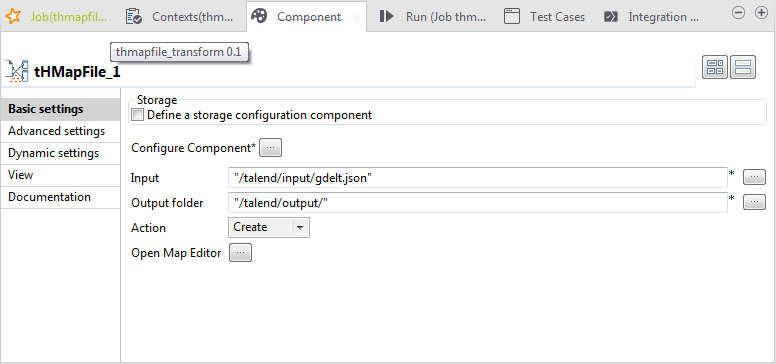
-
Select the Define a storage configuration
component check box and then select the name of the component to use
from those available in the drop-down list, tHDFSConfiguration_1 in this example.Note that if you leave the Define a storage configuration
component check box unselected, you can only transform files
locally. -
Click the […] button and, in the [Component Configuration] window, click the Select button next to the Record
Map field. -
In the [Select a Map] dialog box that opens,
select the map you want to use and then click OK.
In this example, use the json2xml map you just
created. - Click Next.
-
Select an appropriate record delimitor for your data that tells the component
where each new record begins.In this example, each record is on a new line, so select Separator and specify the newline character,
in this example. - Click Finish.
- Click the […] button next to the Input field to define the path to the input file, /talend/input/gdelt.json in this example.
-
Click the […] button next to the Output field to define the path to where the output file is
to be stored, /talend/output in this
example. - Leave the other settings unchanged.
Saving and executing the Job
- Press Ctrl+S to save your Job.
- In the Run tab, click Run to execute the Job.
-
Browse to the location on your file system where the output files are stored to
check that the transformation was performed successfully.