tJDBCSCDELT
SCD (Slowly Changing
Dimensions) Type
1 method
and/or Type 2
method
and writes both the current
and historical
data
into a specified SCD
dimension table.
tJDBCSCDELT Standard properties
These properties are used to configure tJDBCSCDELT running in
the Standard Job framework.
The Standard
tJDBCSCDELT component belongs to two families: Business Intelligence and Databases.
The component in this framework is generally available.
Basic settings
|
Property Type |
Select the way the connection details
|
|
Use an existing connection |
Select this check box and in the Component |
|
JDBC URL |
Specify the JDBC URL of the database to be used. For example, the |
|
Driver JAR |
Complete this table to load the driver JARs needed. To do this, click the |
|
Driver Class |
Enter the class name for the specified driver between double quotation marks. |
|
Username and Password |
The database user authentication data. To enter the password, click the […] button next to the |
|
DB Schema |
Specify the name of the database schema. For the database that does |
|
Source table |
Specify the name of the source input table whose data changes |
|
Table |
Specify the name of the dimension table into which the data captured by |
| Action on table |
Select an operation to be performed on the table defined.
|
|
Schema and Edit schema |
A schema is a row description. It defines the number of fields (columns) to
Click Edit schema to make changes to the
|
|
Surrogate key |
Set the column where the generated surrogate key will be stored. |
|
Creation |
Select any of the following methods to be used for generating
|
|
Source keys |
Specify one or more columns used as the key(s) that ensure the |
|
Use SCD type 1 fields |
Select this check box and in the SCD type 1 |
|
SCD type 1 fields |
Click the [+] button to add as many rows |
|
Use SCD type 2 fields |
Select this check box and in the SCD type 2 |
|
SCD type 2 fields |
Click the [+] button to add as many rows |
|
Start date |
Specify the column that holds the start date for type 2 SCD. |
|
End date |
Specify the column that holds the end date for type 2 SCD. |
|
Log active status |
Select this check box and from the Active |
|
Log versions |
Select this check box and from the Version |
|
Mapping |
Specify the metadata mapping file for the database |
Advanced settings
|
Source fields value include Null |
Select this check box to allow the source columns to have |
|
Debug mode |
Select this check box to display each step during processing the |
|
tStatCatcher Statistics |
Select this check box to gather the Job processing metadata at the Job level |
Global Variables
|
ERROR_MESSAGE |
The error message generated by the component when an error occurs. This is an After |
Usage
|
Usage rule |
This component can be used as a standalone component of a Job or Subjob. |
Tracking data changes in a Snowflake table using the tJDBCSCDELT component
table using SCD (Slowly Changing Dimensions) Type 1 and Type 2 methods implemented by the
tJDBCSCDELT component, and writes both the current and historical data in a SCD dimension
table.
The input data contains various employee details including
name, role, salary, and
another id column is added to help ensuring the unicity of the input
data.
At first, the following employee data is inserted to a new Snowflake
table.
|
1 2 3 4 |
#id;name;role;salary 111;Mark Smith;tester;15000.00 222;Thomas Johnson;developer;18000.00 333;Teddy Brown;tester;16000.00 |
Later, the table is updated with the following renewed employee data.
|
1 2 3 4 5 |
#id;name;role;salary 111;Mark Smith;tester;15000.00 222;Thomas Johnson;tester;18000.00 333;Teddy Brown;writer;17000.00 444;John Clinton;developer;19000.00 |
You can see the role of Thomas Johnson is changed from
developer to tester, the role of Teddy is changed from
Browntester to writer, and his
salary is raised from 16000.00 to 17000.00. Besides, a new
employee record with id 444 is inserted. In this scenario,
-
the
existing
name and role data will
be
overwritten
by the
new
data, so
SCD
Type 1 method will be
performed on them, and -
the
full history of the salary
data will be
retained, and
a
new record with the changed data
will be always created
and
the previous
record will be
closed, so
SCD
Type 2 method will be
performed on it.
For more information about SCD types, see SCD management methodology.
Creating a Job for tracking data changes in a Snowflake table using tJDBCSCDELT
-
Create a new Job and add a tJDBCConnection component,
two tJDBCRow components, two
tFixedFlowInput components, two
tJDBCOutput components, two
tJDBCSCDELT components, two
tJDBCInput components, and two
tLogRow components to the Job.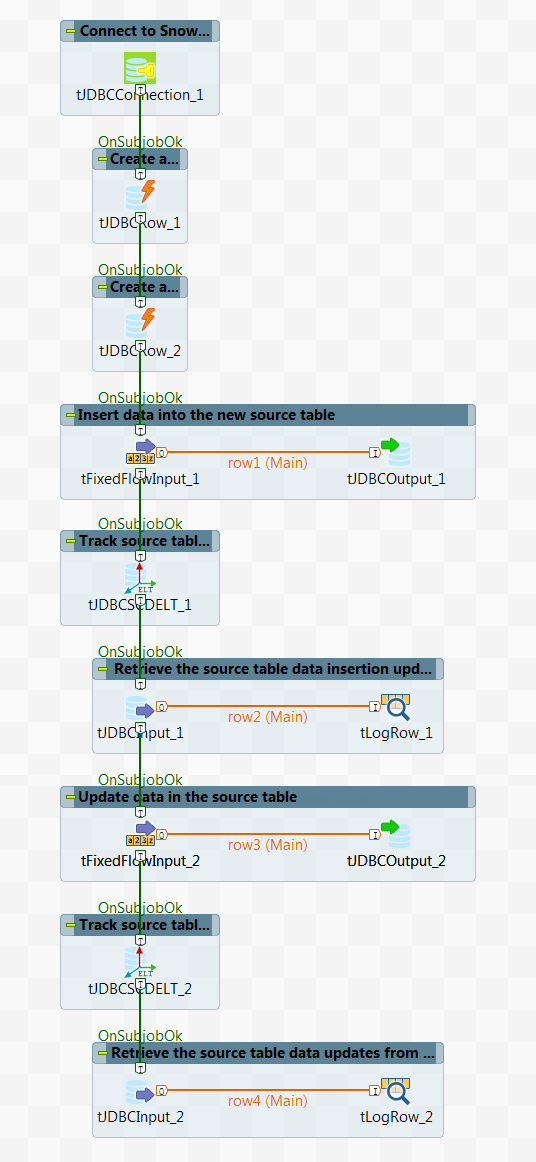
-
Link the first tFixedFlowInput component to the first
tJDBCOutput component using a Row > Main connection. -
Do the same to link the first tJDBCInput component to
the first tLogRow component, the second
tFixedFlowInput component to the second
tJDBCOutput component, and the second
tJDBCInput component to the second
tLogRow component. -
Link the tJDBCConnection component to the first
tJDBCRow component using a Trigger > On Subjob Ok connection. -
Do the same to link the first tJDBCRow component to the
second tJDBCRow component, the second
tJDBCRow component to the first
tFixedFlowInput component, the first
tFixedFlowInput component to the first
tJDBCSCDELT component, the first
tJDBCSCDELT component to the first
tJDBCInput component, the first
tJDBCInput component to the second
tFixedFlowInput component, the second
tFixedFlowInput component to the second
tJDBCSCDELT component, the second
tJDBCSCDELT component to the second
tJDBCInput component.
Opening a connection to a Snowflake database
-
Double-click the tJDBCConnection component to open its
Basic settings view.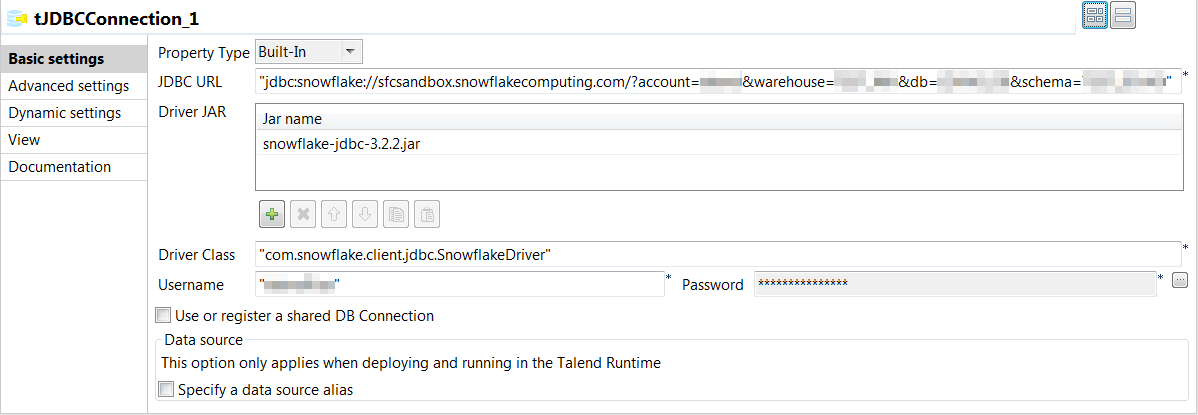
-
In the JDBC URL field, enter the connection string to
connect to Snowflake using the JDBC driver.For more information about how to use the JDBC driver to connect to Snowflake
and how to specify the connection string, see JDBC Driver Connection String. -
Click the [+] button below the Driver
JAR table to add a line, and in the Jar
name cell of the new line, enter the name of the jar file for
the Snowflake JDBC driver, snowflake-jdbc-3.2.2.jar in
this example. -
In the Driver Class field, enter the Snowflake JDBC
driver class, com.snowflake.client.jdbc.SnowflakeDriver
in this example. -
In the Username and Password
fields, enter the authentication information accordingly.
Creating a Snowflake table and a Snowflake sequence
-
Double-click the first tJDBCRow component to open its
Basic settings view. -
Select the Use an existing connection check box and from
the Component List drop-down list displayed, select the
connection component to reuse the connection created by it,
tJDBCConnection_1 in this example. -
In the Query field, enter the SQL command used to create
a new table.In this example, the SQL command is CREATE OR REPLACE TABLE
employee (id INTEGER, name VARCHAR(50), role VARCHAR(50), salary DOUBLE,
PRIMARY KEY(id)), which creates a new table
employee with four columns, id
of INTEGER type as the primary key, name and
role of VARCHAR type, and
salary of DOUBLE type. This table will be used to
store the employee data. -
Double-click the second tJDBCRow component to open its
Basic settings view. -
Select the Use an existing connection check box and from
the Component List drop-down list displayed, select the
connection component to reuse the connection created by it,
tJDBCConnection_1 in this example. -
In the Query field, enter the SQL command used to create
a Snowflake sequence.In this example, the SQL command is create or replace sequence
employee_sequence, which creates a new sequence
employee_sequence. This sequence will be used by the
tJDBCSCDELT component to generate the surrogate key
for SCD Type 2 method.
Inserting data into the new Snowflake table
-
Double-click the first tFixedFlowInput component to open
its Basic settings view. -
Click the […] button next to Edit
schema and in the pop-up dialog box, define the schema by adding
four columns: id of Integer type as the primary key,
name and role of String type,
and salary of Double type.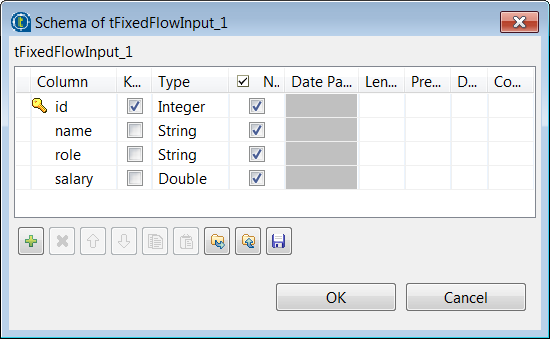
-
Click OK to save the schema changes. In the pop-up
dialog box, click Yes to propagate the
schema to the next component. -
Select Use Inline Content in the
Mode area. Then in the Content
field displayed, enter the following employee data to be inserted.123111;Mark Smith;tester;15000.00222;Thomas Johnson;developer;18000.00333;Teddy Brown;tester;16000.00 -
Double-click the first tJDBCOutput component to open its
Basic settings view. -
Select the Use an existing connection check box and from
the Component List drop-down list displayed, select the
connection component to reuse the connection created by it,
tJDBCConnection_1 in this example. -
In the Table field, enter the name of the table into
which the employee data will be written, employee in this
example. -
In the Action on data drop-down list, select
Insert to insert the employee data transferred from
the first tFixedFlowInput component.
Tracking data insertion changes and writing the changes into a SCD dimension
table
-
Double-click the first tJDBCSCDELT component to open its
Basic settings view.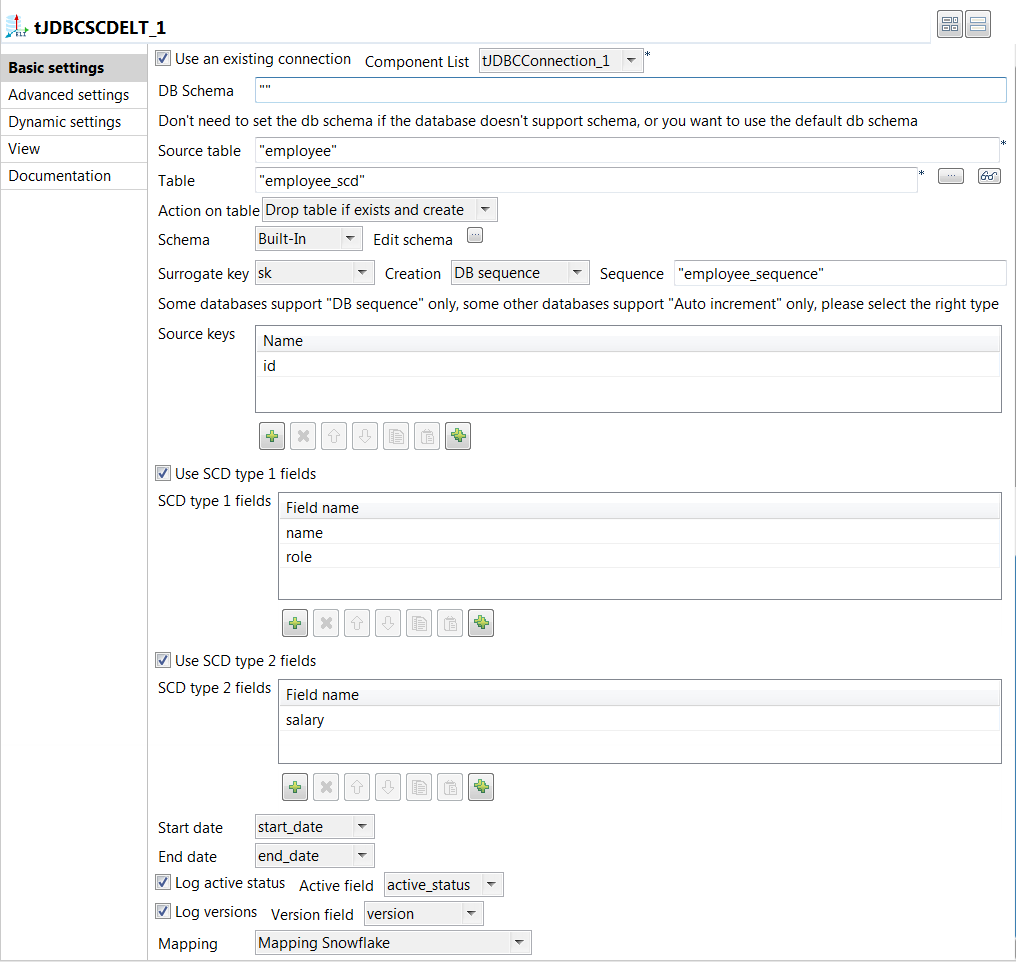
-
Select the Use an existing connection check box and from
the Component List drop-down list displayed, select the
connection component to reuse the connection created by it,
tJDBCConnection_1 in this example. -
In the Source table field, enter the name of the table
whose data changes will be captured, employee in this
example. -
In the Table field, enter the name of the SCD dimension
table that will store both the current and historical employee data,
employee_scd in this example. -
Select Drop table if exists and create from the
Action on table drop-down list to create the SCD
dimension table. -
Click the […] button next to Edit
schema and in the pop-up dialog box, define the schema by adding
nine columns: sk and id of Integer
type as the primary key, name and
role of String type, salary of
Double type, start_date and
end_date of Date type with the Date Pattern
yyyy-MM-dd, and active_status
and version of Integer type. When done, click
OK to save the changes and close the dialog
box.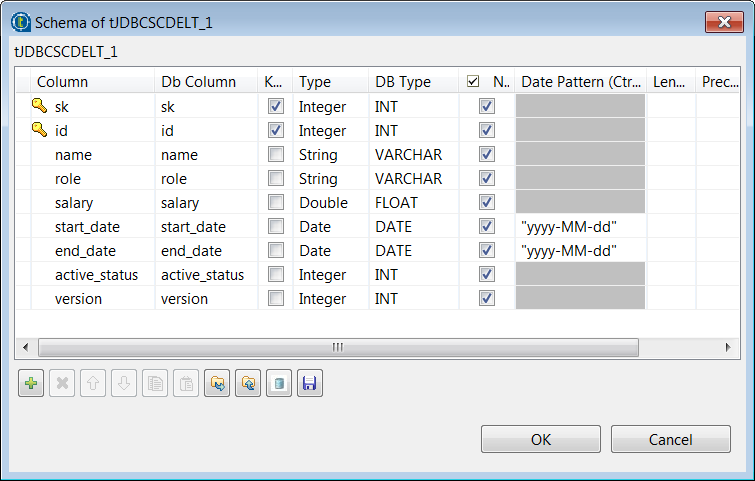
-
From the Surrogate key drop-down list, select the name
of the column that will be used as the primary key of the SCD dimension table,
sk in this example. -
Select DB sequence from the
Creation drop-down list and in the
Sequence field displayed, enter the name of the
Snowflake sequence used to generate the surrogate key for the SCD Type 2
method. -
Click the [+] button below the Source
keys table to add a new line, and click the
Name cell and select the key column of the source
table from the drop-down list, id in this example. -
Select the Use SCD type 1 fields check box, click the
[+] button below the SCD type 1
fields table twice to add two lines. Then click each cell and
from the drop-down list, select the column on which the SCD Type 1 method will
be performed. In this example, they are name and
role. -
Select the Use SCD type 2 fields check box, click the
[+] button below the SCD type 2
fields table to add a line. Then click the cell and select the
column on which the SCD Type 2 method will be performed. In this example, it is
salary. -
From the Start date and End date
drop-down lists, select the columns used to hold the start date and end date
values for the SCD Type 2 method respectively, start_date
and end_date in this example. -
Select the Log active status check box and from the
Active field drop-down list displayed, select the
column used to hold the active status value for the SCD Type 2 method, which
helps identify the active records, active_status in this
example. -
Select the Log versions check box and from the
Version field drop-down list, select the column used
to hold the version number of the records for the SCD Type 2 method,
version in this example. -
Select Mapping Snowflake from the
Mapping drop-down list to use the Snowflake metadata
mapping file.
Retrieving the data insertion updates from the SCD dimension table
-
Double-click the first tJDBCInput component to open its
Basic settings view. -
Select the Use an existing connection check box and from
the Component List drop-down list displayed, select the
connection component to reuse the connection created by it,
tJDBCConnection_1 in this example. -
Click the […] button next to Edit
schema and in the pop-up dialog box, define the schema by adding
nine columns: sk and id of Integer
type as the primary key, name and
role of String type, salary of
Double type, start_date and
end_date of Date type with the Date Pattern
yyyy-MM-dd, and active_status
and version of Integer type. When done, click
OK to save the changes and close the dialog
box.The schema of the first tJDBCInput component is the
same as the schema of the tJDBCSCDELT component, you
can just copy and paste it. -
In the Query field, enter the SQL command used to
retrieve data from the SCD dimension table, select * from
employee_scd in this example. -
Double-click the first tLogRow component and in the
Mode area on its Basic
settings view, select Table to display
the retrieved data in a table.
Updating data in the Snowflake table
-
Double-click the second tFixedFlowInput component to
open its Basic settings view. -
Click the […] button next to Edit
schema and in the pop-up dialog box, define the schema by adding
four columns: id of Integer type as the primary key,
name and role of String type,
and salary of Double type.This schema is the same as the schema of the first
tFixedFlowInput component, you can just copy and
paste it. -
Click OK to save the schema changes. In the pop-up
dialog box, click Yes to propagate the
schema to the next component. -
Select Use Inline Content in the
Mode area. Then in the Content
field displayed, enter the following employee data to update the existing
data.1234111;Mark Smith;tester;15000.00222;Thomas Johnson;tester;18000.00333;Teddy Brown;writer;17000.00444;John Clinton;developer;19000.00 -
Double-click the second tJDBCOutput component to open
its Basic settings view. -
Select the Use an existing connection check box and from
the Component List drop-down list displayed, select the
connection component to reuse the connection created by it,
tJDBCConnection_1 in this example. -
In the Table field, enter the name of the table, in
which the data will be updated, employee in this
example. -
Select Insert or update from the Action on
data drop-down list.
Tracking data update changes and writing the changes into the SCD dimension table
-
Double-click the second tJDBCSCDELT component to open
its Basic settings view. - Repeat 2 through 15 in the procedure Tracking data insertion changes and writing the changes into a SCD dimension table to configure the second tJDBCSCDELT component.
Retrieve the data update changes from the SCD dimension table
-
Double-click the second tJDBCInput component to open its
Basic settings view. - Repeat 2 through 4 in the procedure Retrieving the data insertion updates from the SCD dimension table to configure the second tJDBCInput component.
-
Double-click the second tLogRow component and in the
Mode area on its Basic
settings view, select Table to display
the retrieved data in a table.
Executing the Job to track data changes in a Snowflake table using tJDBCSCDELT
-
Press Ctrl + S to save
the Job. -
Press F6 to execute the
Job.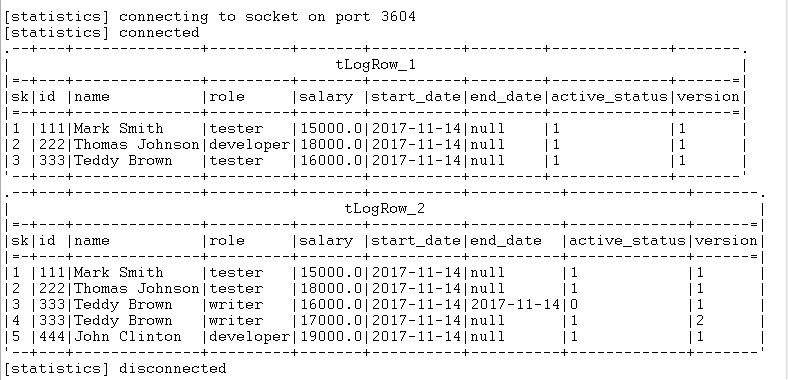
As shown above, the old role developer for
Thomas Johnson is overwritten directly by the new
role tester because SCD Type 1 is performed on the
role column, and a new record with the surrogate
key value set to 4 is created for Teddy
Brown‘s salary update from 16000.00
to 17000.00 because SCD Type 2 is performed on the
salary column.