tKinesisInput
Acts as consumer of an Amazon Kinesis stream to pull messages from this Kinesis
stream.
Using the Kinesis Client Library (KCL) provided by Amazon, tKinesisInput consumes data from a given
Amazon Kinesis stream (an ordered sequence of data records), constructs
an RDD out of this data and sends the RDD to its following
components.
tKinesisInput properties for Apache Spark Streaming
These properties are used to configure tKinesisInput running in the Spark Streaming Job framework.
The Spark Streaming
tKinesisInput component belongs to the Messaging family.
The streaming version of this component is available in the Palette of the Studio only if you have subscribed to Talend Real-time Big Data Platform or Talend Data
Fabric.
Basic settings
|
Schema and Edit |
A schema is a row description. It defines the number of fields (columns) to The schema of this component is read-only. You can click Edit schema to view the schema. This read-only payload column is used to carry the body The input message body can use very different data formats. For example, if its format is |
|
Access key |
Enter the access key ID that uniquely identifies an AWS Account. For |
|
Secret key |
Enter the secret access key, constituting the security credentials in To enter the password, click the […] button next to the |
|
Stream name |
Enter the name of the Kinesis stream you want tKinesisInput to pull data from. |
|
Endpoint URL |
Enter the endpoint of the Kinesis service to be used. For example, https://kinesis.us-east-1.amazonaws.com. More valid Kinesis endpoint URLs |
|
Explicitly set authentication |
Select this check box to use the explicit authentication mechanism to connect to Kinesis. Since this security mechanism requires the AWS Region parameter to be explicitly set, you It is recommended to use the explicit authentication to gain better security when the While if you leave this check box clear, an older authentication mechanism is used. This |
Advanced settings
|
Checkpoint interval |
Enter the time interval (in millisecond) at the end of which tKinesisInput saves the position of its read in the Kinesis stream. Data records in a Kinesis stream are grouped into partitions (shards in terms of Kinesis) |
|
Initial position stream |
Select the starting position to read data from the stream in the absence of the Kinesis
checkpoint information.
|
|
Storage level |
Select how you want the received data to be cached. For further information about the |
Usage
|
Usage rule |
This component is used as a start component and requires an output link. At runtime, this component keeps listening to the stream and reads new messages once they This component, along with the Spark Streaming component Palette it belongs to, appears Note that in this documentation, unless otherwise explicitly stated, a scenario presents |
|
Spark Connection |
You need to use the Spark Configuration tab in
the Run view to define the connection to a given Spark cluster for the whole Job. In addition, since the Job expects its dependent jar files for execution, you must specify the directory in the file system to which these jar files are transferred so that Spark can access these files:
This connection is effective on a per-Job basis. |
|
Limitation |
Due to license incompatibility, one or more JARs required to use this component are not |
Working with Amazon Kinesis and Big Data Streaming Jobs
the Spark Streaming framework.
This scenario applies only to Talend Real-time Big Data Platform or Talend Data Fabric.
This example uses Talend Real-Time Big Data Platform v6.1.
In addition, it uses these licensed products provided by Amazon: Amazon EC2, Amazon Kinesis,
and Amazon EMR.
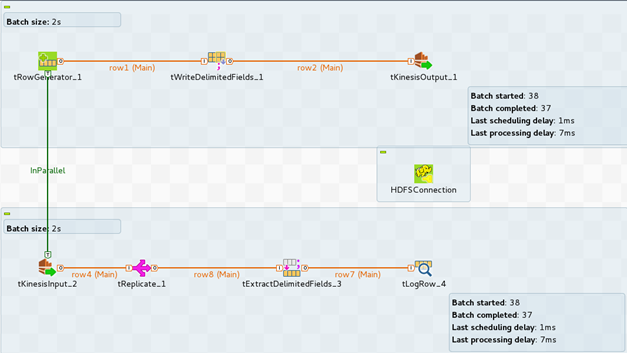
In this example, you will build the following Job, to read and and write data to an Amazon
Kinesis stream and display results in the Console.
Launching an Amazon Kinesis Stream
-
From the Amazon Web Services home page, navigate to
Kinesis.
-
Click Go to Kinesis Streams and click Create
Stream. -
In the Stream Name field, enter the Kinesis stream name
and provide the number of shards.For the current example, 1 shard is enough.

-
Click Create. Then, you will reach the Kinesis stream
list. Your new stream will be available when its status changes from CREATING to
ACTIVE. Your stream is now ready.
Writing data to an Amazon Kinesis Stream
In this section, it is assumed that you have an Amazon EMR cluster up and running and
that you have created the corresponding cluster connection metadata in the
repository. It is also assumed that you have created an Amazon Kinesis stream.
-
Create a Big Data Streaming Job using the Spark framework.

-
In this example the data, which will be written to Amazon Kinesis, are
generated with a tRowGenerator component. -
The data must be serialized as byte arrays before being written to the Amazon
Kinesis stream. Add a tWriteDelimitedFields component and
connect it to the tRowGenerator component. -
Configure the Output type to
byte[]. -
To write the data to your Kinesis stream, add a
tKinesisOutput component and connect the
tWriteDelimitedFields component to it. - Provide your Amazon credentials.
-
To access your Kinesis stream, provide the Stream name and the corresponding
endpoint url.To get the right endpoint url, refer to AWS Regions and Endpoints.
-
Provide the number of shards, as specified when you created the Kinesis
stream.
Reading Data from an Amazon Kinesis Stream
-
To read data from your Kinesis stream, add a
tKinesisInput component and connect the
tRowGenerator component to it with an
InParallel trigger. -
In the Basic settings view of the
tKinesisInput component, provide your Amazon
credentials. - Provide your Kinesis Stream name and the corresponding Endpoint url.
-
Select the Explicitly set authentication parameters
option and enter your Region, as mentioned in AWS Regions and Endpoints. -
Add a tReplicate component and connect it with
tKinesisInput.The purpose of the tReplicate component is to have a
processing component in the Job; otherwise, the execution of the Job will
fail. The tReplicate component allows the Job to
compile without modifying the data. -
Add a tExtracDelimitedFields component and connect it to
the tReplicate component.The tExtractDelimitedFields will extract the data from
the serialized message generated by the tKinesisInput
component. -
Add a tLogRow component to display the output on the
console and on its Basic settings view select
Table (print values in cells of a table) to display
the data in a table.
Configuring a Big Data Streaming Job using the Spark Streaming Framework
cluster.
-
Because your Job will run on Spark, it is necessary to add a
tHDFSConfiguration component and then configure it to
use the HDFS connection metadata from the repository.
-
In the Run view, click the Spark
Configuration tab. -
In the Cluster Version panel, configure your Job to user
your cluster connection metadata.
- Set the Batch size to 2000 ms.
-
Because you will set some advanced properties, change the Property type to
Built-In. -
In the Tuning panel, select the Set tuning
properties option and configure the fields as follows.
-
Run your Job.
It takes a couple of minutes to have data displayed in the Console.
