tMDMInput
data.
tMDMInput Standard properties
These properties are used to configure tMDMInput running in the Standard Job framework.
The Standard
tMDMInput component belongs to the Talend MDM family.
The component in this framework is generally available.
Basic Settings
|
Property Type |
Either Built in or Repository. |
|
|
Built-in: No property data stored |
|
|
Repository: Select the repository file where |
|
Schema and Edit Schema |
A schema is a row description, it defines the number of fields that will be Click Edit schema to make changes to the schema.
|
|
|
Built-in: The schema will be created and stored |
|
|
Repository: The schema already exists and is |
| Use an existing connection | Select this check box if you want to use a configured tMDMConnection component. |
|
MDM version |
By default, Server 6.0 is selected. Although it |
|
URL |
Type in the URL to access the MDM server. |
|
Username and Password |
Type in user authentication data for the MDM server. To enter the password, click the […] button next to the |
|
Entity |
Type in the name of the business entity that holds the data you want to |
|
Data Container |
Type in the name of the data container that holds the data you want to |
|
Type |
Select Master or Staging to specify the database on which the action should be |
|
Use multiple conditions |
Select this check box to filter the data using certain conditions.
Xpath: Enter between quotes the path and the XML
Function: Select the condition to be used from Before using the conditions, bear in mind the following:
The following operators are available:
Value: Enter between inverted commas the value
Predicate: Select a predicate if you use more The following predicates are available:
The other predicates are reserved for future use and may be subject to If you clear this check box, you have the option of selecting particular IDs to be Note:
If you clear the Use multiple conditions check |
|
Skip Rows |
Enter the number of lines to be ignored. |
|
Max Rows |
Maximum number of rows to be processed. If Limit = 0, no row is read or |
|
Die on error |
Select this check box to skip the row in error and complete the process for |
Advanced settings
|
Batch Size |
Number of lines in each processed batch. Note:
This option is not displayed if you have cleared the Use |
|
Loop XPath query |
The XML structure node on which the loop is based. |
|
Mapping |
Column: reflects the schema as defined in the
XPath query: Type in the name of the fields to
Get Nodes: Select this check box to retrieve the |
|
tStatCatcher Statistics |
Select this check box to gather the processing metadata at the Job level as well |
Global Variables
|
Global Variables |
ERROR_MESSAGE: the error message generated by the
NB_LINE: the number of rows processed. This is an After A Flow variable functions during the execution of a component while an After variable To fill up a field or expression with a variable, press Ctrl + For further information about variables, see |
Usage
|
Usage rule |
Use this component as a start component. It needs an output If an MDM entity has a large number of foreign key fields, it may take you a For more information about the workaround, see the You can increase the timeout values for a Job using this |
Reading master data from an MDM hub
This scenario applies only to a Talend solution with MDM.
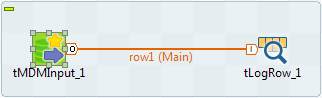
This scenario describes a two-component Job that fetches master data from an MDM server, and
displays the data in the log console.
Prerequisites:
-
Make sure the MDM server is up and running.
-
You have imported the MDM demo project and loaded the sample data into the data container
Product by running the Job MDM_LoadAll. -
You have been assigned a role with the appropriate user authorization and access rights to
the data model Product.
Creating a Job to read master data from MDM
-
From the Palette, drop tMDMInput and tLogRow onto the design
workspace. -
Link the two components together using a Row > Main
connection.
Configuring basic settings of tMDMInput to read master data from MDM
-
Double-click tMDMInput to open the Basic settings view.
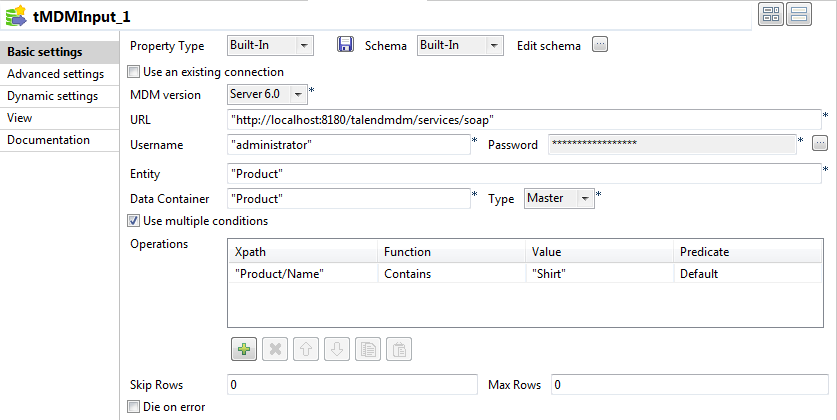
- In the Property Type list, select Built-In.
-
In the Schema list, select Built-In and click the […] button next to
Edit schema to open a dialog box and define the structure
of the master data you want to read from the MDM server.In this example, three columns are defined to fetch three elements from the
Product entity: Name,
Price, and Colors.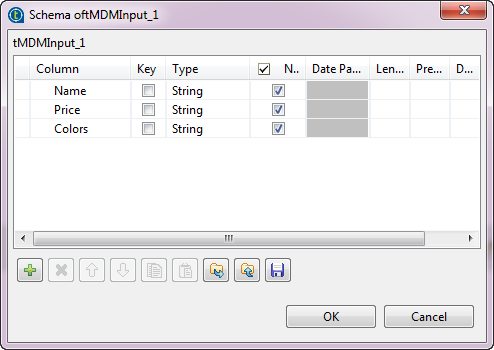
-
After you have defined the schema, click OK to close
this dialog box, and then click Yes in the [Propagate] dialog box to propagate the schema changes to tLogRow. - Enter the user name and password for accessing the MDM server.
-
In the Entity field, enter Product
between quotes. -
In the Data Container field, enter
Product between quotes. - Select Master from the Type list.
-
Define the query conditions in the Operations area.
In this example, we want to query the product data records whose names include
Shirt.- Click the [+] button to add a row.
-
Enter Product/Name between quotes in the Xpath field.
Apart from elements defined in entities, you can query metadata elements which are
also known as built-in elements. To query metadata elements from records in master
database, you need to follow the format of
metadata:<timestamp|task_id>when defining the path expression to
select the XML node to run the query on. - Select Contains from the Function list.
- Enter Shirt between quotes in the Value field.
Configuring advanced settings of tMDMInput to read master data from MDM
-
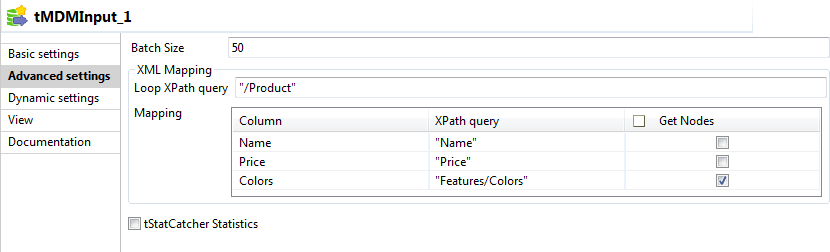
In the Component view, click the Advanced settings tab.
-
In the Loop XPath query field, enter
/Product between quotes on which the loop is based. -
In the XPath query column of the Mapping table, enter the name of the XML node from which you want to collect
the master data, next to the corresponding output column name. -
Select the Get Nodes check box for the
Colors row to retrieve the XML node together with its data.
Configuring the data display mode and executing the Job
-
Double-click the tLogRow component to display its
Basic settings view. -
In the Mode area, select Table
(print values in cells of a table) for better readability of the result. -
Save the Job and press F6 to run it.
The Product data records whose names include “Shirt” are displayed
on the console with the values of three specified columns.
Reading staging data from MDM
This scenario applies only to a subscription-based Talend Platform solution with MDM or Talend Data Fabric.
This scenario describes a two-component Job that reads some staging data from the MDM
staging area, and then displays the data in the log console.

-
Make sure the MDM server is up and running.
-
You have created a Customer data model with a
Customer entity, and a Customer data container
that you have already populated with some staging data records. -
You have been assigned a role with the appropriate user authorization and access
rights to the data model Customer.
Creating a Job to read staging data from MDM
-
From the Palette, drop tMDMInput and tLogRow onto the design
workspace. -
Link the two components together using a Row > Main
connection.
Configuring the connection to read staging data from MDM
-
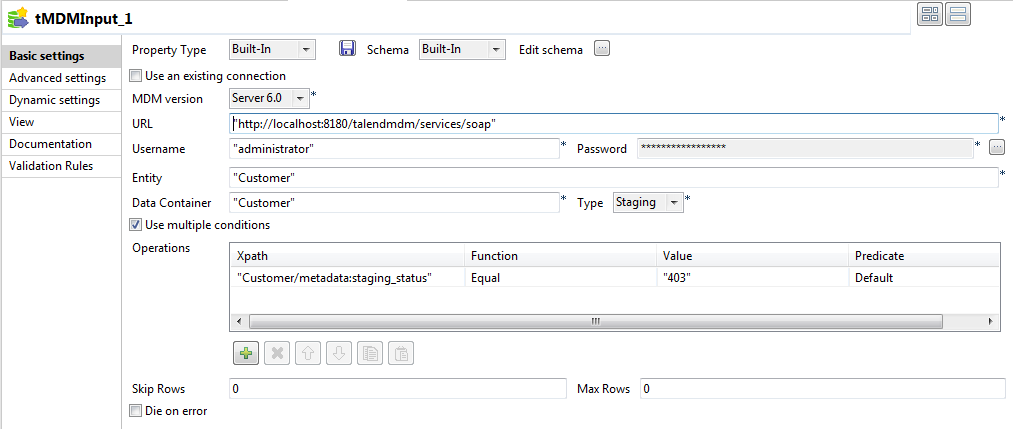
Double-click tMDMInput to open the Basic settings view.
- In the Property Type list, select Built-In.
-
In the Schema list, select Built-In and click the […] button next to
Edit schema to open a dialog box and define the structure
of the staging data you want to read from the MDM server.In this example, three columns are defined to fetch three elements from the
Customer entity: account_number,
lastname, and firstname.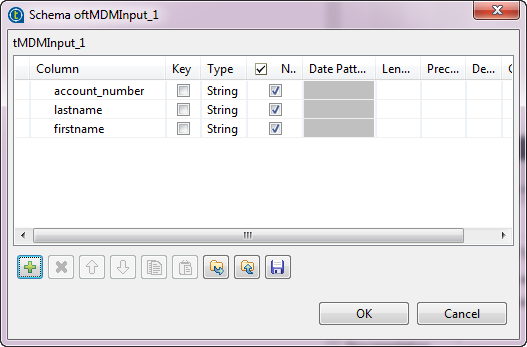
-
After you have defined the schema, click OK to close
this dialog box, and then click Yes in the [Propagate] dialog box to propagate the schema changes to tLogRow. - Keep the default Server 6.0 in the MDM version list and keep the default URL in the URL field.
- Enter the user name and password for accessing the MDM server.
-
In the Entity field, enter between quotes the name of
the business entity from which you want to query the staging data. -
In the Data Container field, enter between quotes the
name of the data container that holds the staging data you want to read. - Select Staging from the Type list.
Configuring the query conditions and advanced settings to query staging data
-
In the Operations area, click the [+] button to add one new row, where you can define the query conditions.
-
In the Xpath column, enter
Customer/metadata:staging_status between quotes.In this example, we want to query the staging data that fails to pass the MDM validation
phase due to a validation issue against the data model, and those staging data has the
status of 403. For more information, see the section on working with records in the staging
area in
Talend MDM Web UI User Guide.Note:Unlike elements defined in entities, metadata elements are
built-in elements. To query metadata elements from records in staging database,
you need to follow the format ofmetadata:staging_<source|status|error|blockkey|hastask>when
defining the path expression to select the XML node to run the query on. - Select Equal from the Function list.
- Enter 403 between quotes in the Value column.
- Click the Advanced settings tab.
-
In the Loop XPath query field, enter
/Customer between quotes on which the loop is based. -
In the XPath query column of the Mapping table, enter between quotes the name of the XML node from which you
want to collect the staging data, next to the corresponding output column name.In this example, three elements that pertain to the Customer entity
will be queried: account_num, lname, and
fname.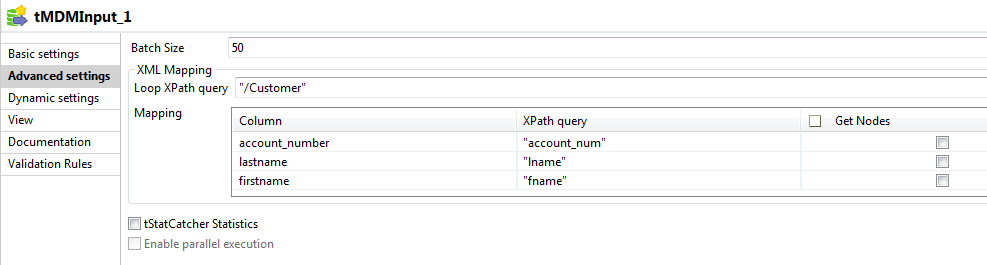
Configuring the query result display and executing the Job
-
Double-click the tLogRow component to display its
Basic settings view. -
In the Mode area, select Table
(print values in cells of a table) for better readability of the result. -
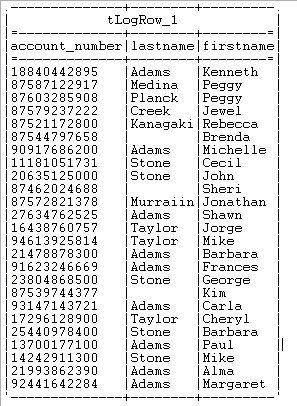
Save the Job and press F6 to run it.
The staging data that matches the query conditions is displayed on the console.