tMemSQLInput
Executes a DB query with a strictly defined order which must correspond to the
schema definition.
tMemSQLInput connects to a given
database and extracts fields based on a user-defined query. Then it passes the selected data
to the next component via a Main row link.
tMemSQLInput Standard properties
These properties are used to configure tMemSQLInput running in the Standard Job framework.
The Standard
tMemSQLInput component belongs to the Big Data and the Databases families.
The component in this framework is available when you are using one of the Talend solutions with Big Data.
Basic settings
|
Property type |
Either Built-in or |
|
|
Built-in: No property data stored |
|
|
Repository: Select the repository |
|
Use an existing connection |
Select this check box and in the Component Note:
When a Job contains the parent Job and the child Job, if you need to share an
existing connection between the two levels, for example, to share the connection created by the parent Job with the child Job, you have to:
For an example about how to share a database connection across Job levels, see |
|
Host |
Enter the location of the server of the MemSQL database to be |
|
Port |
Enter the listening port number of the server of the MemSQL |
|
Database |
Enter the name of the MemSQL database to be used. |
|
Username and |
Enter the authentication data used to connect to the MemSQL |
|
Schema and Edit |
A schema is a row description. It defines the number of fields (columns) to This component offers the This dynamic schema |
|
|
Built-In: You create and store the |
|
|
Repository: You have already created |
|
Click Edit schema to make changes to the schema.
|
|
|
Table |
Name of the table to be read. |
|
Query type and |
Enter your DB query paying particularly attention to properly
If using the dynamic schema |
Advanced settings
|
Additional JDBC parameters |
Specify additional connection properties for the DB connection you Note:
When you need to handle data of the time-stamp type
|
|
Trim all the String/Char columns |
Select this check box to remove leading and trailing whitespace |
|
Trim column |
Remove leading and trailing whitespace from defined Note:
Clear Trim all the String/Char |
|
tStatCatcher Statistics |
Select this check box to collect log data at the component |
Global Variables
|
Global Variables |
NB_LINE: the number of rows processed. This is an After
QUERY: the query statement being processed. This is a Flow
ERROR_MESSAGE: the error message generated by the A Flow variable functions during the execution of a component while an After variable To fill up a field or expression with a variable, press Ctrl + For further information about variables, see |
Usage
|
Usage rule |
This component covers all possible SQL queries for MemSQL |
|
Dynamic settings |
Click the [+] button to add a The Dynamic settings table is For examples on using dynamic parameters, see Scenario: Reading data from databases through context-based dynamic connections and Scenario: Reading data from different MySQL databases using dynamically loaded connection parameters. For more information on Dynamic |
| Limitation |
Due to license incompatibility, one or more JARs required to use this component are not |
Scenario: Writing data to and reading data from a MemSQL database table
This scenario applies only to a Talend solution with Big Data.
In this scenario a Job is built to write a table to a MemSQL database, and then
retrieve the data from the table.
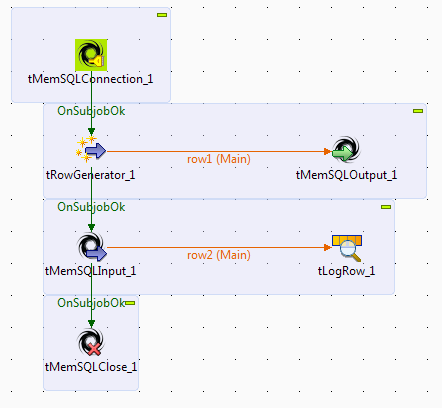
Dragging and dropping components and linking them together
-
Drop a tMemSQLConnection, a tRowGenerator, a tMemSQLInput, a tMemSQLOutput, a tMemSQLClose, and a tLogRow
from the Palette onto the workspace. -
Link the tMemSQLConnection to the tRowGenerator using a Row >
OnSubjobOk connection. -
Link the tRowGenerator to the tMemSQLOutput using a Row >
Main connection. -
Link the tRowGenerator to the tMemSQLInput using a Row >
OnSubjobOk connection. -
Link the tMemSQLInput to the tLogRow using a Row > Main
connection. -
Link the tMemSQLInput to the tMemSQLClose using a Row >
OnSubjobOk connection.
Configuring the components
Opening and closing connection to the database
-
Double-click the tMemSQLConnection component to open its
Basic settings in the Component tab.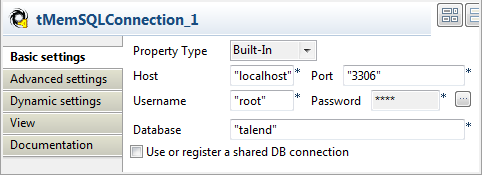
-
In the Property Type list, select
Built-In. Specify the connection
details in the relevant fields, including the host name and listening port
number of the database server, the user name and password for your database
authentication, and the database name. -
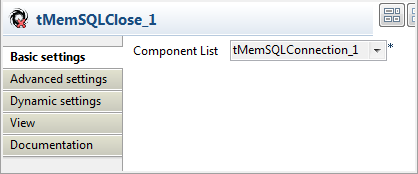
Double-click tMemSQLClose to set its Basic settings in the Component tab.
-
The Component List is filled in automatically with
tMemSQLConnection_1.
Writing data in a database table
-
Double-click the tRowGenerator component
to open the Row Generator editor.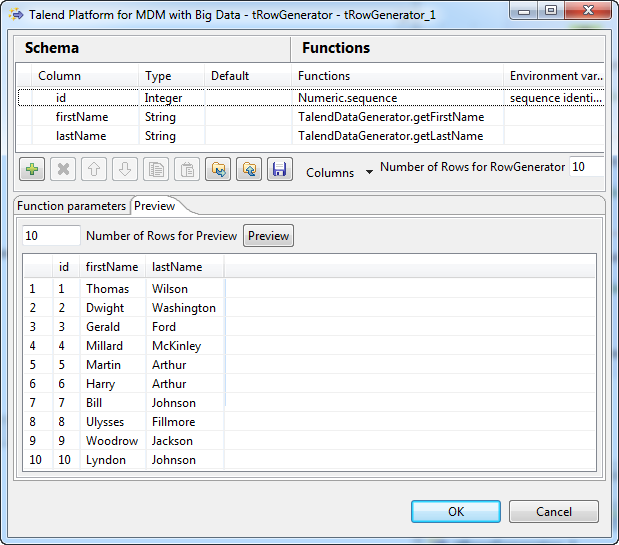
-
Add three columns as shown below to generate 10 data
rows:-
id, Integer type, using
Numeric.sequence from the
Function list to generate
sequence numbers. -
firstName, String type, using TalendDataGenerator.getFirstName from the Function list to generate random first
names. -
lastName, String type, using
TalendDataGenerator.getLastName
from the Function list to generate
random family names.
-
-
In the Basic settings view of tRowGenerator in the Component tab, click the Edit
Schema button to open the schema editor. Set the length of
the id, firstName, lastName
column to 4, 10, and
10.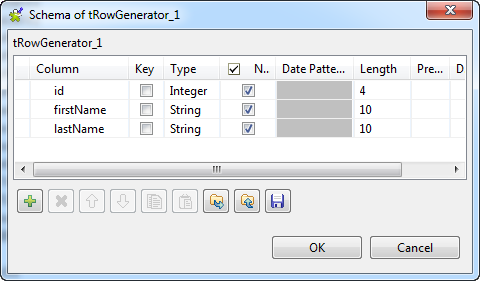 When done, click OK to close the editor
and click Yes when prompted to propagate
the schema to the next component.For more information about how to configure the tRowGenerator component, see tRowGenerator. -
Double-click tMemSQLOutput to open its Basic Settings view in the Component tab.
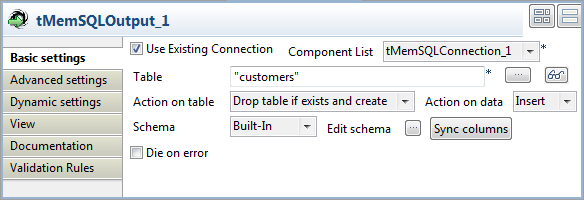
-
Select the Use Existing Connection check
box. The Component List is filled in
automatically with tMemSQLConnection_1.Fill the Table field with the database
table, customers in this example.Select Drop table if exists and create in
the Action on table list, and Insert in the Action on
table list.
Reading data from a database table
-
Double-click tMemSQLInput to open its Basic Settings view in the Component tab.
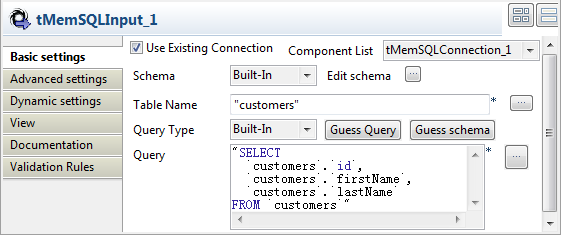
-
Select the Use Existing Connection check
box. The Component List is filled in
automatically with tMemSQLConnection_1. -
Set the Schema as Built-in and click Edit
schema to define the data structure of the database table to
read data from.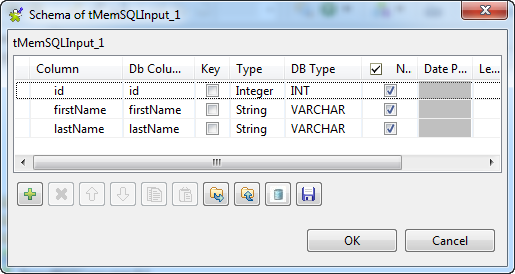 Click the [+] button to add the rows that
you will use to define the schema, three columns in this example
id, firstName, and
lastName.Under Column, click in the fields to enter the
corresponding column names.Click the field under Type to define the type of
data.Click OK to close the schema editor. -
Fill the Table field with the database
table, customers in this example.Alternatively, click the […] button
next to the Table Name field to select the
database table of interest. A dialog box opens showing a tree diagram of all
the tables in the selected database. Select customers
and click OK to close the dialog
box.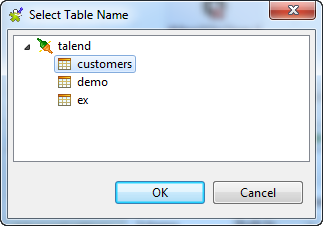
-
Set the Query Type as Built-In. Click the Guess
Query button. The Query box
is filled in automatically to retrieve all columns from the selected table.
-
Double-click tLogRow to set its Basic settings in the Component tab.
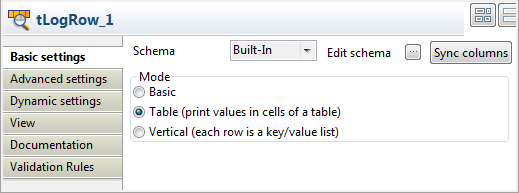
-
In the Mode area, select Table (print values in cells of a table) for a
better display of the results. - Save the Job.
Executing the Job
Press F6 to run the Job and see the results in the
console.
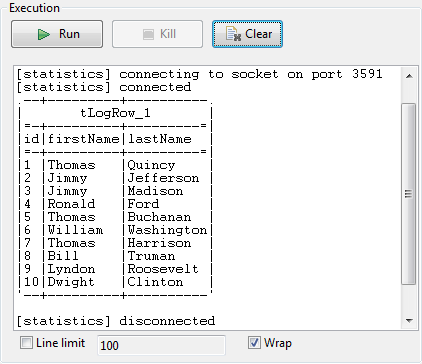
As shown above, the data with the desired column names is retrieved from the
database table.