tMysqlSCD
Reflects and tracks changes in a dedicated MySQL SCD table.
tMysqlSCD addresses Slowly Changing Dimension needs,
reading regularly a source of data and logging the changes into a dedicated SCD table.
tMysqlSCD Standard properties
These properties are used to configure tMysqlSCD running in the Standard Job framework.
The Standard
tMysqlSCD component belongs to the Business Intelligence and the Databases families.
The component in this framework is generally available.
Basic settings
|
Property type |
Either Built-in or Repository. |
|
|
Built-in: No property data stored |
|
|
Repository: Select the Repository |
|
Use an existing connection |
Select this check box and in the Component Note:
When a Job contains the parent Job and the child Job, if you need to share an
existing connection between the two levels, for example, to share the connection created by the parent Job with the child Job, you have to:
For an example about how to share a database connection across Job levels, see |
|
DB Version |
Select the Mysql version you are using. |
|
Host |
Database server IP address. |
|
Port |
Listening port number of DB server. |
|
Database |
Name of the database. |
|
Username and |
DB user authentication data. To enter the password, click the […] button next to the |
|
Table |
Name of the table to be written. Note that only one table can be |
|
Action on table |
On the table defined, you can perform one of the following
None: No operation is carried
Create a table: The table does not
Create a table if not exists: The |
|
Schema and Edit |
A schema is a row description. It defines the number of fields (columns) to Click Edit schema to make changes to the schema.
|
|
|
Built-in: The schema is created |
|
|
Repository: The schema already |
|
SCD Editor |
The SCD editor helps to build and configure the data flow for For more information, see SCD management methodology. |
|
Use memory saving mode |
Select this check box to maximize system performance. |
|
Source keys include Null |
Select this check box to allow the source key columns to have Null Warning:
Special attention should be paid to the uniqueness of the |
|
Die on error |
This check box is cleared by default, meaning to skip the row on |
Advanced settings
|
Additional JDBC Parameters |
Specify additional connection properties for the DB connection you |
|
End date time details |
Specify the time value of the SCD end date time setting in the This field appears only when SCD Type 2 is used and |
|
tStatCatcher Statistics |
Select this check box to collect log data at the component |
|
Debug mode |
Select this check box to display each step during processing |
Global Variables
|
Global Variables |
NB_LINE_UPDATED: the number of rows updated. This is an
NB_LINE_INSERTED: the number of rows inserted. This is an
NB_LINE_REJECTED: the number of rows rejected. This is an
ERROR_MESSAGE: the error message generated by the A Flow variable functions during the execution of a component while an After variable To fill up a field or expression with a variable, press Ctrl + For further information about variables, see |
Usage
|
Usage rule |
This component is used as Output component. It requires an Input |
|
Dynamic settings |
Click the [+] button to add a The Dynamic settings table is For examples on using dynamic parameters, see Scenario: Reading data from databases through context-based dynamic connections and Scenario: Reading data from different MySQL databases using dynamically loaded connection parameters. For more information on Dynamic |
SCD management methodology
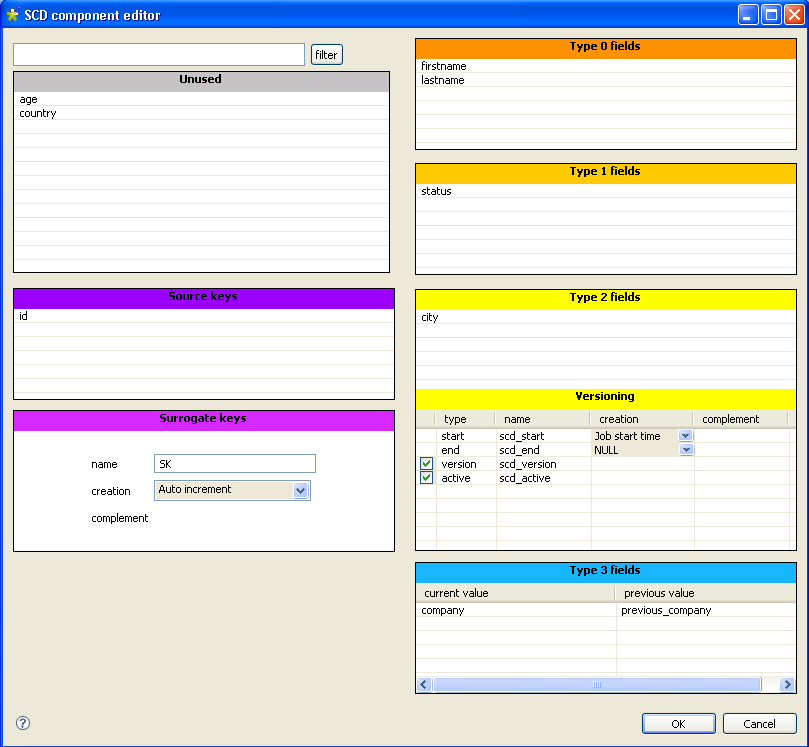
The SCD editor offers the simplest method of building the data flow for the
SCD outputs. In the SCD editor, you can map columns, select surrogate key columns, and set
column change attributes through combining SCD types. The following figure illustrates an
example of the SCD editor.
SCD keys
You must choose one or more source keys columns from the incoming data
to ensure its unicity.
You must set one surrogate key column in the dimension table and map it
to an input column in the source table. The value of the surrogate key links a record in
the source to a record in the dimension table. The editor uses this mapping to locate
the record in the dimension table and to determine whether a record is new or changing.
The surrogate key is typically the primary key in the source, but it can be an alternate
key as long as it uniquely identifies a record and its value does not change.
Source keys: Drag one or more columns from the
Unused panel to the Source keys panel to be used as the key(s) that ensure the unicity of
the incoming data.
Surrogate keys: Set the column where the
generated surrogate key will be stored. A surrogate key can be generated based on a
method selected on the Creation list.
Creation: Select any of the below methods to be
used for the key generation.
-
Auto increment: auto-incremental key.
-
Input field: key is provided in an input
field.When selected, you can drag the appropriate field from the
Unused panel to the complement field. -
Routine: from the complement field, you can press Ctrl+Space to display the autocompletion list and
select the appropriate routine. -
Table max +1: the maximum value from the
SCD table is incremented to create a surrogate key. -
DB Sequence: from the complement field, you can enter the name of the
existing database sequence that will automatically increment the column indicated
in the name field.Note that this option is only available through the SCD Editor of the tOracleSCD.
Slowly Changing Dimensions types
The Slowly Changing Dimensions support four types of changes: Type 0 through Type
3. You can apply any of the SCD types to any column in a source table by
a simple drag-and-drop operation.
-
Type 0: is not used frequently. Some
dimension data may be overwritten and other may stay unchanged over time. This is
most appropriate when no effort has been made to deal with the changing dimension
issues. -
Type 1: no history is kept in the database.
New data overwrites old data. Use this type if tracking changes is not necessary.
this is most appropriate when correcting certain typos, for example the spelling
of a name. -
Type 2: the whole history is stored in the
database. This type tracks historical data by inserting a new record in the
dimensional table with a separate key each time a change is made. This is most
appropriate to track updates, for example. -
Type 3: only the information about a
previous value of a dimension is written into the database. This type tracks
changes using separate columns. This is most appropriate to track only the
previous value of a changing column.
SCD Type 2 principle lies in the
fact that a new record is added to the SCD table when changes are detected on the
columns defined. Note that although several changes may be made to the same record on
various columns defined as SCD Type 2, only one
additional line tracks these changes in the SCD table.
The SCD schema in this type should include SCD-specific extra columns
that hold standard log information such as:
-
start: adds a column to your SCD schema to
hold the start date. You can select one of the input schema columns as a start
date in the SCD table. -
end: adds a column to your SCD schema to
hold the end date value for a record. When the record is currently active, the end
date is NULL or you can select Fixed Year Value and fill in a fictive year to
avoid having a null value in the end date field. -
version: adds a column to your SCD schema
to hold the version number of the record. -
active: adds a column to your SCD schema to
hold the true or false status value. this column helps to easily spot the active
record.
Tracking data changes using Slowly Changing Dimensions (type 0 through type 3)
and historical employee data in a MySQL table using SCD (Slowly Changing Dimensions).
The input data contains various employee details including name, age, role, and salary, and another
id column is added to help ensuring the unicity of the input
data.
At first, the following employee data is inserted to a new MySQL table using SCD:
|
1 2 3 4 5 |
id;name;age;role;salary 1;Mark Smith;30;tester;11000.00 2;Thomas Johnson;32;developer;12000.00 3;Teddy Brown;33;tester;13000.00 |
Then the table is updated using SCD with the following renewed employee data.
|
1 2 3 4 |
id;name;age;role;salary 1;Mark Smith;31;tester;11000.00 2;Thomas Johnson;32;developer;12000.00 3;Teddy Brown;33;writer;13500.00 |
You can see the age of Mark Smith is updated from
30 to 31, the role
of Teddy Brown is changed from tester to writer, and his salary is
raised from 13000.00 to 13500.00. In this scenario,
-
we don’t want to track the data changes for the name field, so we will perform Type 0 SCD on it,
-
we want the new age data to overwrite the
existing data, so we will perform Type 1 SCD on it, -
we want to retain the full history of the role
data, and always create a new record with the changed data and close the previous
record, so we will perform Type 2 SCD on it, -
we want to keep the current and previous dimension values for the salary field, so we will perform Type 3 SCD on
it.
For more information about SCD types, see SCD management methodology.
Creating a Job for tracking data changes in MySQL using SCD
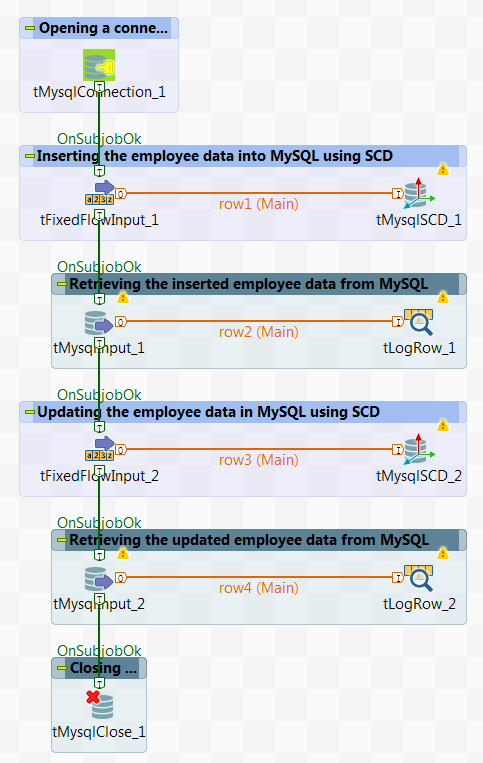
Create a Job to open a connection to a MySQL database, insert the
employee data into a MySQL database table using SCD (Slowly Changing Dimensions)
This Job retrieves
and displays the inserted data on the console, then updates the employee data in MySQL using
SCD, retrieves and displays the updated data on the console, finally closes the connection to
the MySQL database.
-
Create a new Job and add a tMysqlConnection component, two tFixedFlowInput components, two tMysqlSCD components, two tMysqlInput components, two tLogRow
components, and a tMysqlClose component by typing
their names in the design workspace or dropping them from the Palette. -
Link the first tFixedFlowInput
component to the first tMysqlSCD component using a
Row > Main
connection. - Do the same to link the first tMysqlInput component to the first tLogRow component, the second tFixedFlowInput component to the second tMysqlSCD component, and the second tMysqlInput component to the second tLogRow component.
-
Link the tMysqlConnection component to
the first tFixedFlowInput component using a
Trigger > OnSubjobOk connection. - Do the same to link the first tFixedFlowInput component to the first tMysqlInput component, the first tMysqlInput component to the second tFixedFlowInput component, the second tFixedFlowInput component to the second tMysqlInput component, and the second tMysqlInput component to the tMysqlClose component.
Opening a connection to a MySQL database
database.
-
Double-click the tMysqlConnection
component to open its Basic settings view.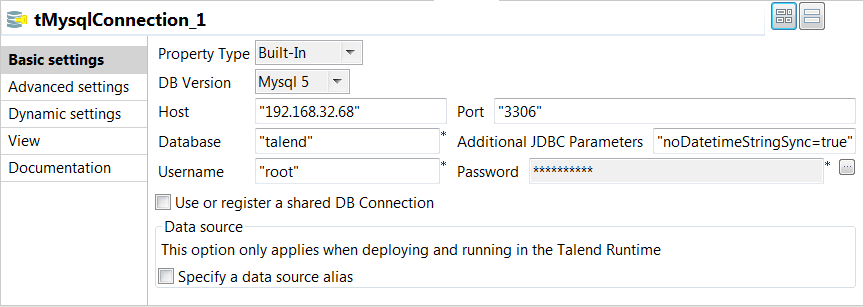
-
In the Host, Port, Database, Username, and Password
fields, enter the information required for the connection to the MySQL
database.
Inserting the employee data into a MySQL table using SCD
using SCD (Slowly Changing Dimensions).
-
Double-click the first tFixedFlowInput
component to open its Basic settings view.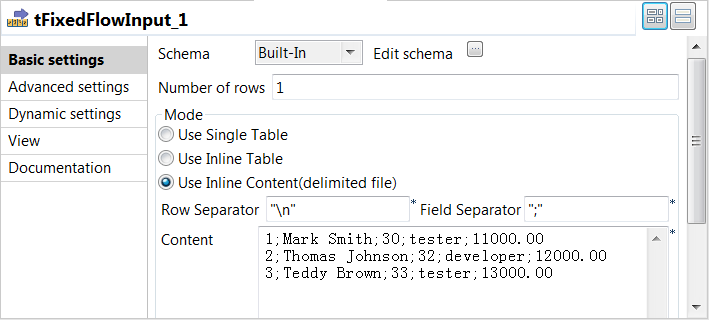
-
Click the

button next to Edit schema and
in the pop-up window define the schema by adding five columns: id and age of
Integer type, name and role of String type, and salary
of Double type.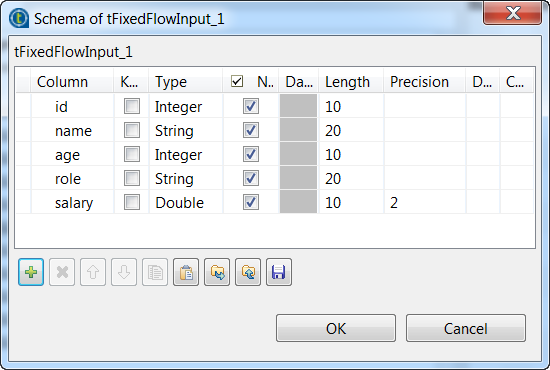 When done, click OK to save the changes. In the
pop-up dialog box, click Yes to propagate the
schema to the next component. -
In the Mode area, select Use Inline Content (delimited file). Then in the
Content field displayed, enter the following
input employee data.12341;Mark Smith;30;tester;11000.002;Thomas Johnson;32;developer;12000.003;Teddy Brown;33;tester;13000.00 -
Click the first tMysqlSCD component to
open its Basic settings view.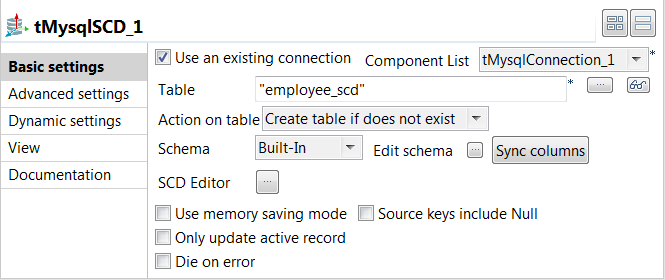
-
Select the Use an existing connection
check box and from the Component List drop-down
list displayed, select the connection component you have configured. -
In the Table field, enter the name of
employee_scd. -
Click the
button next to SCD Editor to
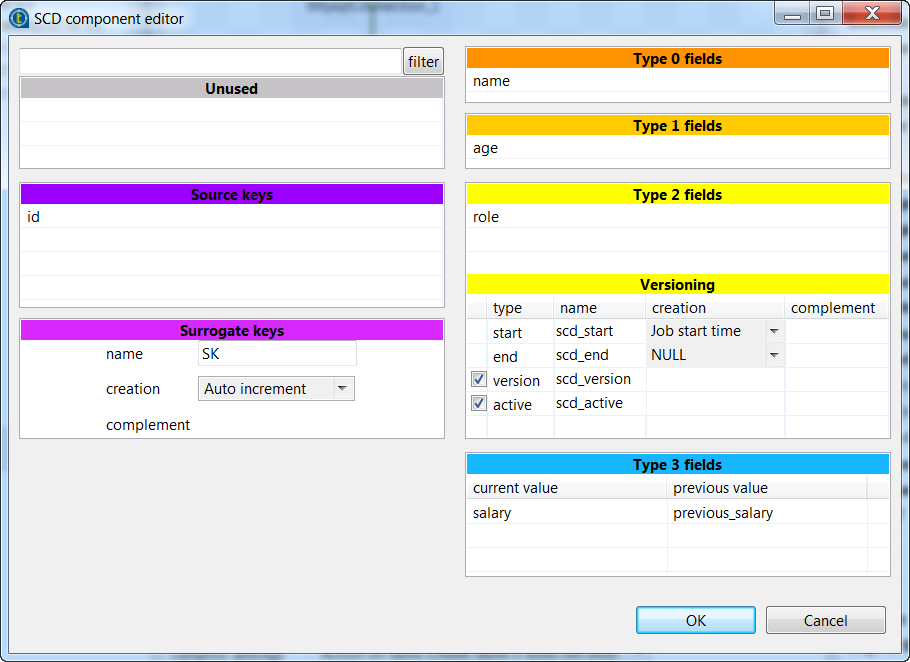
open the SCD editor. All schema columns are listed on the Unused panel. -
In the name field on the Surrogate keys panel, enter the name for the surrogate
key, SK in this example. -
From the Unused panel, drag and
drop-
id to the Source keys panel to use it as the key to
ensure the unicity of the input data, -
name to the Type
0 fields panel and no special action will be performed upon
dimension changes of it, -
age to the Type 1
fields panel to perform Type 1 SCD on it, -
role to the Type
2 fields panel to perform Type 2 SCD on it, and -
salary to the Type 3 fields panel to perform Type 3 SCD on it.
-
-
In the Versioning panel, select the
version check box to hold the version numbers
for the historical and current records in the SCD table, and select also the
active check box to add the column that will
hold the True value for the current active record
or the False value for the historical records in
the SCD table.When done, click OK to save the changes and close
the SCD editor.
Retrieving the inserted employee data from MySQL
table and display it on the console.
-
Double-click the tMysqlInput component
to open its Basic settings view.
-
Select the Use an existing connection
check box and from the Component List drop-down
list displayed, select the connection component you have configured. -
In the Table Name field, enter the
name of the table from which the employee data will be retrieved. In this example,
it is employee_scd. -
Open the schema editor of the tMysqlSCD component, select and copy all its schema columns, then
open the schema editor of the tMysqlInput
component, define its schema by pasting those schema columns you have copied from
the tMysqlSCD component. When done, click OK to save the changes. In the
pop-up dialog box, click Yes to propagate the
schema to the next component. -
Click the Guess Query button to fill
the Query field with the automatically generated
SQL query that will extract data of all columns from the specified table. -
Double-click the first tLogRow
component to open its Basic settings view. In the
Mode area, select Table
(print values in cells of a table) for better readability of the
result displayed on the console.
Updating the employee data in MySQL using SCD
Changing Dimensions).
-
Double-click the second tFixedFlowInput component to open its Basic
settings view. -
Click the
button next to Edit schema and
in the pop-up window define the schema by copying and pasting the schema of the
first tFixedFlowInput component. -
In the Mode area, select Use Inline Content (delimited file). Then in the
Content field displayed, enter the following
updated employee data.1231;Mark Smith;31;tester;11000.002;Thomas Johnson;32;developer;12000.003;Teddy Brown;33;writer;13500.00 -
Repeat 4 through
10 in the procedure Inserting the employee data into a MySQL table using SCD to configure the second tMysqlSCD component.
Retrieving the updated employee data from MySQL
Configure the second tMysqlInput component and the second tLogRow component to retrieve the updated employee data from the MySQL SCD
table and display it on the console.
-
Repeat 1 through
5 in the procedure Retrieving the inserted employee data from MySQL to configure the second tMysqlInput component. -
Repeat 6 in the procedure
Retrieving the inserted employee data from MySQL to configure the second
tLogRow component.
Closing the connection to the MySQL database
component to close the connection to the MySQL database.
-
Double-click the tMysqlClose component
to open its Basic settings view. -
From the Component List drop-down
list, select the connection component that opens the connection you want to close.
In this example, it is tMysqlConnection_1.
Executing the Job to track data changes in MySQL using SCD
the Job for tracking data changes in MySQL using SCD, you can then execute the Job and
verify the Job execution result.
- Press Ctrl + S to save the Job.
-
Press F6 to execute the Job.
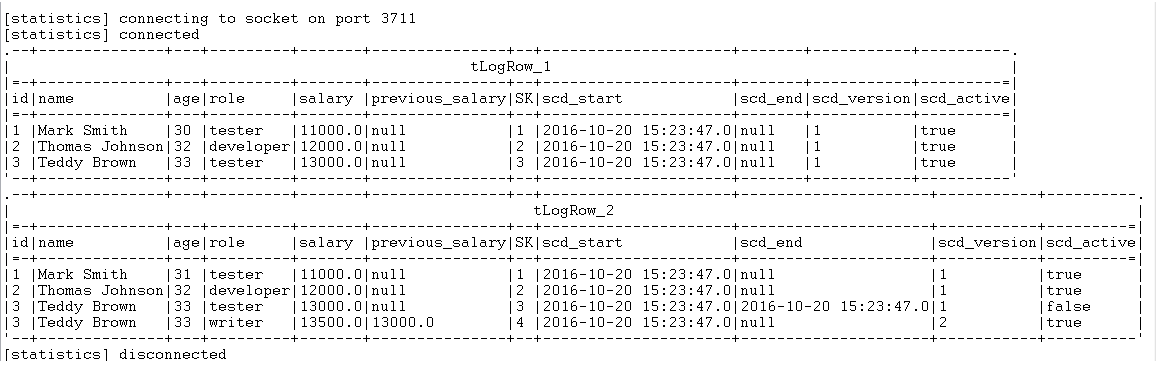 As shown above, the new age data 31 for Mark Smith
the old age data 30, a new record with the SK value set to 4 is created for
the role change for Teddy
Brown from tester to writer, and the values of the previous salary and the
current salary for Teddy Brown are both kept in
the newly created record.