tOracleSP
Calls an Oracle database stored procedure.
tOracleSP offers a convenient way to
centralize multiple or complex queries in a database and call them easily.
tOracleSP Standard properties
These properties are used to configure tOracleSP running in the Standard Job framework.
The Standard
tOracleSP component belongs to the Databases family.
The component in this framework is generally available.
Basic settings
|
Use an existing connection |
Select this check box and in the Component Note:
When a Job contains the parent Job and the child Job, if you need to share an
existing connection between the two levels, for example, to share the connection created by the parent Job with the child Job, you have to:
For an example about how to share a database connection across Job levels, see |
|
Connection type |
Drop-down list of available drivers:
Oracle OCI: Select this connection
Oracle Service Name: Select this
Oracle SID: Select this connection
Oracle Custom: Select this |
|
Property type |
Either Built-in or |
|
|
Built-in: No property data stored |
|
|
Repository: Select the repository |
|
DB Version |
Select the Oracle version in use. |
|
Host |
Database server IP address. |
|
Port |
Listening port number of DB server. |
|
Database |
Name of the database. |
|
Schema |
Name of the schema. |
|
Username and |
DB user authentication data. To enter the password, click the […] button next to the |
|
Schema and Edit |
A schema is a row description, it defines the number of fields to Click Edit schema to make changes to the schema.
|
|
|
Built-In: You create and store the |
|
|
Repository: You have already created |
|
SP Name |
Type in the exact name of the Stored Procedure (or |
|
Is Function / Return result |
Select this check box, if the stored procedure is a function and Select on the list the schema column, the value to be returned is |
|
Parameters |
Click the Plus button and select the various Schema Columns that will be required by the |
|
|
Select the Type of IN: Input parameter.
OUT: Output parameter/return
IN OUT: Input parameter is to be
RECORDSET: Input parameters is to Note:
Check Scenario: Inserting data in mother/daughter tables if you want to analyze a set |
|
|
The Custom Type is used when a – Select the check box in the Custom Type – If all listed Schema Columns |
|
|
Select a database type from the DB
– Auto-Mapping: Map the source
– CLOB: Character large – BLOB: Binary large object.
– DECIMAL: Decimal numeric – NUMERIC: Character 0 to 9.
– XMLTYPE: XML schema Warning:
When mapping a column selected from the Return result in list box or set to the IN or |
|
|
In the second Custom Type column, – STRUCT: used for one element. – ARRAY: used for a collection |
|
|
In the Custom name column, Warning:
When an OUT parameter uses the custom type, make sure |
| Specify a data source alias |
Select this check box and specify the alias of a data source created on the |
Advanced settings
|
Additional JDBC parameters |
Specify additional connection properties for the DB connection you |
|
NLS Language |
In the list, select the language used for the data that are not |
|
NLS Territory |
Select the conventions used for date and time formats. The default |
|
tStatCatcher Statistics |
Select this check box to gather the job processing metadata at a |
Usage
|
Usage rule |
This component is used as intermediary component. It can be used |
|
Dynamic settings |
Click the [+] button to add a The Dynamic settings table is For examples on using dynamic parameters, see Scenario: Reading data from databases through context-based dynamic connections and Scenario: Reading data from different MySQL databases using dynamically loaded connection parameters. For more information on Dynamic |
|
Limitation |
The Stored Procedures syntax should match the Database When the parameters set in this component are of Custom Type, the tJava family components should be placed before the |
Scenario: Checking number format using a stored procedure
The following job aims at connecting to an Oracle Database containing Social Security
Numbers and their holders’ name, calling a stored procedure that checks the SSN format
of against a standard ###-##-#### format. Then the verification output results, 1 for
valid format and 0 for wrong format get displayed onto the execution console.

-
Drag and drop the following components from the Palette: tOracleConnection,
tOracleInput, tOracleSP and tLogRow. -
Link the tOracleConnection to the tOracleInput using a Then
Run connection as no data is handled here. -
And connect the other components using a Row
Main link as rows are to be passed on as parameter to the SP
component and to the console. -
In the tOracleConnection, define the details
of connection to the relevant Database. You will then be able to reuse this
information in all other DB-related components. -
Then select the tOracleInput and define its
properties.

-
Select the Use an existing connection check
box and select the tOracleConnection component
in the list in order to reuse the connection details that you already
set. -
Select Repository as Property type as the Oracle schema is defined in the DB Oracle
connection entry of the Repository. If you haven’t recorded the Oracle DB
details in the Repository, then fill in the
Schema name manually. -
Then select Repository as Schema, and retrieve the relevant schema
corresponding to your Oracle DB table.

-
In this example, the SSN table has a four-column schema that includes
ID, NAME,
CITY and SSNUMBER. -
In the Query field, type in the following
Select query or select it in the list, if you stored it in the
Repository.select ID, NAME, CITY, SSNUMBER from SSN -
Then select the tOracleSP and define its
Basic settings.

-
Like for the tOracleInput component, select
Repository in the Property type field and select the Use an
existing connection check box, then select the relevant entries
in the respective list. -
The schema used for the tOracleSP slightly
differs from the input schema. Indeed, an extra column
(SSN_Valid) is added to the Input schema. This column
will hold the format validity status (1 or
0) produced by the procedure.

-
In the SP Name field, type in the exact name
of the stored procedure (or function) as called in the Database. In this use
case, the stored procedure name is is_ssn. -
The basic function used in this particular example is as follows:
123456789101112CREATE OR REPLACE FUNCTION is_ssn(string_in VARCHAR2)RETURN PLS_INTEGERIS-- validating ###-##-#### formatBEGINIF TRANSLATE(string_in, '0123456789A', 'AAAAAAAAAAB') ='AAA-AA-AAAA' THENRETURN 1;END IF;RETURN 0;END is_ssn;/ -
As a return value is expected in this use case, the procedure acts as a
function, so select the Is function check box. -
The only return value expected is based on the ssn_valid
column, hence select the relevant list entry. -
In the Parameters area, define the input and
output parameters used in the procedure. In this use case, only the
SSNumber column from the schema is used in the
procedure. -
Click the plus sign to add a line to the table and select the relevant column
(SSNumber) and type (IN). -
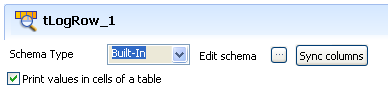
Then select the tLogRow component and click
Sync Column to make sure the schema is passed on from the preceding tOracleSP component.
-
Select the Print values in cells of a table
check box to facilitate the output reading. -
Then save your job and press F6 to run it.

On the console, you can read the output results. All input schema columns are
displayed even though they are not used as parameters in the stored procedure.
The final column shows the expected return value, whether the SS Number checked is
valid or not.
Check Scenario: Inserting data in mother/daughter tables if you want to analyze a set of records from a
database table or DB query and return single records.