tPigSort
tPigSort Standard properties
These properties are used to configure tPigSort running in the Standard Job framework.
The Standard
tPigSort component belongs to the Big Data and the Processing families.
The component in this framework is available when you are using one of the Talend solutions with Big Data.
Basic settings
|
Schema and Edit |
A schema is a row description. It defines the number of fields (columns) to Click Edit schema to make changes to the schema.
|
|
|
Built-in: The schema will be |
|
|
Repository: The schema already |
|
Sort key |
Click the Add button beneath the |
Advanced settings
|
Increase parallelism |
Select this check box to set the number of reduce tasks for the |
|
tStatCatcher Statistics |
Select this check box to gather the Job processing metadata at the |
Global Variables
|
Global Variables |
ERROR_MESSAGE: the error message generated by the A Flow variable functions during the execution of a component while an After variable To fill up a field or expression with a variable, press Ctrl + For further information about variables, see |
Usage
|
Usage rule |
This component is commonly used as intermediate step together with |
|
Prerequisites |
The Hadoop distribution must be properly installed, so as to guarantee the interaction
For further information about how to install a Hadoop distribution, see the manuals |
|
Limitation |
Knowledge of Pig scripts is required. |
Scenario: Sorting data in ascending order
This scenario applies only to a Talend solution with Big Data.
This scenario describes a three-component Job that sorts rows of data based on one or
more sorting conditions and stores the result into a local file.

Setting up the Job
-
Drop the following components from the Palette to the design workspace: tPigSort, tPigLoad,
tPigStoreResult. -
Connect tPigLoad to tPigFilterRow using a Row > Pig
Combine connection. -
Connect tPigFilterRow to tPigStoreResult using a Row
> Pig Combine connection.
Loading the data
-
Double-click tPigLoad to open its
Basic settings view.
-
Click the […] button next to Edit schema to add columns for tPigLoad.

-
Click the [+] button to add
Name, Country and
Age and click OK
to save the setting. - Select Local from the Mode area.
-
Fill in the Input filename field with the
full path to the input file.In this scenario, the input file is CustomerList
that contains rows of names, country names and age. - Select PigStorage from the Load function list.
- Leave rest of the settings as they are.
Setting the sorting condition
-
Double-click tPigSort to open its
Basic settings view.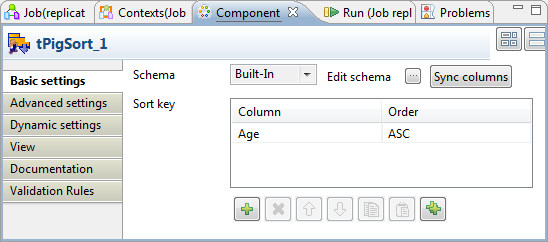
-
Click Sync columns to retrieve the schema
structure from the preceding component. -
Click the [+] button beneath the
Sort key table to add a new sort key.
Select Age from the Column list and select ASC
from the Order list.This sort key will sort the data in CustomerList in
ascending order based on Age.
Saving the data to a local file
-
Double-click tPigStoreResult to open its
Basic settings view.
-
Click Sync columns to retrieve the schema
structure from the preceding component. -
Select Remove result directory if
exists. -
Fill in the Result file field with the
full path to the result file.In this scenario, the result of filter is saved in
Lucky_Customer file. - Select PigStorage from the Store function list.
- Leave rest of the settings as they are.
Executing the Job
Save your Job and press F6 to run it.
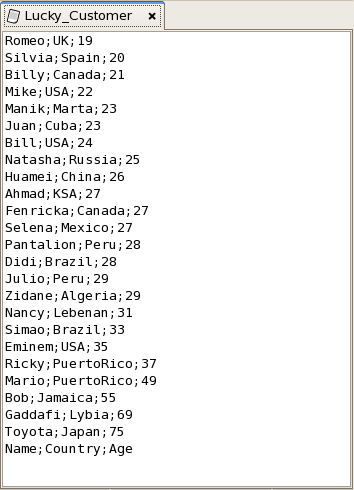
The Lucky_Customer file is generated containing the data in
ascending order based on Age.