tRedshiftInput
Reads data from a database and extracts fields based on a query so that you may
apply changes to the extracted data.
tRedshiftInput executes a DB query
with a strictly defined order which must correspond to the schema
definition. Then it passes on the field list to the next component
through a Main row link.
Depending on the Talend solution you
are using, this component can be used in one, some or all of the following Job
frameworks:
-
Standard: see tRedshiftInput Standard properties.
The component in this framework is generally available.
-
Spark Batch: see tRedshiftInput properties for Apache Spark Batch.
The component in this framework is available only if you have subscribed to one
of the
Talend
solutions with Big Data.
tRedshiftInput Standard properties
These properties are used to configure tRedshiftInput running in the Standard Job framework.
The Standard
tRedshiftInput component belongs to the Cloud and the Databases families.
The component in this framework is generally available.
Basic settings
|
Property type |
Either Built-in or Repository |
|
|
Built-in: No property data stored |
|
|
Repository: Select the repository |
|
|
Click this icon to open a database connection wizard and store the For more information about setting up and storing database connection |
|
Use an existing connection |
Select this check box and in the Component Note:
When a Job contains the parent Job and the child Job, if you need to share an
existing connection between the two levels, for example, to share the connection created by the parent Job with the child Job, you have to:
For an example about how to share a database connection across Job levels, see |
|
Host |
Hostname or IP address of the database server. |
|
Port |
Listening port number of the database server. |
|
Database |
Name of the database. |
|
Schema |
Exact name of the schema. |
|
Username and Password |
Database user authentication data. To enter the password, click the […] button next to the |
|
Additional JDBC Parameters |
Specify additional JDBC properties for the connection you are creating. The |
|
Schema and Edit |
A schema is a row description. It defines the number of fields (columns) to This component offers the This dynamic schema |
|
|
Built-In: You create and store the |
|
|
Repository: You have already created |
|
|
Click Edit schema to make changes to the schema.
|
|
Table Name |
Name of the table from which the data will be read. |
|
Query Type and Query |
Enter your database query paying particularly attention to sequence
If using the dynamic schema feature, the SELECT |
|
Guess Query |
Click the Guess Query button to |
|
Guess schema |
Click the Guess schema button to |

Advanced settings
|
Log file |
Specify the path to the log file to be generated during the data Note that if the logging information needs to be saved and this |
|
Logging level |
Select a logging level from the drop-down list to specify which kind |
|
Use cursor |
Select this check box to help to decide the row set to work with at a |
|
Trim all the String/Char columns |
Select this check box to remove leading and trailing whitespace from |
|
Trim column |
Remove leading and trailing whitespace from defined columns. |
|
tStatCatcher Statistics |
Select this check box to collect log data at the component |
Global Variables
|
Global Variables |
NB_LINE: the number of rows processed. This is an After
QUERY: the query statement being processed. This is a Flow
ERROR_MESSAGE: the error message generated by the A Flow variable functions during the execution of a component while an After variable To fill up a field or expression with a variable, press Ctrl + For further information about variables, see |
Usage
|
Usage rule |
This component covers all possible SQL queries for Amazon Redshift |
|
Dynamic settings |
Click the [+] button to add a The Dynamic settings table is For examples on using dynamic parameters, see Scenario: Reading data from databases through context-based dynamic connections and Scenario: Reading data from different MySQL databases using dynamically loaded connection parameters. For more information on Dynamic |
|
Limitation |
Due to license incompatibility, one or more JARs required to use this component are not |
Scenario: Handling data with Redshift
This scenario describes a Job that writes the personal information into Redshift, then
retrieves the information in Redshift and displays it on the console.
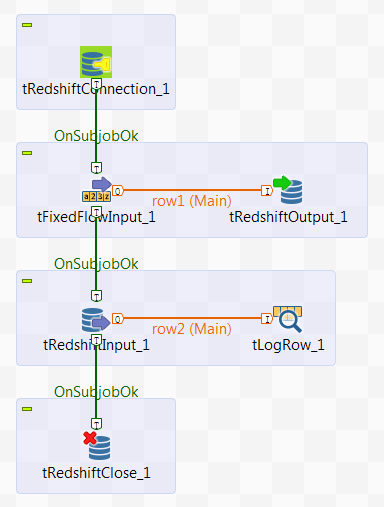
The scenario requires the following six components:
-
tRedshiftConnection: opens a connection to
Redshift. -
tFixedFlowInput: defines the personal
information data structure, and sends the data to the next component. -
tRedshiftOutput: writes the data it receives
from the preceding component into Redshift. -
tRedshiftInput: reads the data from
Redshift. -
tLogRow: displays the data it receives from
the preceding component on the console. -
tRedshiftClose: closes the connection to
Redshift.
Dropping and linking the components
- Drop the six components listed previously from the Palette onto the design workspace.
-
Connect tFixedFlowInput to tRedshiftOutput using a Row > Main
connection. -
Connect tRedshiftInput to tLogRow also using a Row > Main
connection. -
Connect tRedshiftConnection to tFixedFlowInput using a Trigger > OnSubjobOk
connection. -
Connect tFixedFlowInput to tRedshiftInput and tRedshiftInput to tRedshiftClose also using a Trigger > OnSubjobOk
connection.
Configuring the components
Opening a connection to Redshift
-
Double-click tRedshiftConnection to open
its Basic settings view.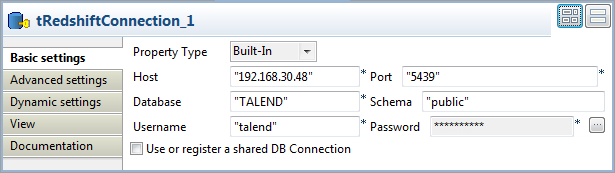
-
Select Built-In from the Property Type drop-down list.
In the Host, Port, Database, Schema, Username, and Password fields,
enter the information required for the connection to Redshift. -
In Advanced settings view, select
Auto Commit check box to commit any
changes to Redshift upon each transaction.
Defining the input data
-
Double-click tFixedFlowInput to open its
Basic settings view.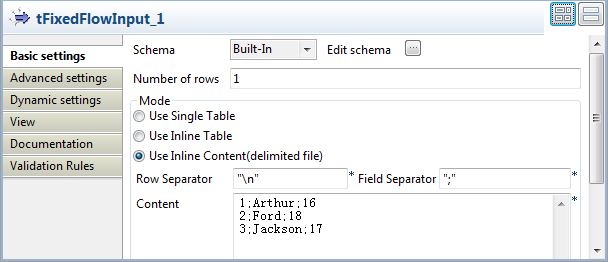
-
Click the […] button next to Edit schema to open the schema editor.
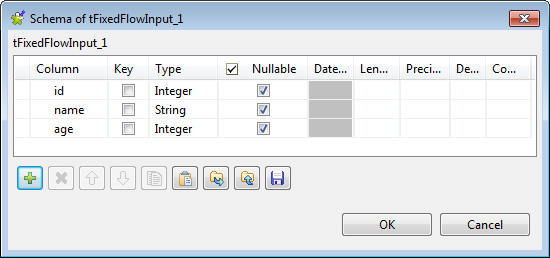
-
In the schema editor, click the [+]
button to add three columns: id of the
interger type, name of the string type,
and age of the integer type. -
Click OK to validate the changes and
accept the propagation prompted by the pop-up [Propagate] dialog box. -
In the Mode area, select Use Inline Content (delimited file) and enter the
following personal information in the Content field.1231;Arthur;162;Ford;183;Jackson;17
Writing the data into Redshift
-
Double-click tRedshiftOutput to open its
Basic settings view.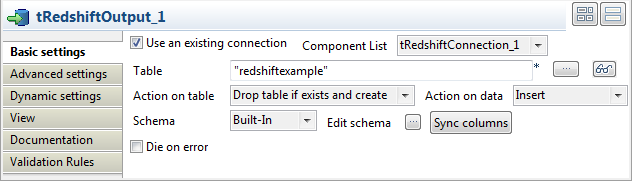
-
Select the Use an existing connection
check box, and then select the connection you have already configured for
tRedshiftConnection from the Component List drop-down list. -
In the Table field, enter or browse to
the table into which you want to write the data, redshiftexample in this scenario. -
Select Drop table if exists and create
from the Action on table drop-down list,
and select Insert from the Action on data drop-down list. -
Click Sync columns to retrieve the schema
from the preceding component tFixedFlowInput.
Retrieving the data from Redshift
-
Double-click tRedshiftInput to open its
Basic settings view.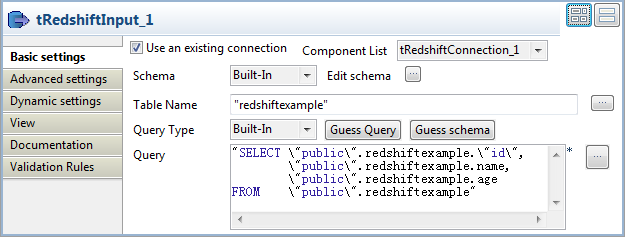
-
Select the Use an existing connection
check box, and then select the connection you have already configured for
tRedshiftConnection from the Component List drop-down list. - Click the […] button next to Edit schema to open the schema editor.
-
In the schema editor, click the [+]
button to add three columns: id of the
interger type, name of the string type,
and age of the integer type. The data
structure is same as the structure you have defined for tFixedFlowInput. -
Click OK to validate the changes and
accept the propagation prompted by the pop-up [Propagate] dialog box. -
In the Table Name field, enter or browse
to the table into which you write the data, redshiftexample in this scenario. -
Click the Guess Query button to generate
the query. The Query field will be filled
with the automatically generated query.
Displaying the defined information
-
Double-click tLogRow to open its
Basic settings view.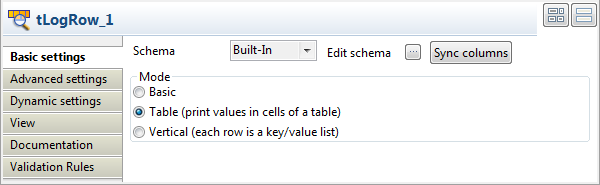
-
In the Mode area, select Table (print values in cells of a table) for a
better view of the results.
Closing the connection to Redshift
-
Double-click tRedshiftClose to open its
Basic settings view.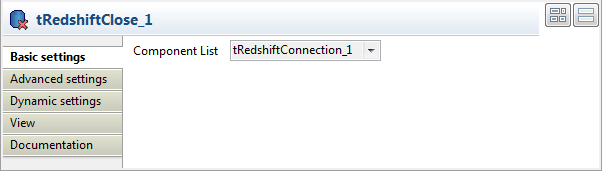
-
From Component List, select the
connection you have already configured for tRedshiftConnection.
Saving and executing the Job
- Press Ctrl+S to save the Job.
-
Press F6 to execute the Job.
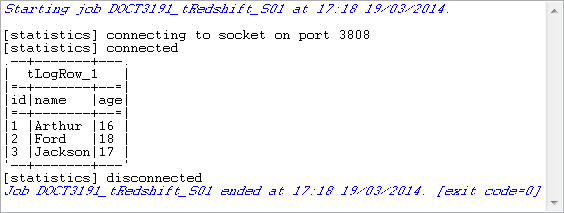 The personal information is written to the specified target Redshift
database, and then the data is retrieved from the database and displayed on
the console.
tRedshiftInput properties for Apache Spark Batch
These properties are used to configure tRedshiftInput running in the Spark Batch Job framework.
The Spark Batch
tRedshiftInput component belongs to the Databases family.
The component in this framework is available only if you have subscribed to one
of the
Talend
solutions with Big Data.
Basic settings
|
Property type |
Either Built-In or Repository. Built-In: No property data stored centrally.
Repository: Select the repository file where the |
|
|
Click this icon to open a database connection wizard and store the database connection For more information about setting up and storing database connection parameters, see |
|
Use an existing connection |
Select this check box and in the Component |
|
Host |
Enter the endpoint of the database you need to connect to in Redshift. |
|
Port |
Enter the port number of the database you need to connect to in Redshift. The related information can be found in the Cluster Database Properties area in the Web For further information, see Managing clusters console. |
|
Username and Password |
Enter the authentication information to the Redshift database you need to connect To enter the password, click the […] button next to the |
|
Database |
Enter the name of the database you need to connect to in Redshift. The related information can be found in the Cluster Database Properties area in the Web For further information, see Managing clusters console. |
|
Schema |
Enter the name of the database schema to be used in Redshift. The default schema is called A schema in terms of Redshift is similar to a operating system directory. For further |
|
Additional JDBC Parameters |
Specify additional JDBC properties for the connection you are creating. The |
|
S3 configuration |
Select the tS3Configuration component You need drop the tS3Configuration |
|
S3 temp path |
Enter the location in S3 in which the data to be transferred from or to This path is independent of the temporary path you need to set in the |
|
Schema and Edit |
A schema is a row description. It defines the number of fields (columns) to |
|
|
Built-In: You create and store the |
|
|
Repository: You have already created |
|
|
Click Edit schema to make changes to the schema.
|
|
Table name |
Enter the name of the table from which the data will be read. |
|
Read from |
Select the type of the source of the data to be read.
|
|
Query Type and Query |
Specify the database query statement paying particularly attention to the |
|
Guess Query |
Click the Guess Query button to |
Advanced settings
|
Trim all the String/Char columns |
Select this check box to remove leading whitespace and trailing |
|
Trim column |
This table is filled automatically with the schema being used. Select the check |
Usage
|
Usage rule |
This component is used as a start component and requires an output link.. This component should use a tRedshiftConfiguration This component, along with the Spark Batch component Palette it belongs to, appears only Note that in this documentation, unless otherwise |
|
Spark Connection |
You need to use the Spark Configuration tab in
the Run view to define the connection to a given Spark cluster for the whole Job. In addition, since the Job expects its dependent jar files for execution, you must specify the directory in the file system to which these jar files are transferred so that Spark can access these files:
This connection is effective on a per-Job basis. |
Related scenarios
For a scenario about how to use the same type of component in a Spark Batch Job, see Writing and reading data from MongoDB using a Spark Batch Job.