tReservoirSampling
Extracts a random sample data from a big data set.
tReservoirSampling extracts a
sample from the input data set in such a way that profiling results on the sample data are
uniform and homogeneous with the profiling results on the full data set.
Depending on the Talend solution you
are using, this component can be used in one, some or all of the following Job
frameworks:
-
Standard: see tReservoirSampling Standard properties.
The component in this framework is available when you have subscribed to one of
the Talend Platform products or Talend Data
Fabric. -
Spark Batch: see tReservoirSampling properties for Apache Spark Batch.
The component in this framework is available when you have subscribed to any Talend Platform product with Big Data or Talend Data
Fabric.
tReservoirSampling Standard properties
These properties are used to configure tReservoirSampling running in the Standard Job framework.
The Standard
tReservoirSampling component belongs to the Data Quality family.
The component in this framework is available when you have subscribed to one of
the Talend Platform products or Talend Data
Fabric.
Basic settings
|
Schema and Edit schema |
A schema is a row description. It defines the number of fields (columns) to Click Sync columns to retrieve the schema from |
|
|
Built-In: You create and store the |
|
|
Repository: You have already created |
|
Sample Size |
Set how many rows to sample from the input flow. |
Advanced settings
|
Seed for random generator |
Set a random number if you want to extract the same sample in different Repeating the execution with a different value for the seed will result in a Keep this field empty if you want to extract a different data sample each time |
|
tStat |
Select this check box to collect log data at the component |
Usage
|
Usage rule |
This component helps you to test profiling analyses on a sample data and have
tReservoirSampling can not |
Scenario: Extracting sample data from an input data set
This scenario applies only to a subscription-based Talend Platform solution or Talend Data Fabric.
This scenario describes a basic Job that extracts sample data from an input flow.
Below is a capture of the input flow:

Setting up the Job
-
Drop the following components from the Palette onto
the design workspace: tFileInputDelimited, tReservoirSampling and tFileOutputDelimited.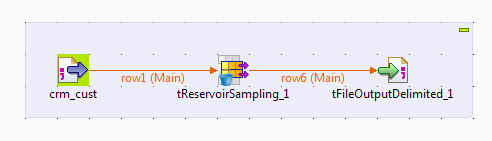
-
Connect all the components together using the Row
> Main link.
Configuring the input data
-
Double-click tFileInputDelimited to display the
Basic settings view and define the component
properties.
-
In the File name/Stream field, browse to the file
to be used as the main input.This file provides some information about customers. -
Define the row and field separators and the header and footer in the corresponding
fields, if any. -
Click the […] button next to Edit schema to open a dialog box and define the input schema.
In this example, according to the input file structure, the schema is made of ten
columns.
-
Click the [+] button and define the input columns
in the dialog box as in the above figure. Click OK to
close the dialog box. -
If needed, right-click tFileInputDelimited and
select Data Viewer to display a view of the input
data.
Configuring the sample data
-
Double-click tReservoirSampling to display the
Basic settings view and define the component
properties.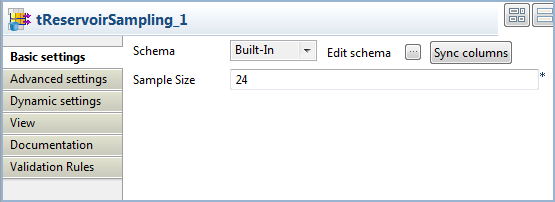
-
Click the Edit schema button to view the input and
output columns and do any modifications in the output schema, if needed.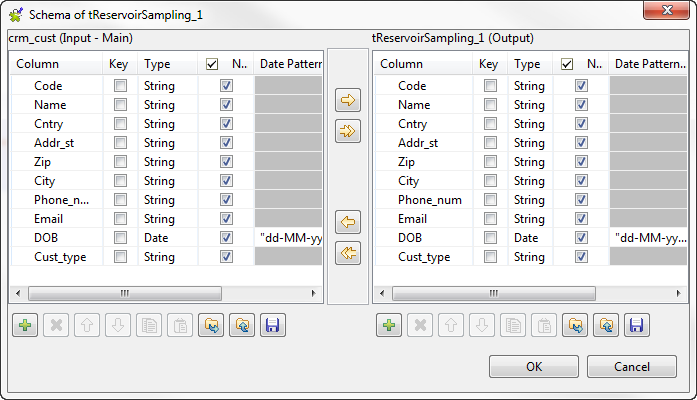
-
In the Sample Size field, enter a number for the
rows you want to extract from the input flow, 24 in this example. -
Click the Advanced settings tab and enter a random
number in the Seed for random generator field.By setting a number in this field, you will extract the same sample in each
execution of the Job. Change the value if you want to extract a different sample.
Configuring the output component
-
Double-click tFileOutputDelimited to display its
Basic settings view and define the component
properties.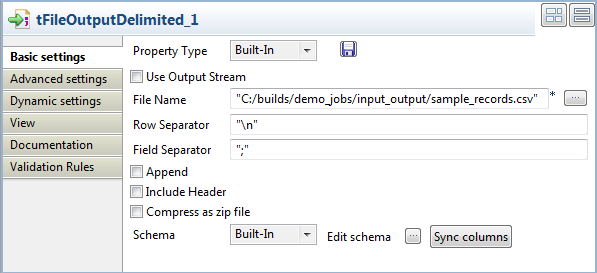
-
In the File Name field, specify the path to the
file to which you want to write the sample data. - Define the row and field separators in the corresponding fields, if any.
Executing the Job
-
Save your Job and press F6 to execute it.
The sample data is extracted and written to the output file.
-
Right-click the output component and select Data
Viewer to display the extracted data.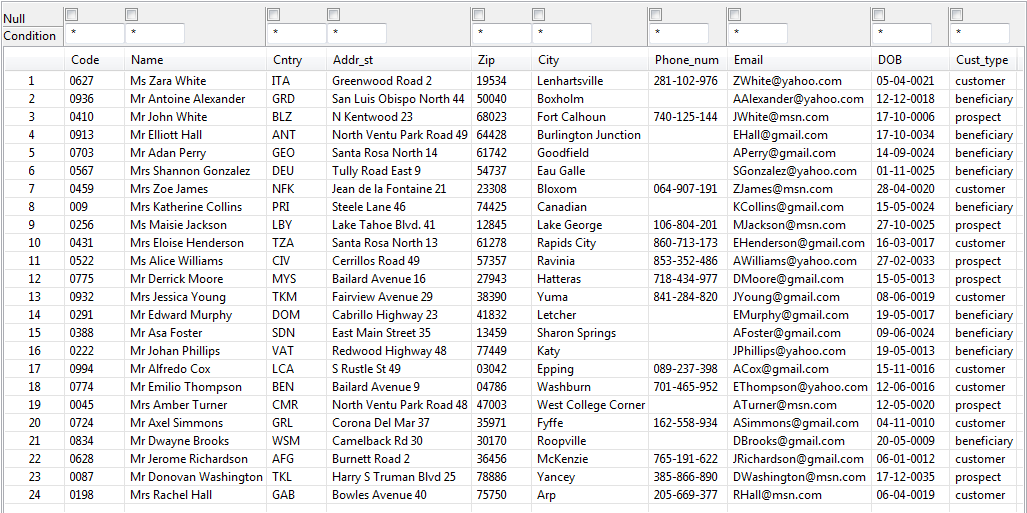 24 records have been extracted from the input file as you defined in the tReservoirSampling component settings. The Code column indicates that data has not been extracted
sequentially from the input file. Data has been extracted in a way that any profiling
results on the sample data will be close to the profiling results on the full data
set.
tReservoirSampling properties for Apache Spark Batch
These properties are used to configure tReservoirSampling running in the Spark Batch Job framework.
The Spark Batch
tReservoirSampling component belongs to the Data Quality family.
The component in this framework is available when you have subscribed to any Talend Platform product with Big Data or Talend Data
Fabric.
Basic settings
|
Schema and Edit schema |
A schema is a row description. It defines the number of fields (columns) to Click Sync columns to retrieve the schema from |
|
|
Built-In: You create and store the |
|
|
Repository: You have already created |
|
Sample Size |
Set how many rows to sample from the input flow. |
Advanced settings
|
Seed for random generator |
Set a random number if you want to extract the same sample in different executions Repeating the execution with a different value for the seed will result in a Keep this field empty if you want to extract a different data sample each time you |
Usage
|
Usage rule |
This component is used as an intermediate step. This component, along with the Spark Batch component Palette it belongs to, appears only Note that in this documentation, unless otherwise |
|
Spark Connection |
You need to use the Spark Configuration tab in
the Run view to define the connection to a given Spark cluster for the whole Job. In addition, since the Job expects its dependent jar files for execution, you must specify the directory in the file system to which these jar files are transferred so that Spark can access these files:
This connection is effective on a per-Job basis. |
Related scenarios
No scenario is available for the Spark Batch version of this component
yet.