tRowGenerator
Creates an input flow in a Job for testing purposes, in particular for boundary
test sets.
tRowGenerator generates as many rows and fields as are required
using random values taken from a list.
Depending on the Talend solution you
are using, this component can be used in one, some or all of the following Job
frameworks:
The tRowGenerator Editor opens up on a separate window
made of two parts: a Schema definition panel at the top of the window and a Function
definition and preview panel at the bottom.
-
Standard: see tRowGenerator Standard properties.
The component in this framework is generally available.
-
MapReduce: see tRowGenerator MapReduce properties.
The component in this framework is available only if you have subscribed to one
of the
Talend
solutions with Big Data. -
Spark Batch:
see tRowGenerator properties for Apache Spark Batch.The component in this framework is available only if you have subscribed to one
of the
Talend
solutions with Big Data. -
Spark Streaming:
see tRowGenerator properties for Apache Spark Streaming.The component in this framework is available only if you have subscribed to Talend Real-time Big Data Platform or Talend Data
Fabric. -
Storm: see tRowGenerator Storm properties.
The component in this framework is available only if you have subscribed to Talend Real-time Big Data Platform or Talend Data
Fabric.
tRowGenerator Standard properties
These properties are used to configure tRowGenerator running in
the Standard Job framework.
The Standard
tRowGenerator component belongs to the Misc family.
The component in this framework is generally available.
Basic settings
|
Schema and Edit |
A schema is a row description. It defines the number of fields (columns) to Click Edit schema to make changes to the schema.
|
|
|
Built-In: You create and store the |
|
|
Repository: You have already created |
|
RowGenerator editor |
The editor allows you to define the columns and the nature of Note that in a Storm Job, the value -1 |
Advanced settings
|
tStatCatcher Statistics |
Select this check box to collect log data at the component |
Global Variables
|
Global Variables |
NB_LINE: the number of rows processed. This is an After
ERROR_MESSAGE: the error message generated by the A Flow variable functions during the execution of a component while an After variable To fill up a field or expression with a variable, press Ctrl + For further information about variables, see |
Usage
|
Usage rule |
The tRowGenerator |
Defining the schema
First you need to define the structure of data to be generated.
-
Add as many columns to your schema as needed, using the plus (+) button.
-
Type in the names of the columns to be created in the Columns area and select the Key check box if required
-
Make sure you define then the nature of the data contained in the column,
by selecting the Type in the list.
According to the type you select, the list of Functions offered will differ. This information is therefore
compulsory.
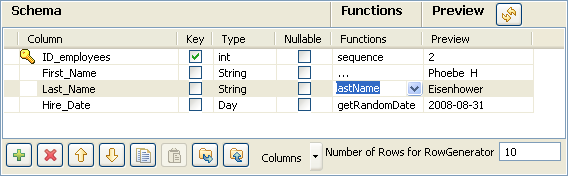
-
Some extra information, although not required, might be useful such as
Length, Precision or Comment. You
can also hide these columns, by clicking on the Columns drop-down button next to the toolbar, and unchecking
the relevant entries on the list. -
In the Function area, you can select the
predefined routine/function if one of them corresponds to your needs.You can
also add to this list any routine you stored in the Routine area of the Repository. Or you can type in the function you want to use
in the Function definition panel. Related
topic: see
Talend Studio User Guide. -
Click Refresh to have a preview of the
data generated. -
Type in a number of rows to be generated. The more rows to be generated,
the longer it’ll take to carry out the generation operation.
Defining the function
Select the […] under Function in the Schema definition panel in order to customize the
function parameters.
-
Select the Function parameters tab
-
The Parameter area displays Customized parameter as function name
(read-only)
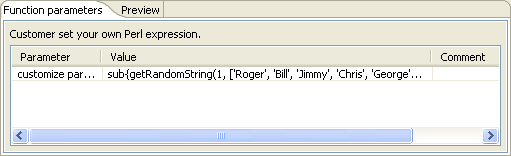
-
In the Value area, type in the Java
function to be used to generate the data specified. -
Click on the Preview tab and click
Preview to check out a sample of the
data generated.
Scenario: Generating random java data
The following scenario creates a two-component Job, generating 50 rows structured as
follows: a randomly picked-up ID in a 1-to-3 range, a random ascii First Name and Last
Name generation and a random date taken in a defined range.

-
Drop a tRowGenerator and a tLogRow component from the Palette to the design workspace.
-
Right-click tRowGenerator and select
Row > Main. Drag this main row link onto the tLogRow component and release when the plug symbol
displays. -
Double click tRowGenerator to open the
Editor. -
Define the fields to be generated.

-
The random ID column is of integer type, the First and Last names are of
string type and the Date is of date type. -
In the Function list, select the relevant
function or set on the three dots for custom function. -
On the Function parameters tab, define the
Values to be randomly picked up.

-
First_Name and Last_Name columns are
to be generated using the getAsciiRandomString function that is predefined in
the system routines. By default the length defined is 6 characters long. You can
change this if need be. -
The Date column calls the predefined getRandomDate
function. You can edit the parameter values in the Function parameters tab. -
Set the Number of Rows to be generated to
50. -
Click OK to validate the setting.
-
Double click tLogRow to view the Basic
settings. The default setting is retained for this Job. -
Press F6 to run the Job.

The 50 rows are generated following the setting defined in the tRowGenerator editor and the output is displayed in the Run console.
tRowGenerator MapReduce properties
These properties are used to configure tRowGenerator running in
the MapReduce Job framework.
The MapReduce
tRowGenerator component belongs to the Misc family.
The component in this framework is available only if you have subscribed to one
of the
Talend
solutions with Big Data.
Basic settings
|
Schema and Edit |
A schema is a row description. It defines the number of fields (columns) to Click Edit schema to make changes to the schema.
|
|
|
Built-In: You create and store the |
|
|
Repository: You have already created |
|
RowGenerator editor |
The editor allows you to define the columns and the nature of Note that in a Storm Job, the value -1 |
Advanced settings
|
tStatCatcher Statistics |
Select this check box to collect log data at the component |
Global Variables
|
Global Variables |
ERROR_MESSAGE: the error message generated by the A Flow variable functions during the execution of a component while an After variable To fill up a field or expression with a variable, press Ctrl + For further information about variables, see |
Usage
|
Usage rule |
The tRowGenerator In a You need to use the Hadoop Configuration tab in the This connection is effective on a per-Job basis. For further information about a Note that in this documentation, unless otherwise |
Related scenarios
No scenario is available for the Map/Reduce version of this component yet.
tRowGenerator properties for Apache Spark Batch
These properties are used to configure tRowGenerator running in the Spark Batch Job framework.
The Spark Batch
tRowGenerator component belongs to the Misc family.
The component in this framework is available only if you have subscribed to one
of the
Talend
solutions with Big Data.
Basic settings
|
Define a storage configuration |
Select the configuration component to be used to provide the configuration If you leave this check box clear, the target file system is the local The configuration component to be used must be present in the same Job. For |
|
Schema and Edit |
A schema is a row description. It defines the number of fields (columns) to Click Edit schema to make changes to the schema.
The schema of tRowGenerator does not support |
|
|
Built-In: You create and store the |
|
|
Repository: You have already created |
|
RowGenerator editor |
The editor allows you to define the columns and the nature of data to |
Usage
|
Usage rule |
This component is used as a start component and requires an output link.. This component, along with the Spark Batch component Palette it belongs to, appears only Note that in this documentation, unless otherwise |
|
Spark Connection |
You need to use the Spark Configuration tab in
the Run view to define the connection to a given Spark cluster for the whole Job. In addition, since the Job expects its dependent jar files for execution, you must specify the directory in the file system to which these jar files are transferred so that Spark can access these files:
This connection is effective on a per-Job basis. |
Related scenarios
No scenario is available for the Spark Batch version of this component
yet.
tRowGenerator properties for Apache Spark Streaming
These properties are used to configure tRowGenerator running in
the Spark Streaming Job framework.
The Spark Streaming
tRowGenerator component belongs to the Misc family.
The component in this framework is available only if you have subscribed to Talend Real-time Big Data Platform or Talend Data
Fabric.
Basic settings
|
Schema and Edit |
A schema is a row description. It defines the number of fields (columns) to Click Edit schema to make changes to the schema.
|
|
|
Built-In: You create and store the |
|
|
Repository: You have already created |
|
RowGenerator editor |
The editor allows you to define the columns and the nature of The value -1 in the Number of rows for RowGenerator field in the |
|
Input repetition interval (ms) |
Enter the time interval (in milliseconds) at the end of which |
Usage
|
Usage rule |
This component is used as a start component and requires an output link.. This component, along with the Spark Streaming component Palette it belongs to, appears Note that in this documentation, unless otherwise explicitly stated, a scenario presents |
|
Spark Connection |
You need to use the Spark Configuration tab in
the Run view to define the connection to a given Spark cluster for the whole Job. In addition, since the Job expects its dependent jar files for execution, you must specify the directory in the file system to which these jar files are transferred so that Spark can access these files:
This connection is effective on a per-Job basis. |
Related scenarios
No scenario is available for the Spark Streaming version of this component
yet.
tRowGenerator Storm properties
These properties are used to configure tRowGenerator running in
the Storm Job framework.
The Storm
tRowGenerator component belongs to the Misc family.
The component in this framework is available only if you have subscribed to Talend Real-time Big Data Platform or Talend Data
Fabric.
Basic settings
|
Schema and Edit |
A schema is a row description. It defines the number of fields (columns) to Click Edit schema to make changes to the schema.
|
|
|
Built-In: You create and store the |
|
|
Repository: You have already created |
|
RowGenerator editor |
The editor allows you to define the columns and the nature of Note that in a Storm Job, the value -1 |
Advanced settings
|
tStatCatcher Statistics |
Select this check box to collect log data at the component |
Usage
|
Usage rule |
The tRowGenerator In a The Storm version does not support the use of the global variables. You need to use the Storm Configuration tab in the This connection is effective on a per-Job basis. For further information about a Note that in this documentation, unless otherwise explicitly stated, a scenario presents |
Related scenarios
No scenario is available for the Storm version of this component
yet.